18. Cargas de oportunidad de GX
18.1. Introducción
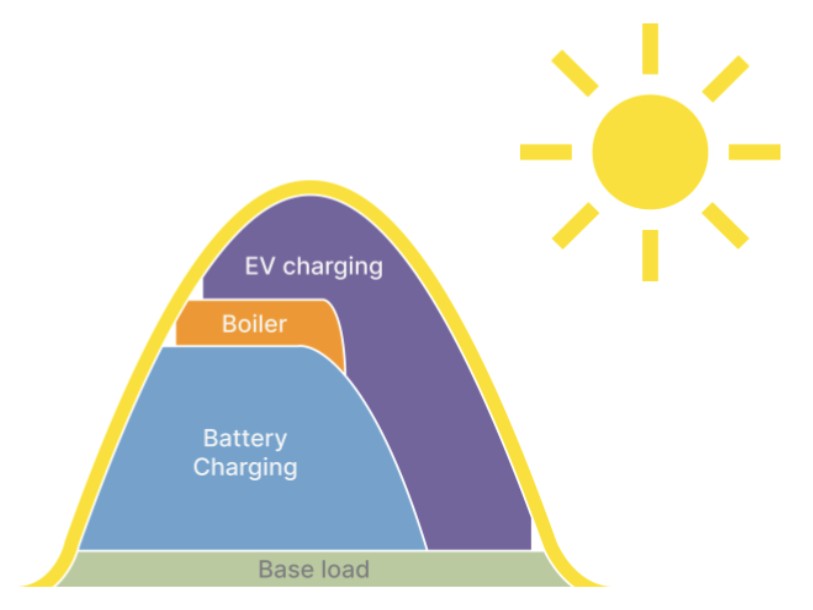
La función Cargas de oportunidad aumenta el autoconsumo dirigiendo automáticamente el exceso de energía solar a cargas CA flexibles. Cuando la batería está suficientemente cargada y la producción FV supera el consumo doméstico, el dispositivo GX actúa como coordinador de energía a nivel de sistema y activa, ajusta o deshabilita las cargas controlables en función del excedente disponible en ese momento, en vez de limitar la producción o inyectar energía a la red con un beneficio económico limitado.
Actualmente la función acepta dos tipos de dispositivos controlables: Estaciones de carga de vehículos eléctricos de Victron y relés inteligentes de Shelly. Pueden usarse juntos o por separado y se controlan de forma coordinada para evitar que compitan por el mismo excedente de energía.
A diferencia de la automatización con temporizador o basada en un horario, Cargas de oportunidad reacciona de forma continua en condiciones de tiempo real: Producción FV, estado de la batería, consumo doméstico y capacidad disponible del inversor.
Un enfoque centralizado permite distribuir el exceso de energía de forma inteligente entre varios dispositivos (p. ej.: varias estaciones de carga EV y varias cargas controladas por Shelly), evitando la inestabilidad que resulta de controladores de excedentes independientes que compiten por la misma energía disponible.
Algunos ejemplos típicos de uso son: carga de vehículos eléctricos, calderas de agua, almacenamiento térmico, bombas de piscina y otras cargas CA no críticas que pueden funcionar con flexibilidad sin comprometer la comodidad.
Esta función se adapta especialmente bien a instalaciones ESS, sistemas náuticos de autocaravanas, instalaciones aisladas remotas y cualquier sistema con limitaciones a la exportación y baja compensación por la inyección a la red.
 |
18.2. Requisitos del sistema
Dispositivo GX
Se necesita uno de los siguientes dispositivos GX con Venus OS v3.80 o posterior:
Ekrano GX
Cerbo GX
Nucleo GX
MultiPlus-II GX
EasySolar-II GX
Nota
Las cargas de oportunidad solo están disponibles en la nueva interfaz de usuario. La interfaz de usuario clásica no es compatible.
Sistema de inversor/cargador
Se requiere una de las siguientes plataformas de inversor/cargador:
MultiPlus / MultiPlus-II
Quattro / Quattro-II
Multi RS / Multi RS Solar
Multi RS19 / Multi HS19
Sistema de baterías
Se necesita un sistema de baterías con una de las siguientes opciones de monitorización:
Lynx Smart BMS de Victron
VE.Bus BMS de Victron
SmartShunt o BMV Smart de Victron (mediante VE.Direct)
BMS de terceros compatibles (mediante CAN bus)
Sistema fotovoltaico (FV)
Se aceptan los sistemas acoplados a CA y a CC. Algunas fuentes de FV aceptadas son:
Cargadores solares MPPT de Victron (conectados a VE.Direct o VE.Can)
Multi RS Solar (en modo inversor FV)
Inversores FV CA de terceros monitorizados mediante SunSpec (Ethernet) o un contador de energía de Victron (p. ej.: VM-3P75CT).
Nota
Se necesita monitorización de toda la producción FV para un funcionamiento correcto.
Tipos de cargas aceptadas
Cargas de oportunidad solo controla cargas CA. No se admiten cargas CC.
Dispositivos Victron Energy:
EV Charging Station, EV Charging Station NS
EV Charging Station V2, EV Charging Station NS V2
Dispositivos Shelly:
Dispositivos Shelly (Gen2+ con control por relé y medición de energía):
Shelly Plus Plug S
Shelly Plug S MTR Gen3
Shelly Mini 1PM Gen4
Shelly 1PM Gen3/Gen4
Shelly Pro 1PM
Shelly Pro 4PM
Aviso
Esta lista no es exhaustiva, se aceptan otros dispositivos. No obstante, se sabe que los de la lista funcionan.
Se pueden aceptar otros dispositivos en futuras versiones de Venus OS.
18.3. Configuración
En este capítulo se describe cómo habilitar y configurar Cargas de oportunidad y dispositivos controlables en un dispositivo GX.
18.3.1. Configuración de las preferencias de oportunidades de carga
Vaya a: Configuración → Configuración del sistema → Cargas de oportunidad → Preferencias | 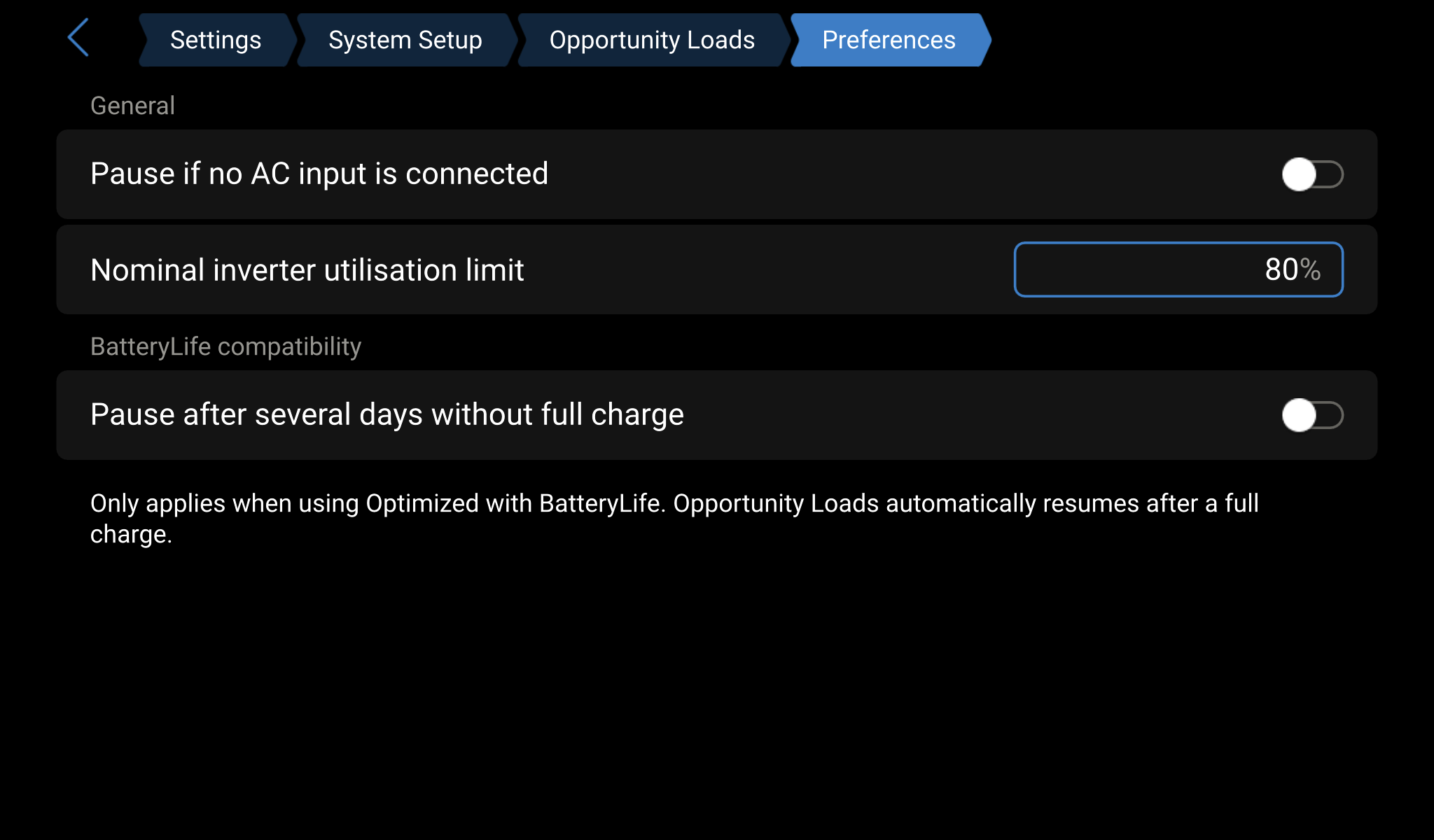 |
Detener si no hay ninguna entrada CA conectada
Si está habilitada, la función Cargas de oportunidad se detiene cuando no hay una fuente de entrada de CA conectada. Esto es útil en sistemas auxiliares en los que, durante un corte de suministro, solo deben permanecer activas las cargas esenciales. Si está deshabilitada (por defecto), se desconectan las cargas controladas todo lo posible en condiciones de pérdida de entrada de CA para contribuir a la estabilidad del sistema. Después de un minuto aproximadamente, se pueden reanudar las cargas de oportunidad si hay suficiente excedente disponible.
Límite nominal de utilización del inversor
Define el máximo nivel de potencia continua que el inversor/cargador debería prever para atender a las cargas básicas y a las controladas. La carga básica se resta de este valor y entonces Cargas de oportunidad habilita cargas adicionales hasta el margen restante. La FV CA se usa siempre hasta el 100 % independientemente de este ajuste.
Esto ayuda a evitar la sobrecarga del inversor, mantiene un margen para picos de consumo repentinos y mejora la estabilidad en condiciones de FV fluctuante. En sistemas conectados a la red, no limita la capacidad del inversor de inyectar a la red.
Ejemplo: Con un límite del 80 % en un sistema de 6.500 W, el algoritmo prevé un máximo de 5,2 kW. Con una carga básica de 2 kW, hasta 3,2 kW disponibles para cargas controladas. Si hay 4 kW de FV CA adicionales, se puede contar con hasta 7,2 kW para cargas de oportunidad.
Detener tras varios días sin carga completa
Importante para sistemas ESS que usen Optimizado con BatteryLife. Cuando se alcanza el límite del estado de carga activo de BatteryLife, las cargas de oportunidad se detienen para dar prioridad a la carga de la batería y mejorar la probabilidad de que la batería se recupere hasta un estado de carga saludable. El funcionamiento se reanuda automáticamente después de una carga completa.
18.3.2. Organización de las prioridades del dispositivo
Vaya a: Configuración → Configuración del sistema → Cargas de oportunidad | 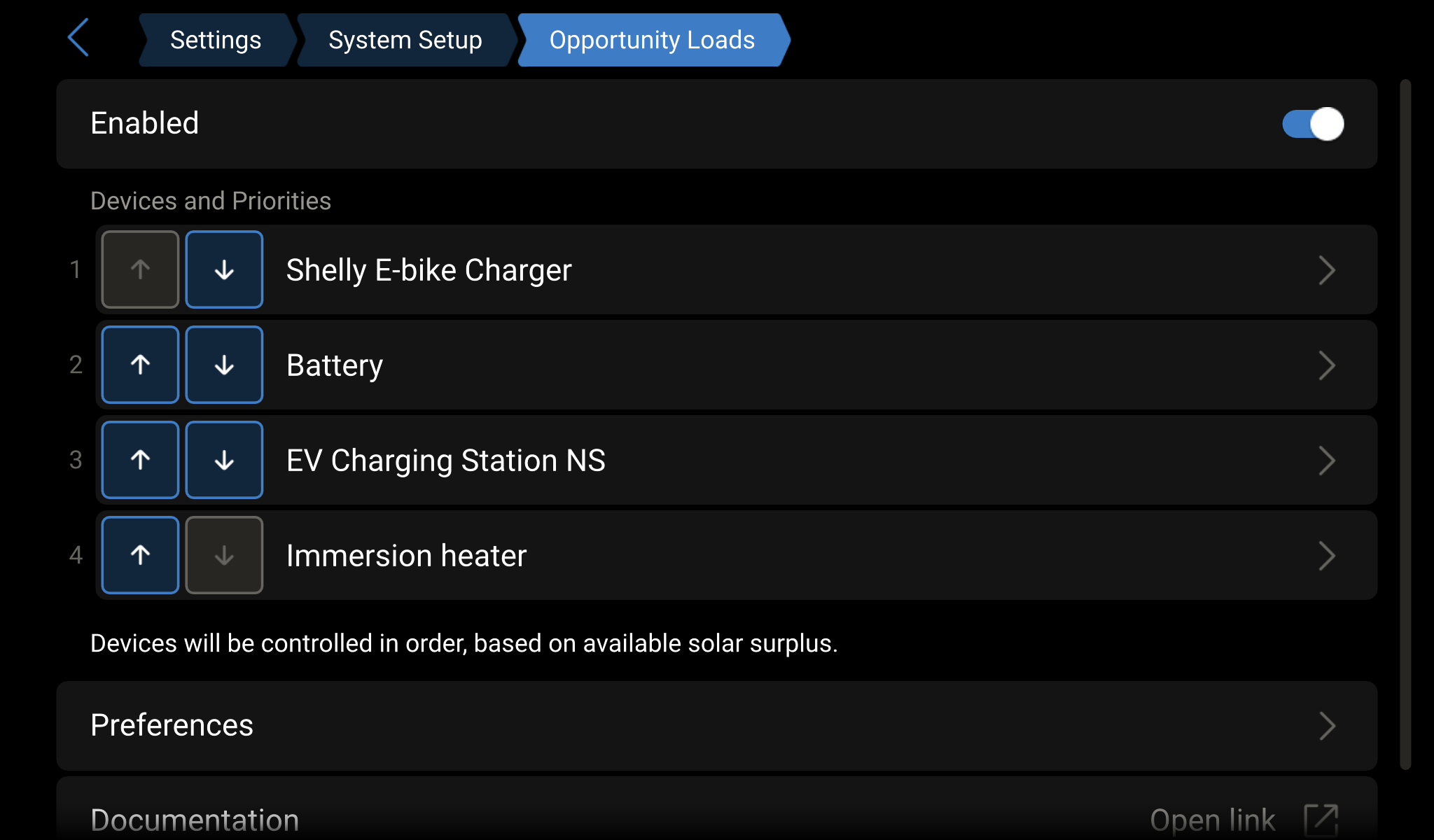 |
Cando se configuran varias cargas controlables, las prioridades determinan cómo se reparte el exceso de energía. Los dispositivos se organizan en una lista de prioridades (siendo el primero de la lista el de mayor prioridad) que se puede ajustar con los botones arriba/abajo del resumen de Cargas de oportunidad.
Prioridad con respecto a la batería
Cada una de las cargas se sitúa por encima o por debajo de la batería en la lista de prioridades:
Por encima de la batería: la carga puede activarse en cuanto haya exceso FV disponible suficiente, incluso si la batería aún se está cargando. Adecuado para cargas que deben tener preferencia para consumir la energía solar disponible.
Por debajo de la batería: la carga se activa solo después de que se hayan satisfecho las necesidades de carga de la batería y siga habiendo excedente disponible.
Mejor opción teniendo en cuenta la prioridad
Si el excedente disponible es insuficiente para la carga de más prioridad, el sistema puede activar temporalmente una carga más pequeña de menor prioridad en su lugar. Una vez que hay suficiente excedente disponible para la carga de más prioridad, el sistema vuelve a las preferencias originales, y es posible que apague la carga de menor prioridad. De este modo se garantiza que el exceso de energía nunca se queda sin usar, al tiempo que se da preferencia a las cargas de mayor prioridad siempre que las condiciones lo permitan.
Ejemplo: Una carga de 3.000 W tiene mayor prioridad, pero solo hay un excedente de 1.200 W disponible. Una carga de menor prioridad de 1.000 W funciona temporalmente. Cuando el excedente llega a 3.000 W, el sistema pasa a la carga de más prioridad.
También pueden funcionar varias cargas a la vez si hay suficiente excedente disponible. El dispositivo GX reequilibra continuamente las cargas activas según cambian las condiciones.
18.3.3. Configuración de ajustes relacionados con la batería
Vaya a: Configuración → Configuración del sistema → Cargas de oportunidad → Batería | 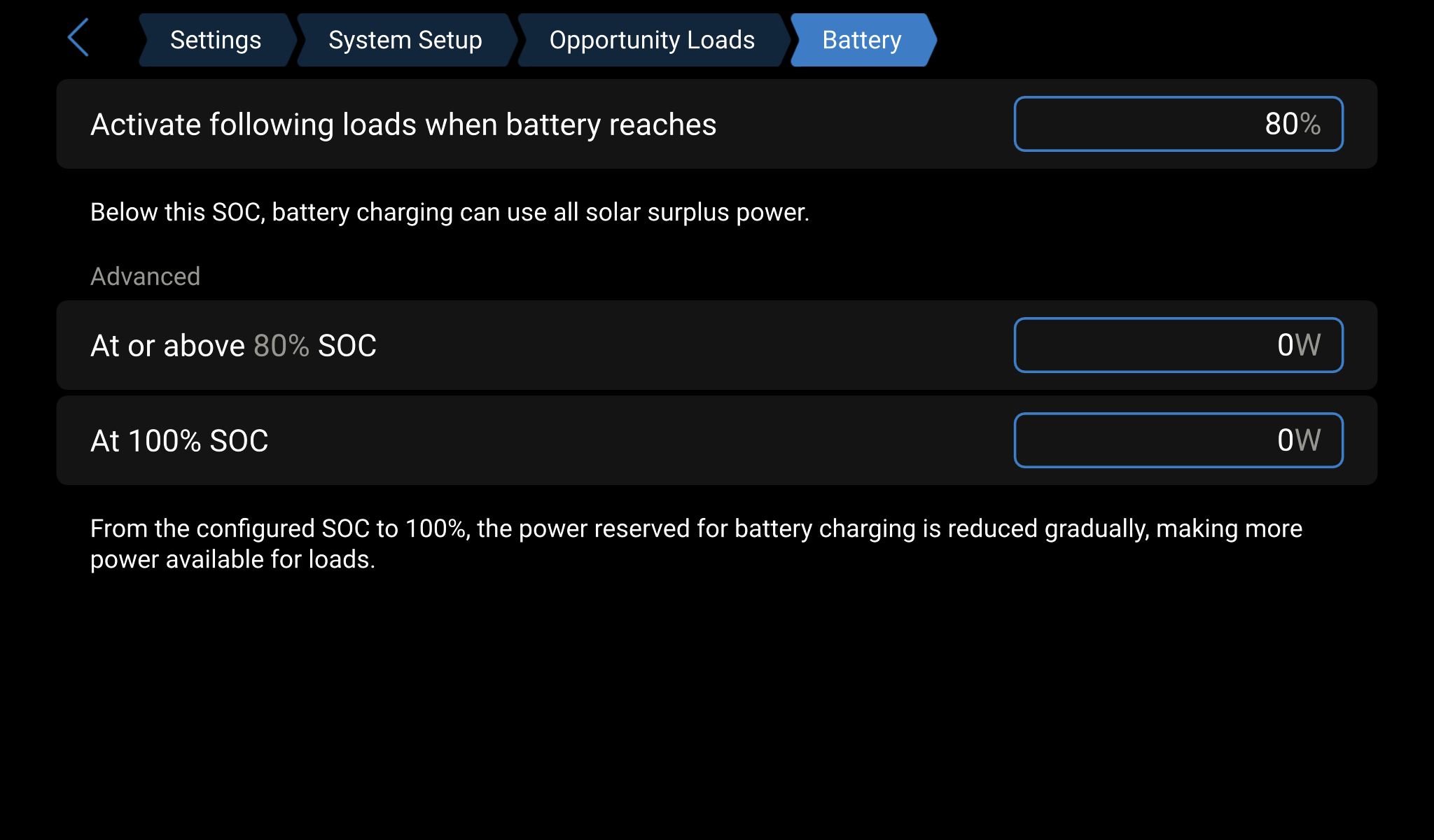 |
Activar las siguientes cargas cuando la batería alcance
Define el umbral del estado de carga a partir del que las cargas de menor prioridad (por debajo de la batería) pueden empezar a usar el excedente de energía solar. Por debajo de este umbral, solo funcionarán las cargas que estén por encima de la batería, el resto de la energía solar disponible se usa para cargar la batería.
Nota
Si la producción FV supera la capacidad de carga de la batería, Cargas de oportunidad puede activar cargas de menor prioridad incluso por debajo del umbral de estado de carga configurado. Para esto se necesita un monitor de baterías compatible que informe del límite de corriente de carga en tiempo real.
Reserva para cargar la batería
Se pueden configurar dos valores de energía de reserva: uno igual o superior al umbral del estado de carga establecido en Activar las siguientes cargas cuando la batería alcance y otro al 100 % del estado de carga. La energía de carga reservada se ajusta gradualmente entre estos dos puntos, dando mayor prioridad a la batería a niveles de estado de carga más bajos y poniendo más excedente a disposición de las cargas de oportunidad a medida que aumenta el estado de carga.
Ejemplo: Reservar 2.000 W al 80 % del estado de carga y 100 W al 100 % del estado de carga, Esto mantiene un comportamiento de carga saludable, garantiza que la batería alcanza la carga completa con regularidad y maximiza la utilización de energía solar a niveles altos de estado de carga.
18.4. Estaciones de carga de vehículos eléctricos
Las estaciones de carga de vehículos eléctricos de Victron pueden configurarse como cargas de oportunidad y ajustarán dinámicamente su potencia de carga en función del excedente de energía solar disponible.
18.4.1. Requisitos
Si la estación de carga de vehículos eléctricos se había conectado previamente con el antiguo método Modbus TCP, debe migrarse en primer lugar a la nueva integración MQTT antes de usarse con Cargas de oportunidad. Véase en la guía de migración de MQTT para estaciones de carga de vehículos eléctricos el firmware necesario y la guía de migración.
Para que Cargas de oportunidad tome el control de una sesión de carga se deben cumplir todas las condiciones siguientes:
La estación de carga de vehículos eléctricos está conectada al dispositivo GX mediante emparejamiento MQTT
La función Cargas de oportunidad está habilitada
La estación de carga de vehículos eléctricos está en modo automático
Hay un vehículo eléctrico conectado y listo para cargarse
O bien el Arranque automático está habilitado en la estación de carga de vehículos eléctricos o bien el usuario ha activado Permitir la carga en el dispositivo GX o ha pulsado Arrancar desde la interfaz web de la estación de carga de vehículos eléctricos o VictronConnect.
18.4.2. Carga con el excedente integrado en la estación de carga de vehículos eléctricos vs. Cargas de oportunidad
La estación de carga de vehículos eléctricos tiene su propio algoritmo de carga con excedente integrado que funciona de forma independiente con parámetros procedentes del dispositivo GX. La función Cargas de oportunidad, por el contrario, coordina de forma centralizada todos los dispositivos configurados (varias unidades de estaciones de carga de vehículos eléctricos y cargas Shelly, entre otros), evitando que controladores independientes compitan por la misma energía disponible.
Fuente del modo automático indica cuál de los dos, interno (estación de cargas EV) o externo (Cargas de oportunidad), está controlando la estación de carga en ese momento. | 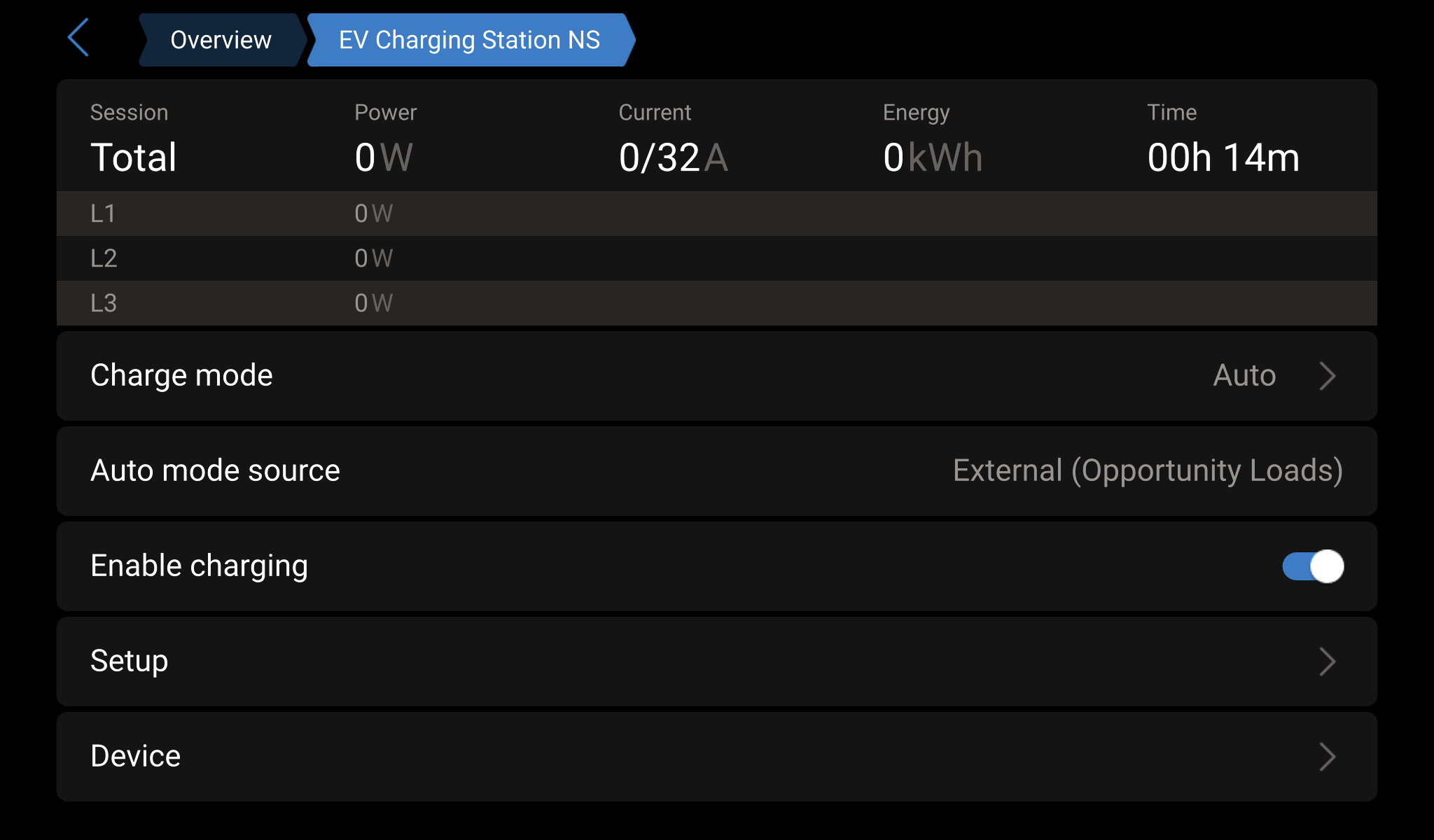 |
18.4.3. Configuración de la estación de carga de vehículos eléctricos
Vaya a: Configuración → Configuración del sistema → Cargas de oportunidad → Estación de carga de vehículos eléctricos | 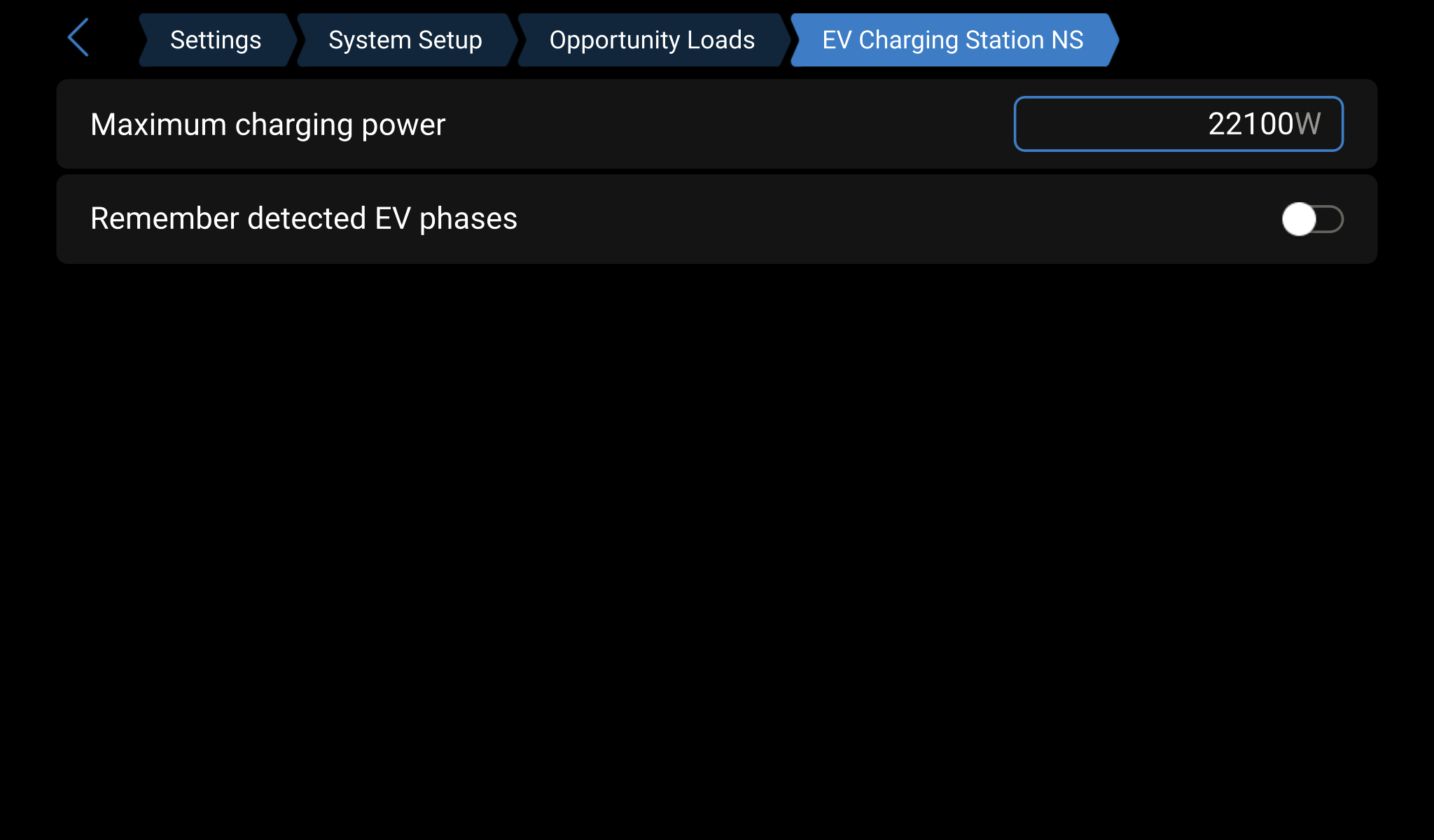 |
Máxima potencia de carga
Limita la potencia máxima que la estación de carga de vehículos eléctricos puede usar como carga controlada, incluso si hay más excedentes disponibles. De este modo se puede reservar el excedente para cargas de menor prioridad, mejorar el funcionamiento en paralelo con otras cargas de oportunidad y reducir las fluctuaciones de carga en sistemas más pequeños.
Recordar las fases del vehículo eléctrico detectadas
Guarda la configuración de fase del vehículo eléctrico detectada anteriormente (1-, 2- o 3-fásica) y la reutiliza en sesiones posteriores, reduciendo los retrasos de la detección de fase y mejorando el comportamiento de arranque del proceso de carga. Se recomienda únicamente cuando solo se suele conectar un mismo vehículo eléctrico o cuando todos los vehículos que usan la estación tienen la misma configuración de fase. Habilitar este ajuste con vehículos con diferentes configuraciones de fase puede impedir que algunos vehículos se carguen correctamente.
18.5. Dispositivos Shelly
Los dispositivos Shelly compatibles se pueden configurar como Cargas de oportunidad para controlar consumidores de CA fijos, como calentadores de agua, bombas u otras cargas flexibles.
Aviso
Instalación: Los dispositivos conectados directamente a la tensión de la red o a cableado fijo (p. ej., los modelos Shelly Pro) solo los debe instalar un electricista cualificado de conformidad con los códigos eléctricos y las normas de seguridad aplicables.
Aviso
Funcionamiento: Todos los dispositivos conectados pueden encenderse o apagarse de forma inesperada a causa del algoritmo de Cargas de oportunidad. La instalación o el uso inadecuados pueden provocar descargas eléctricas, incendios, lesiones a personas o daños.
Nota
Para garantizar un funcionamiento fiable, se recomienda que el modo ECO permanezca desconectado en el dispositivo Shelly.
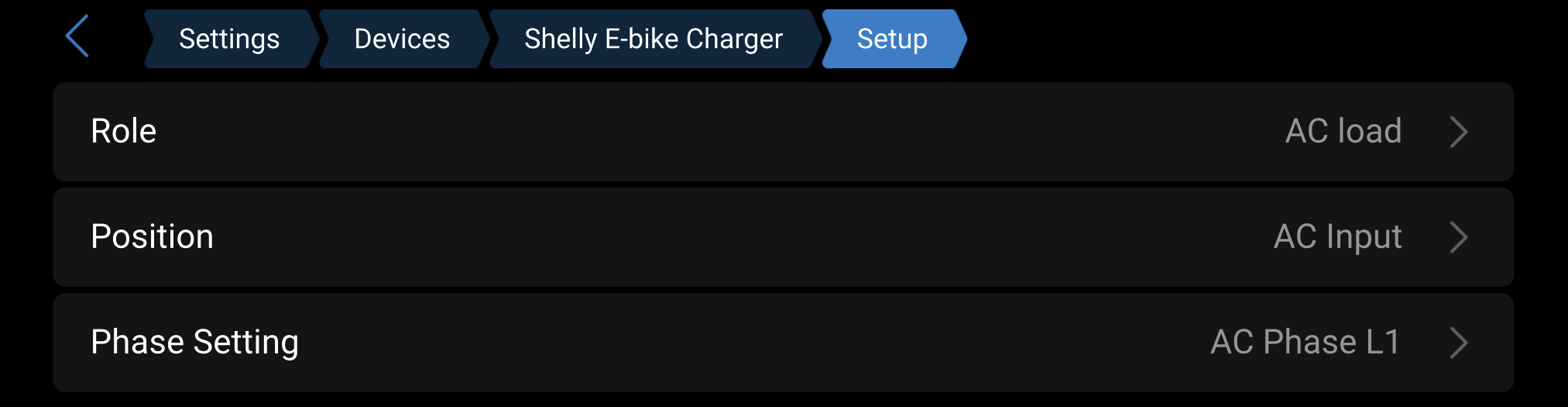
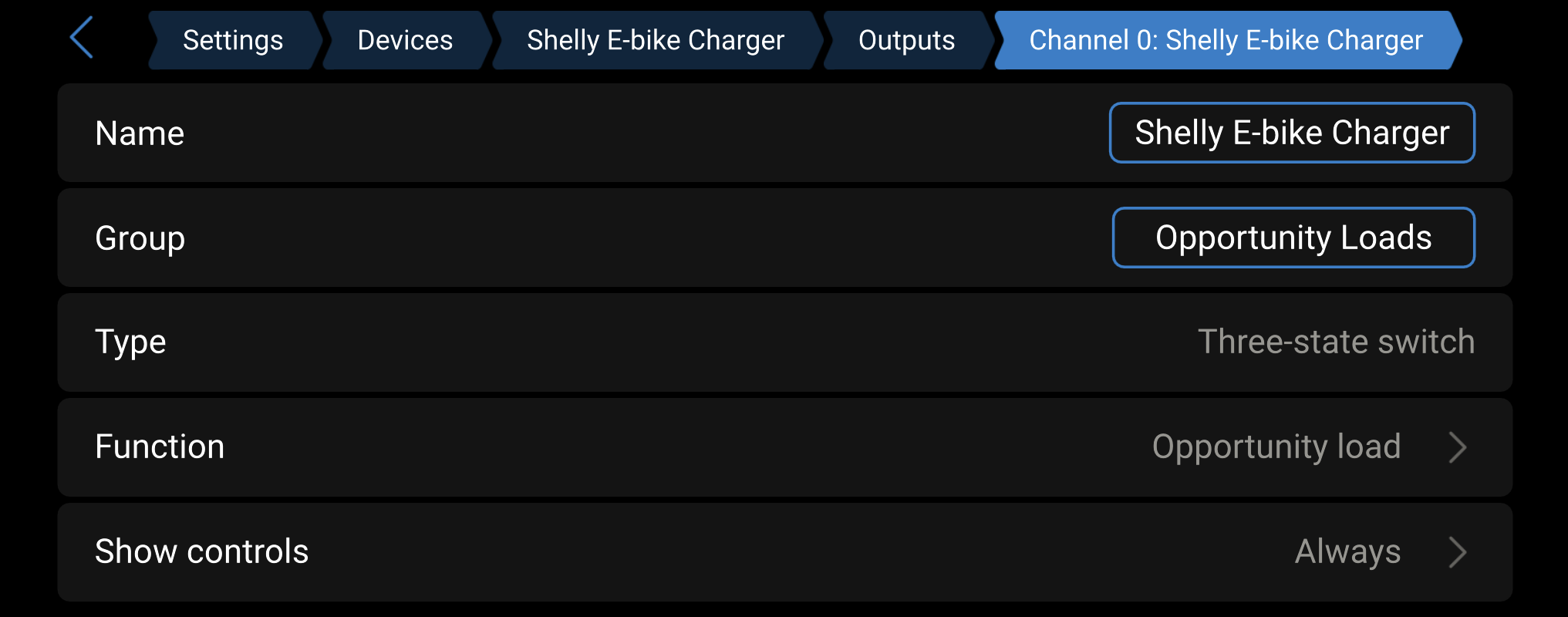
18.5.1. Pasos de configuración
Pasos para configurar un dispositivo Shelly como carga de oportunidad:
|   |
18.5.2. Modo automático y anulación manual
Cuando un dispositivo Shelly está en Carga de oportunidad, el panel de interruptores del dispositivo GX muestra un interruptor con tres estados (Off / On / Auto). Con Auto habilitado, el dispositivo se controla automáticamente según el excedente disponible, y los botones On/Off reflejan el estado actual. Para anularlo manualmente, deshabilite Auto y fije el estado deseado con On u Off. | 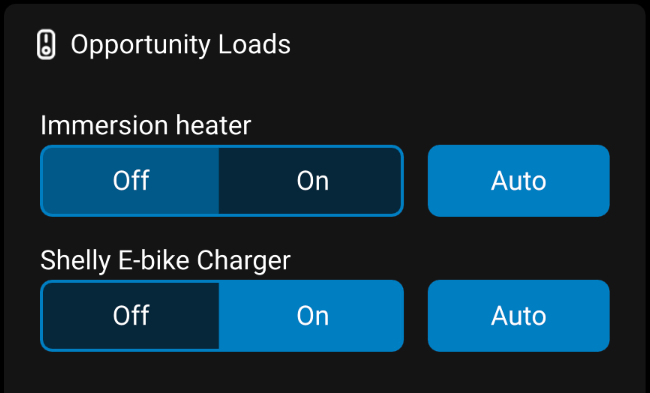 |
Nota
Un dispositivo Shelly con Auto deshabilitado aparecerá como Sin control en la lista de prioridades de los dispositivos con cargas de oportunidad.
18.5.3. Parámetros de configuración de Shelly
Vaya a: Configuración → Configuración del sistema → Cargas de oportunidad → Dispositivo Shelly | 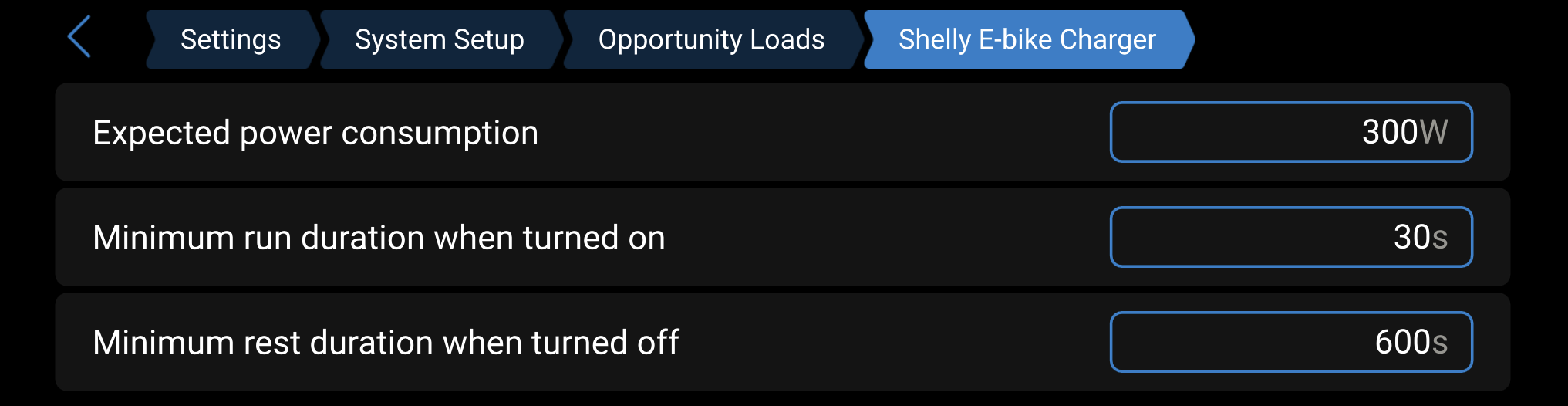 |
Consumo de energía esperado
La energía que consume normalmente la carga conectada cuando está activa. El dispositivo GX usa este valor para estimar la capacidad sobrante disponible, decidir cuándo activar la carga y coordinar el funcionamiento en paralelo. Para obtener los mejores resultados, la carga debe tener un consumo cercano al valor configurado cuando está encendida y cercano a 0 W cuando está apagada.
Si el consumo de la carga oscila dentro de un rango conocido, configure el valor más alto esperado. Así se garantiza que la carga no se apaga prematuramente después de su tiempo mínimo de funcionamiento. Cargas de oportunidad refinará su estimación durante el tiempo de funcionamiento. Evite las cargas con un consumo muy impredecible, ya que esto reduce la precisión del control.
Duración mínima del funcionamiento cuando se enciende
El periodo mínimo de tiempo durante el que la carga permanece encendida después de encenderse. Evita un número excesivo de encendidos y apagados si la producción FV fluctúa, reduce los ciclos de funcionamiento cortos y protege el equipo conectado. Es particularmente importante para cargas con compresores, bombas, elementos de calefacción o componentes de conmutación mecánica.
Duración mínima del reposo cuando se apaga
El periodo mínimo de tiempo durante el que la carga permanece apagada después de apagarse. Reduce los encendidos y apagados rápidos, protege los equipos y estabiliza el funcionamiento del sistema cuando las condiciones solares son cambiantes.
Recomendación para cargas múltiples: Configure periodos de descanso más prolongados para cargas de menor prioridad. Cuando la energía solar baja, se desconectan las cargas empezando por la de menor prioridad. Si las cargas de menor prioridad tienen el mismo periodo de reposo que las de mayor prioridad, puede que vuelvan a estar disponibles demasiado pronto, solo para volver a apagarse poco después. Los periodos de descanso escalonados contribuyen a evitar los apagados y encendidos innecesarios.
18.5.4. Recomendación cuando hay varios dispositivos controlables
Para sistemas con varias cargas de oportunidad, se recomienda configurar periodos de descanso más largos para las cargas de menor prioridad.
Cuando la energía solar disponible baja, se desconectan las cargas empezando por la de menor prioridad. Si varias cargas tienen el mismo periodo de reposo, es posible que una carga de menor prioridad vuelva a estar disponible demasiado pronto y que tenga que volver a apagarse al poco tiempo cuando una carga de mayor prioridad vuelva a estar disponible.
Los periodos de descanso escalonados contribuyen a evitar los apagados y encendidos innecesarios.
18.6. Funcionamiento y monitorización
18.6.1. ¿Cómo funciona el algoritmo?
Una vez configurado, el funcionamiento es completamente automático. El dispositivo GX monitoriza continuamente la producción FV, el estado de carga de la batería, el consumo de CA y las cargas de oportunidad configuradas. En función del excedente disponible y de las prioridades configuradas, activa, ajusta y desactiva dinámicamente las cargas controladas.
El algoritmo tiene en cuenta la FV acoplada a CA y acoplada a CC, la eficiencia de la conversión CC a CA, el equilibrado de fases, los permisos de inyección a la red y si el sistema está conectado a la red o aislado. Procesa las cargas en orden de prioridad, aplica la mejor opción teniendo en cuenta la prioridad para evitar malgastar el excedente y reequilibra las cargas activas automáticamente según cambian las condiciones, por ejemplo, cuando la cobertura de nubes reduce la producción FV, se enciende una carga doméstica grande o aumentan los requisitos de carga de la batería.
18.6.2. Comportamiento durante la pérdida de entrada de CA
Cuando se pierde la conexión a la red o al generador de CA, las cargas controladas se desconectan todo lo posible para contribuir a la estabilidad del sistema. Transcurrido un minuto aproximadamente, las cargas de oportunidad pueden reanudarse si hay excedente suficiente disponible y las condiciones del sistema son estables. Si la opción Detener Cargas de oportunidad si no hay ninguna entrada CA conectada está habilitada, las cargas permanecen detenidas hasta que vuelve la entrada de CA.
18.6.3. Interacción con BatteryLife
En configuraciones de ESS con BatteryLife, la función Cargas de oportunidad se detiene automáticamente cuando el límite de estado de carga activo llega al 85 % (si esa preferencia está habilitada) y se reanuda una vez que la batería se ha cargado lo suficiente y BatteryLife vuelve a bajar el límite de estado de carga activo. De este modo se da prioridad a tener la batería completamente cargada en periodos de baja producción solar.
18.6.4. Control diurno y desactivación nocturna
Mientras hay producción FV disponible, Cargas de oportunidad hace lo posible por que el estado de los dispositivos controlados sea el esperado. Si se enciende un dispositivo de forma externa manualmente (p. ej.: mediante una aplicación Shelly o un botón físico) cuando Cargas de oportunidad espera que esté apagado, el sistema volverá a apagarlo. Para tomar el control manual de forma temporal, deshabilite el modo Automático. La función Cargas de oportunidad cederá el control inmediatamente y no lo retomará hasta que se vuelva a habilitar el modo Automático.
Durante periodos sin una producción FV significativa, Cargas de oportunidad entra en estado inactivo y deja de controlar todos los dispositivos. Esto permite que los dispositivos sigan sus propios programas o configuraciones por la noche. Por ejemplo, una caldera controlada por Shelly puede tener un programa local para alcanzar una temperatura determinada durante la noche si no llegó a ella durante el día debido a un bajo rendimiento solar.
18.6.5. Uso de la batería y sondeo del estado de carga
La función Cargas de oportunidad está diseñada para usar el excedente de energía solar, pero se puede producir un uso breve de la batería, por ejemplo, con una carga que no puede apagarse inmediatamente debido a su tiempo de funcionamiento mínimo o cuando la producción FV cae de forma repentina. En situaciones críticas (pérdida repentina de FV acoplada a CA combinada con una alta carga de inversor), los mecanismos de protección del inversor/cargador pueden forzar la desconexión de cagas inmediata en cualquier circunstancia.
El sondeo del estado de carga se usa en sistemas aislados y sin inyección a la red en los que el exceso de FV no puede exportarse. Cuando la batería se acerca al 100 % del estado de carga, el sistema debe restringir la generación de FV, enmascarando la verdadera producción de los paneles solares. Para determinar el excedente realmente disponible, Cargas de oportunidad permite temporalmente que la batería se descargue aproximadamente hasta el 97 % del estado de carga activando las cargas controladas. Esto libera la FV, revelando toda la potencia disponible. El sistema vuelve al funcionamiento solo solar normal una vez que se reduce el estado de carga.
Aviso
El sondeo del estado de carga no se usa en sistemas conectados a la red sin restricciones de inyección en los que el exceso de FV se exporta a la red y el excedente disponible se mide directamente a través del contador de red.
18.6.6. Anulación manual
Cargas de oportunidad se puede anular manualmente en cualquier momento mediante la nueva interfaz del dispositivo GX o VRM:
Estación de carga de vehículos eléctricos: cambie a carga manual con el panel de control
Dispositivos Shelly: deshabilite el modo automático y controle el relé con el panel de interruptores
Cuando hay una anulación manual activa, el dispositivo ya no sigue el algoritmo de cargas de oportunidad hasta que se vuelve a habilitar el control automático. Esto permite poner una carga en marcha inmediatamente incluso si no hay suficiente excedente solar disponible.
18.6.7. Monitorización en el dispositivo GX
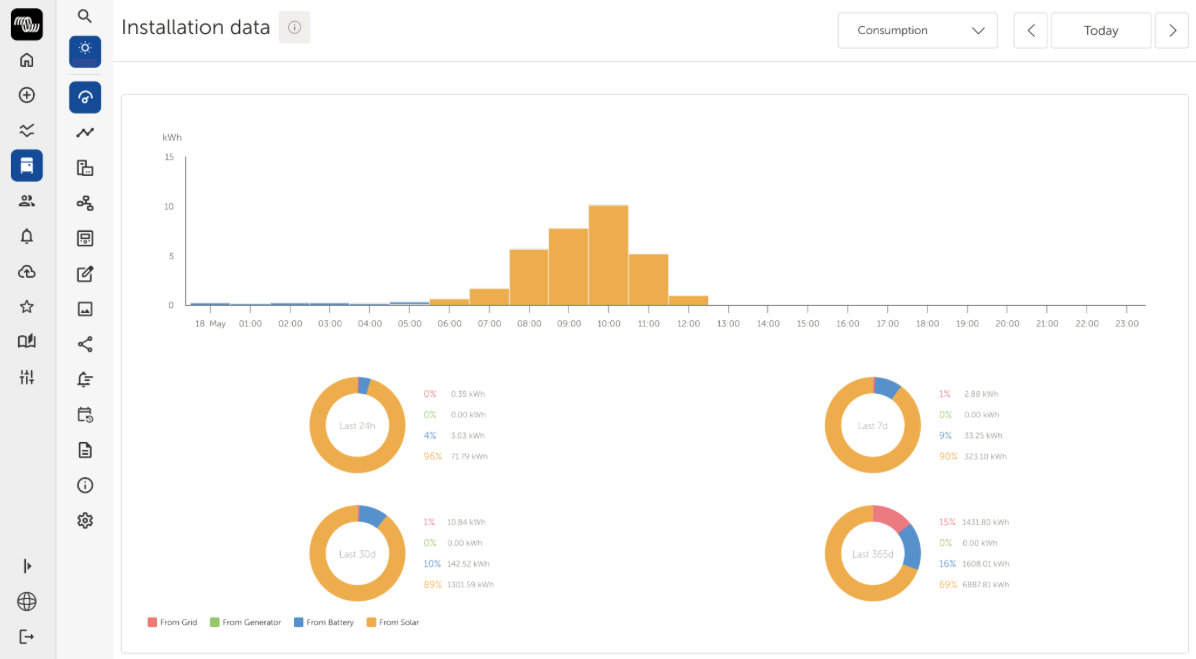
Las cargas controlables configuradas pueden verse en las listas de la página Resumen junto con otras cargas del sistema. Pulse la pestaña Cargas CA o Cargas esenciales (esta última aparece en algunas configuraciones que usan un contador de red) para ver el nombre, el estado actual y el consumo de energía de cada dispositivo. | 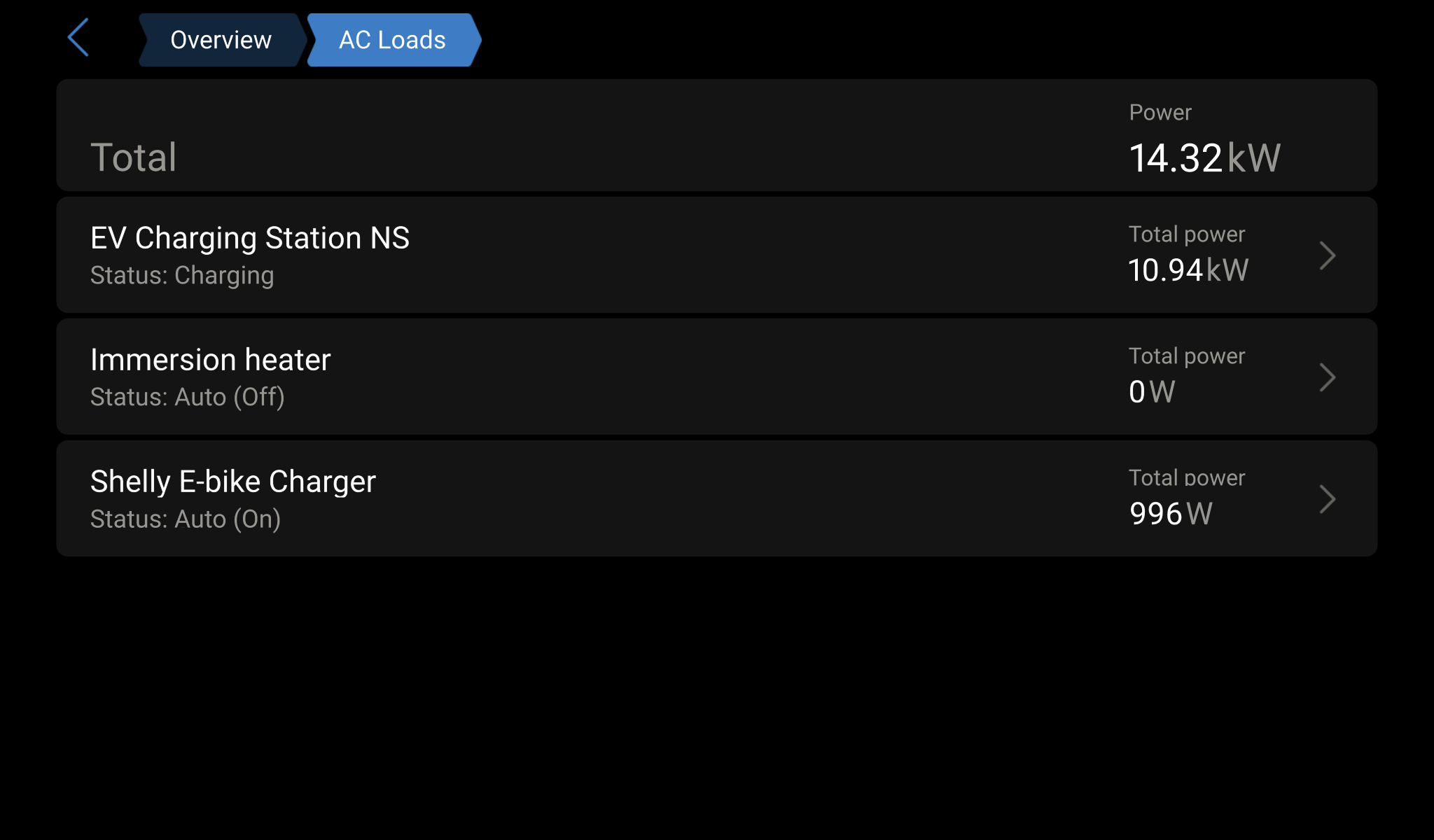 |
18.6.8. Monitorización en VRM
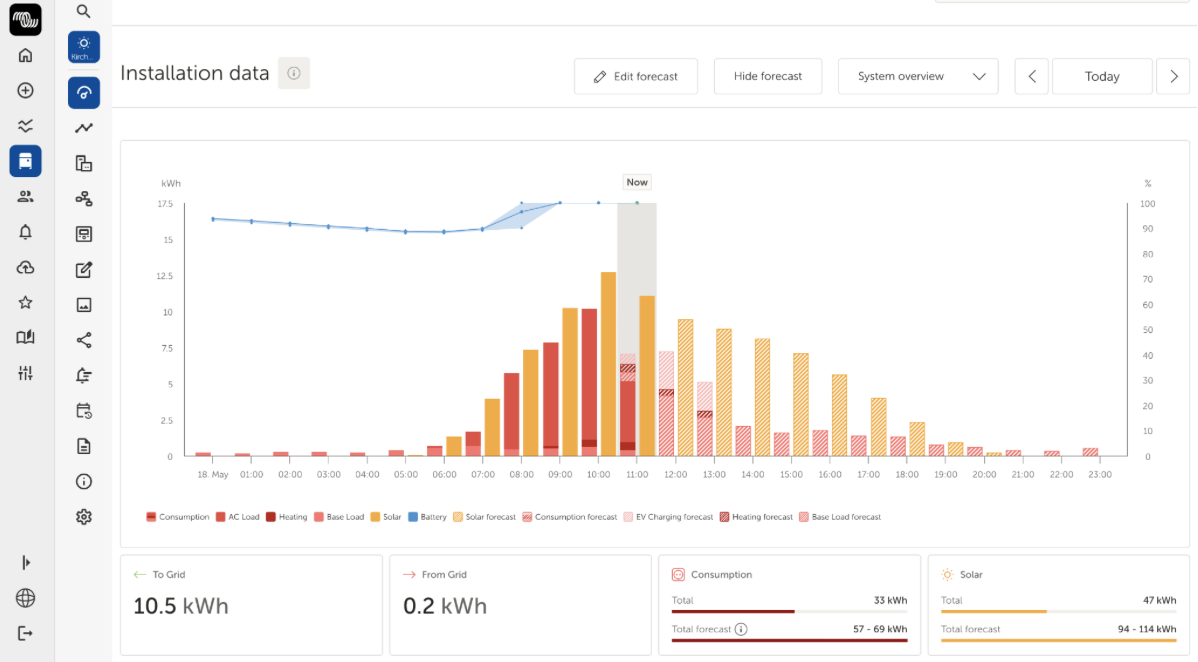
Las cargas de oportunidad pueden monitorizarse a distancia mediante VRM y se pueden controlar en tiempo real los dispositivos compatibles (las estaciones de carga de vehículos eléctricos a través del panel de control y los dispositivos Shelly a través del panel de interruptores). Solo se puede acceder a la configuración de prioridades, los ajustes de la batería, las preferencias y los parámetros del dispositivo en el propio dispositivo GX o mediante la consola remota.
VRM también proporciona:
|   |
18.6.9. Resolución de problemas
En este capítulo se describen los mensajes de advertencia y error que pueden aparecer en el sistema y lo que significan.
Sistema incompatible con cargas de oportunidad
Esta advertencia aparece cuando se dan una o varias de las siguientes condiciones durante más de 60 segundos.
Estado de carga de la batería no disponible: El sistema no facilita el valor del estado de carga. Cargas de oportunidad requiere una batería con un BMS que comunique el estado de carga.
No se puede determinar el tipo de sistema: Cargas de oportunidad no puede determinar las características del sistema necesarias, como la configuración de fase, el tipo de conexión a la red o la política de inyección. Esto puede suceder cuando no hay inversor/cargador disponible.
Inversor en Solo inversor con cargas AC-in:
El inversor está configurado en modo Solo inversor, pero el sistema informa de las cargas en AC-in. Esta configuración no se admite.
Nota
Mientras la advertencia esté activa, Cargas de oportunidad se detiene. El funcionamiento se reanuda automáticamente cuando se resuelven todas las condiciones de incompatibilidad.
18.6.10. Glosario
Acrónimo | Significado |
|---|---|
ESS | Sistema de almacenamiento de energía |
FV | Fotovoltaico |
SoC | Estado de la carga |
VRM | Victron Remote Management |
Estación de carga de vehículos eléctricos | EV Charging Station |
Dispositivo GX | Centro de comunicaciones de Victron Energy que funciona con Venus OS (p. ej.: Cerbo GX, Ekrano GX, MultiPlus-II GX, EasySolar-II GX) |
Venus OS | Sistema operativo de Victron Energy para los dispositivos GX |