13. Batch programming
The batch programming feature can be used to update the firmware and apply settings to several units in one operation.
This applies to products with a VE.Direct port and/or Smart (Bluetooth enabled) products.
This feature is aimed at installers who want to save time updating firmware and applying a standard range of settings to multiple units without having to go though each unit one by one. A settings file can be used as the template to apply settings to all of the units being programmed.
One of two connectivity methods can be used:
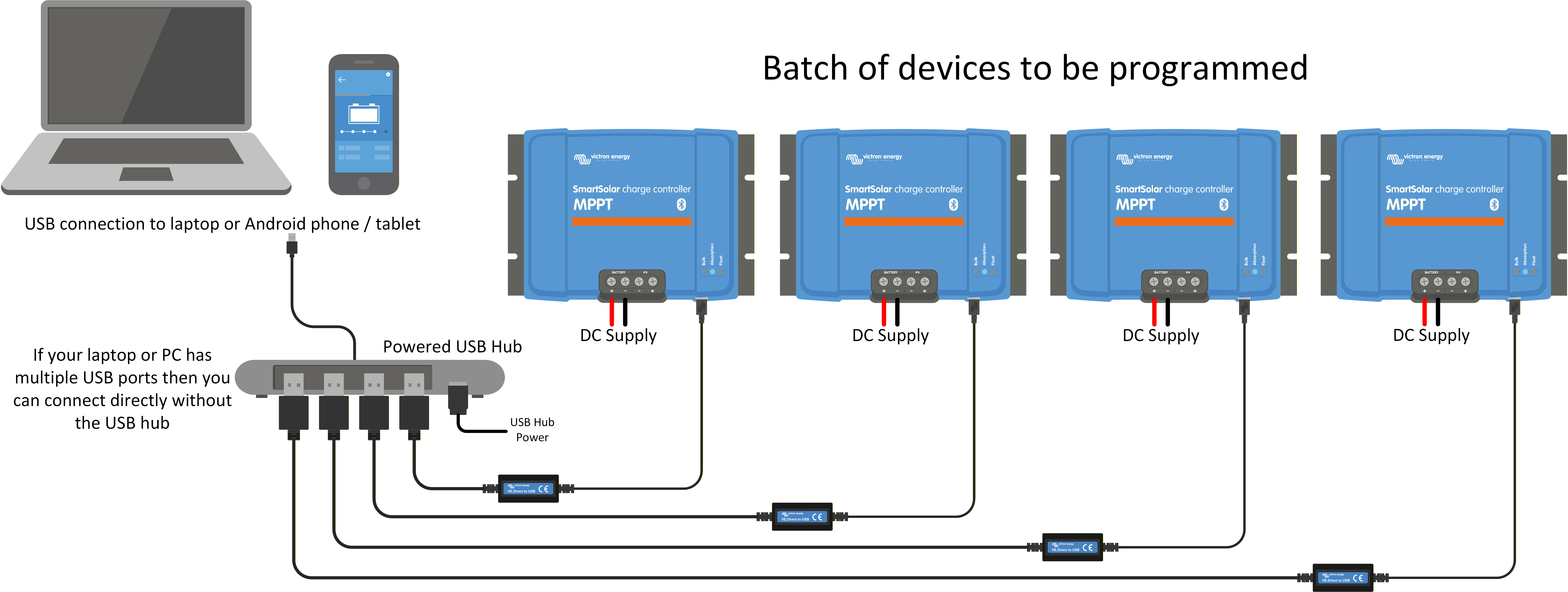
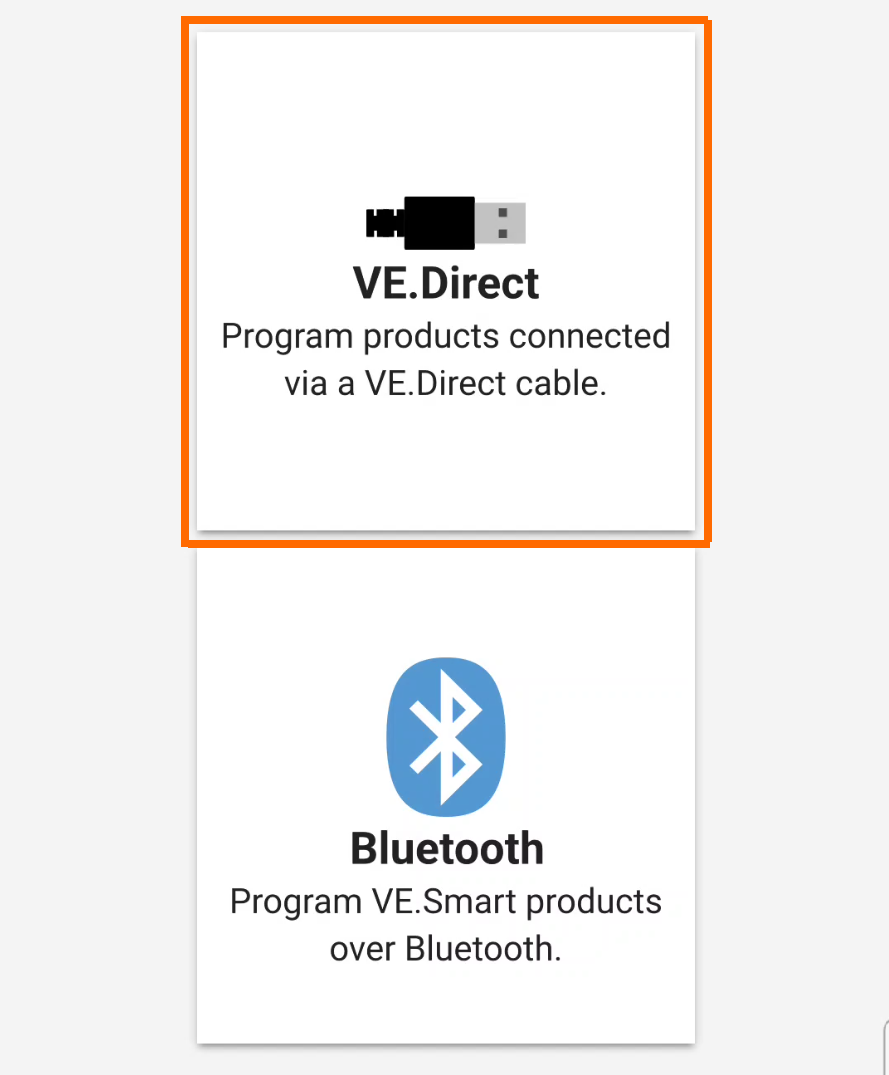
Wired: Use VE.Direct - USB cables and a standard USB hub to connect multiple devices to the VictronConnect instance.
This method can be faster especially for large batches.
A Victron VE.Direct to USB interface cable is needed per device in the batch.
Bluetooth: Scan the product QR code of each device and then let the VictronConnect Batch programming process the devices as a batch.
13.1. Wired batch programming
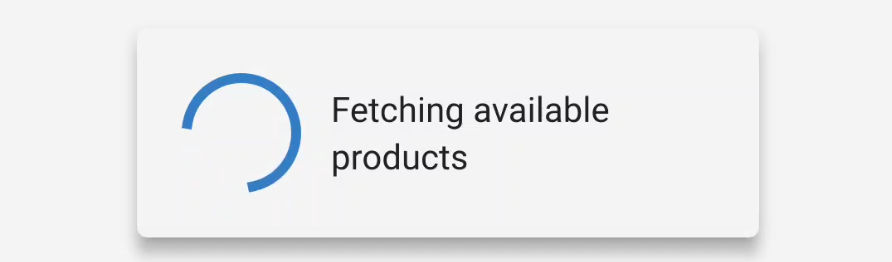
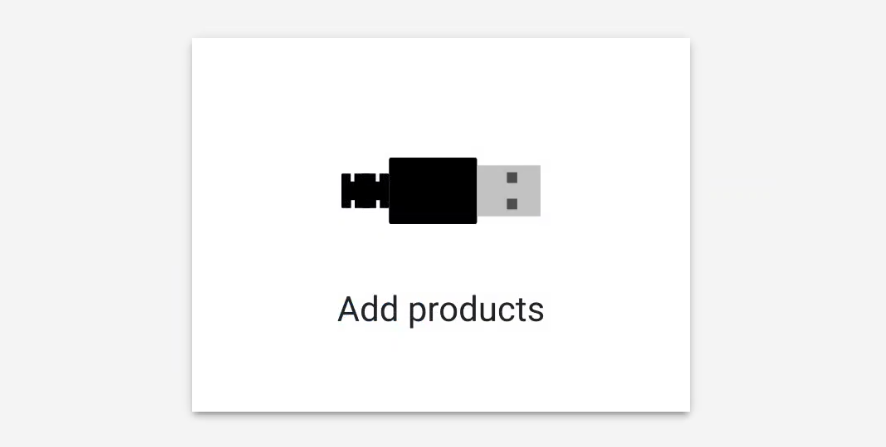
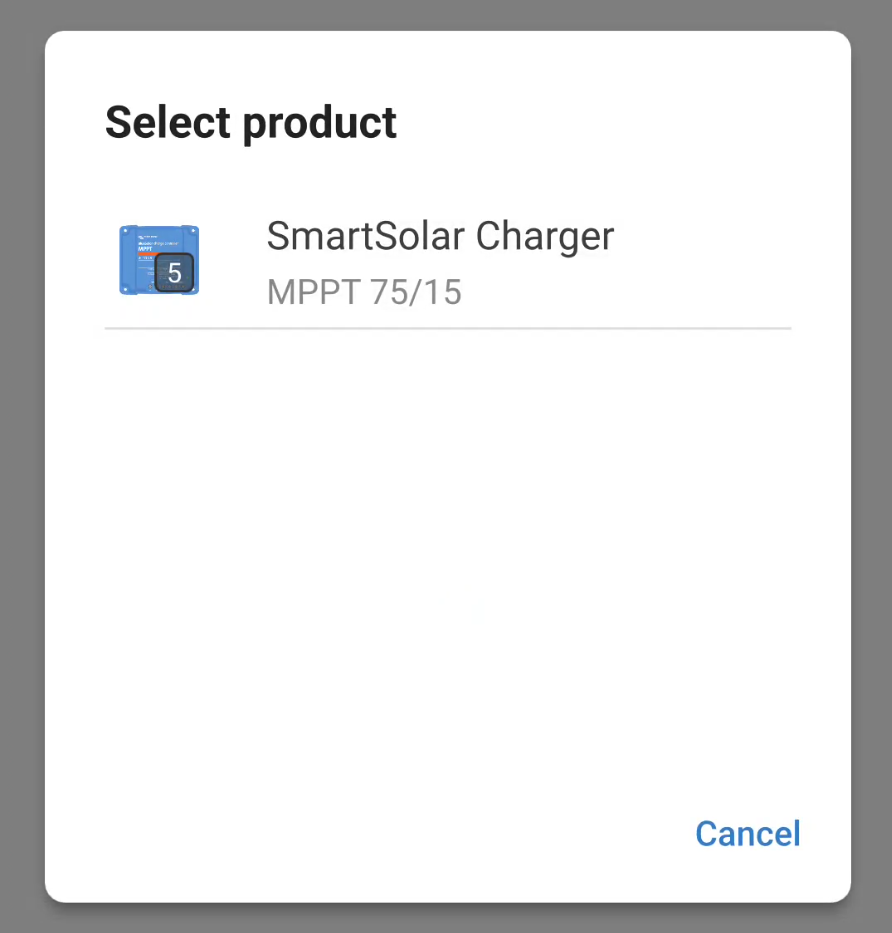
Connected products are automatically discovered and grouped by model.
Firmware or settings files are applied to all products in the group simultaneously.
Limitations:
Note
iOS devices cannot be used for this method.
Note
For some products, the separate Bluetooth microcontroller will not be updated using this method. You'll need to use the Bluetooth batch programming method for this.
This includes these product ranges: SmartSolar (except MPPT RS), Smart BMV-712 and SmartShunt, VE.Direct Smart Inverters.
Prerequisites:
A VE.Direct to USB interface cable for each of the devices in the batch.
A USB port to connect each of the VE.Direct to USB interface cables. Use a powered USB hub when using a phone, tablet or if your computer doesn't have enough USB ports.
Note
Make sure the USB hub is compatible with your device and operating system.
If required, have the settings file to apply to matching devices in the batch. Follow the steps here to save a settings file beforehand.
Note
The saved settings file must match the model of the devices you want to load it onto.
Setup:
Connect each device to a power source first.
Connect the VE.Direct to USB interface cables.
Caution
To avoid compatibility problems, always use genuine VE.Direct to USB interface cables.
 |
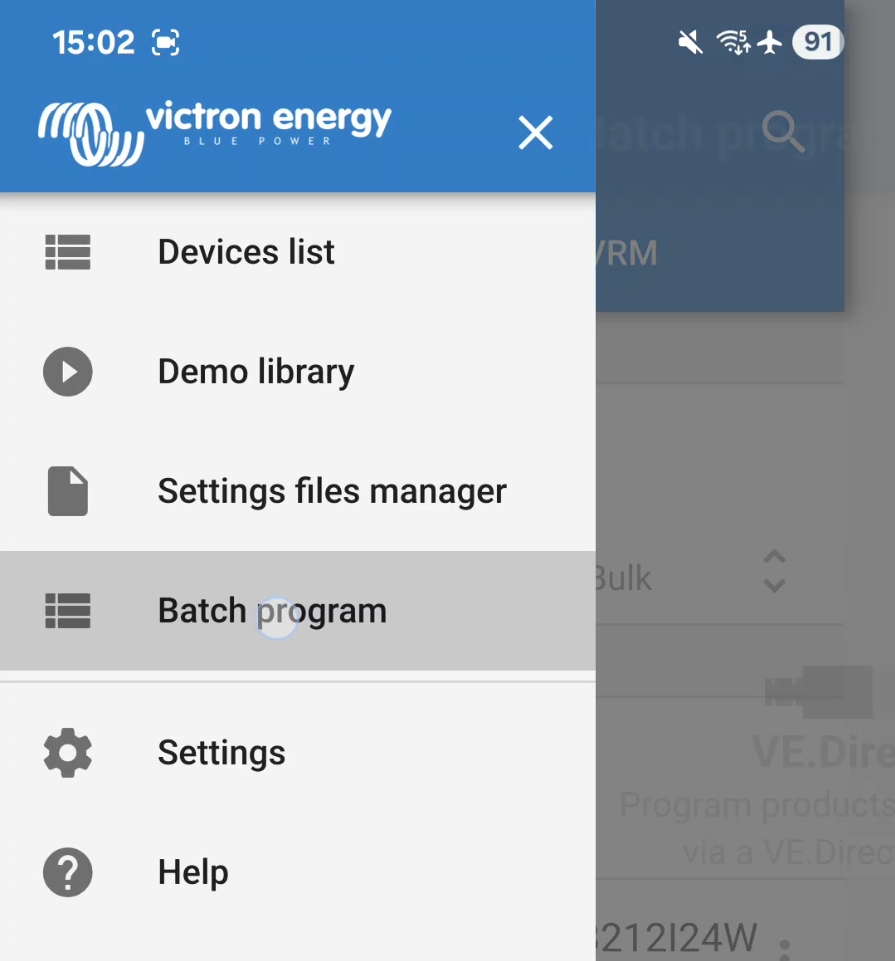
Once all the devices you want to program are connected and powered on, open the app on your phone or laptop.
|
|
|
|
|
|
|
|
|
|
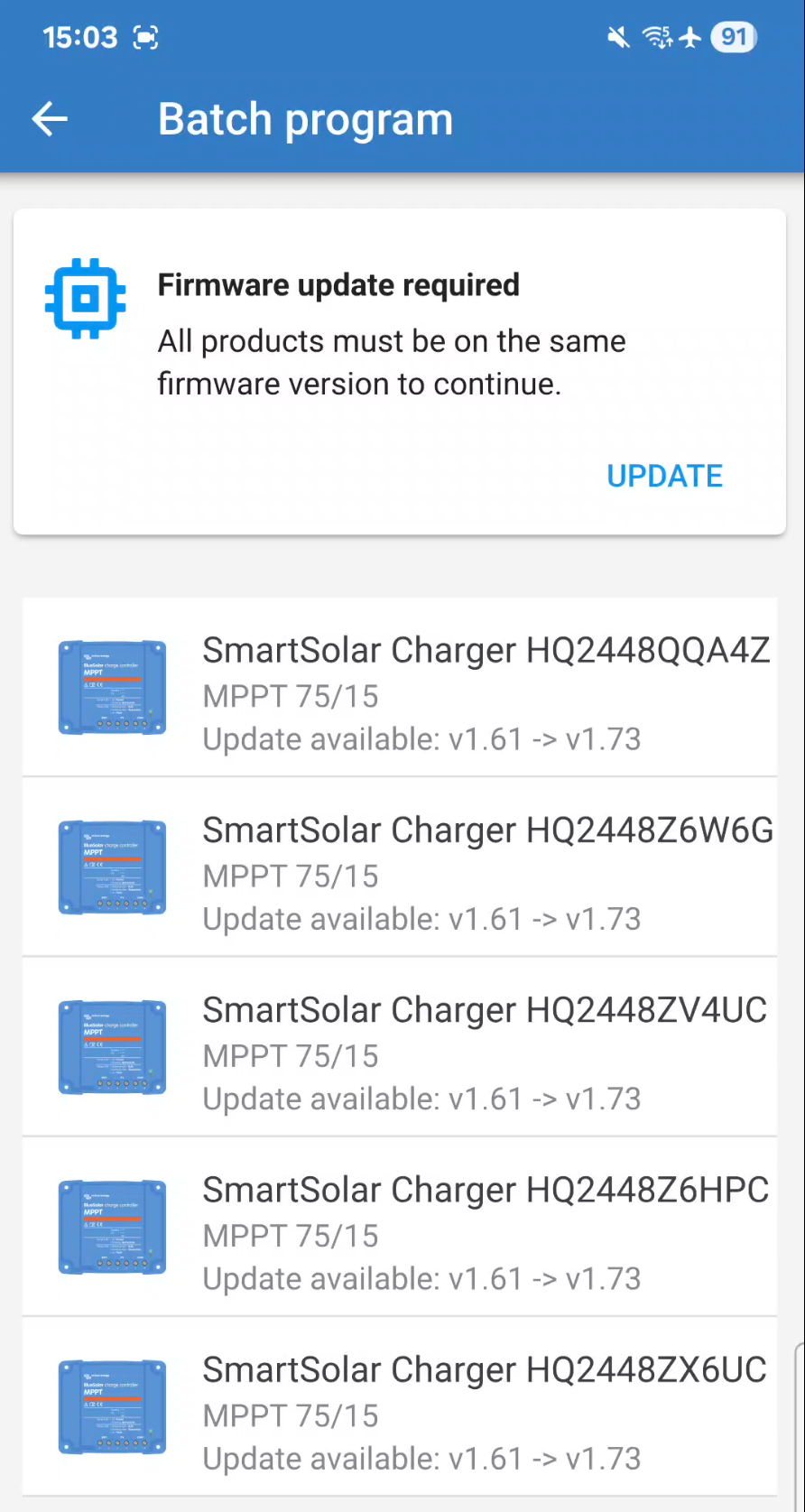
All of the products in the group will be loaded. A firmware update may be required. The firmware details of each product will be shown. The latest firmware version available for this product will be applied from the firmware library.
|
|
The firmware will be updated on all devices in parallel. You can track the progress for each device with its progress bar. |
|
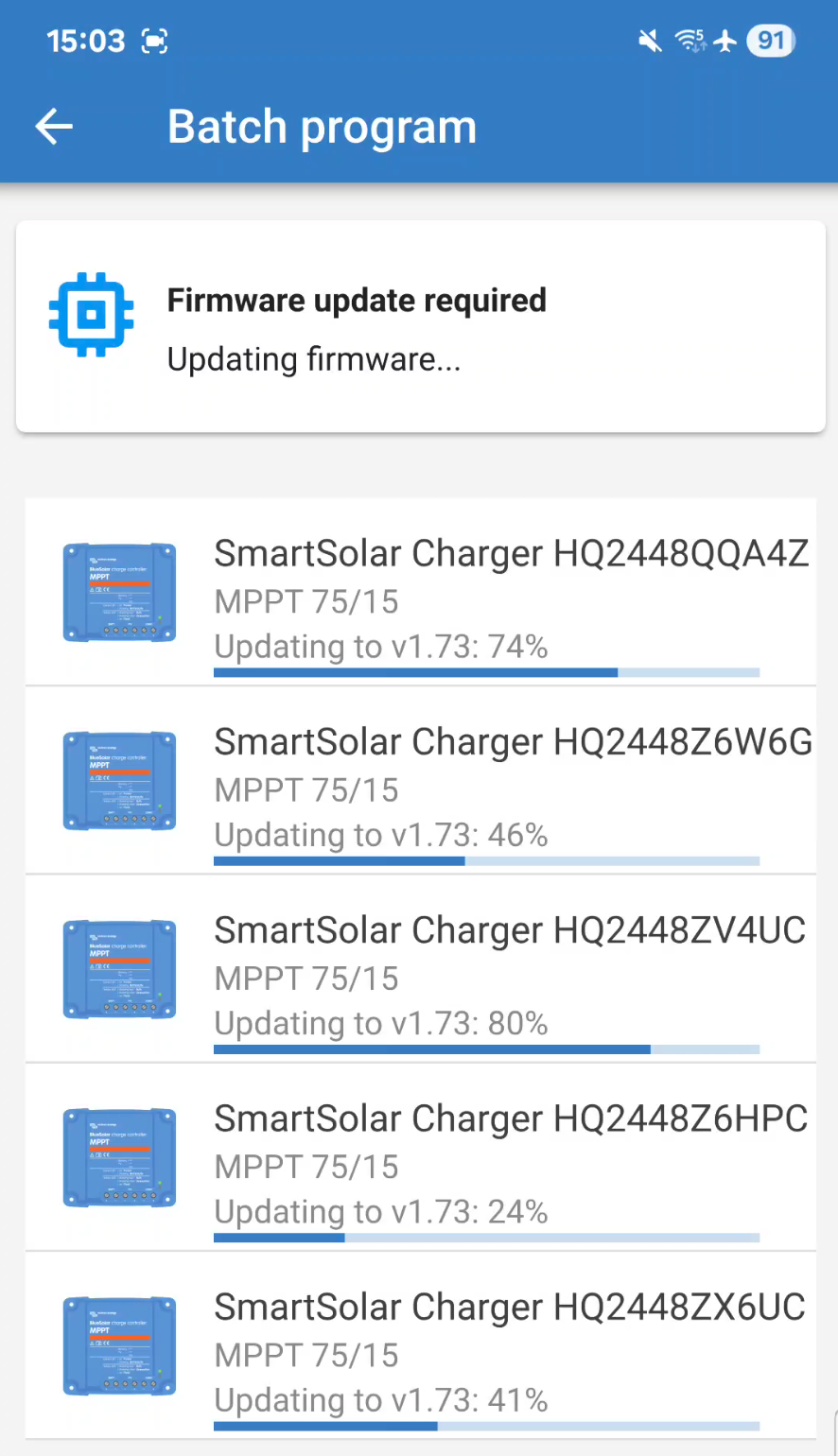
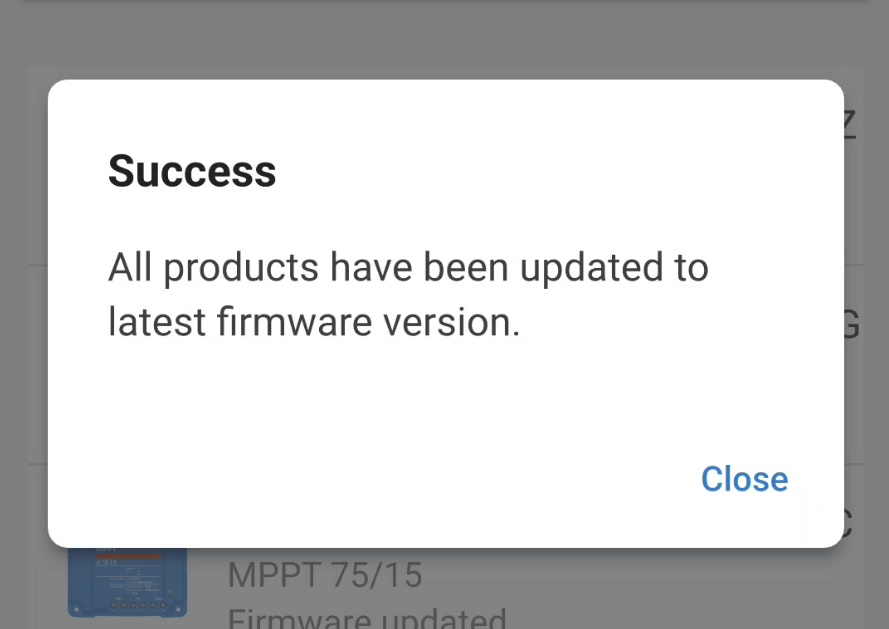
A popup box will be shown once all of the products have been updated to the latest firmware.
|
|
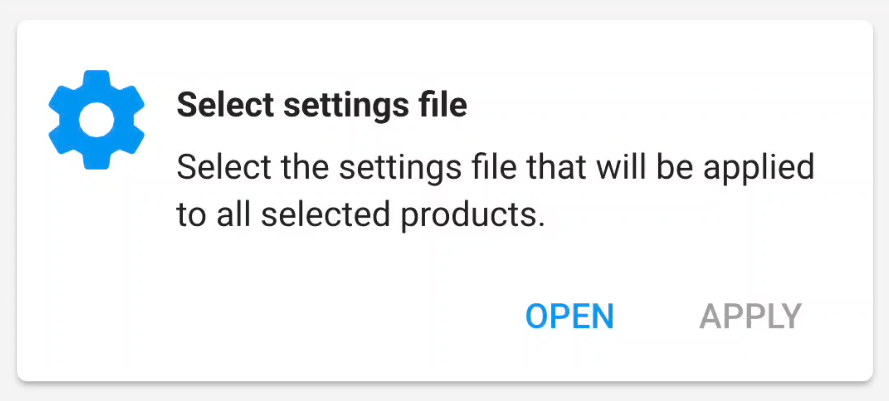
After the firmware updates are complete, you can apply a settings file to all products in the group.
If you don't want to apply a settings file, you can exit the process by using the back button at the top left. |
|
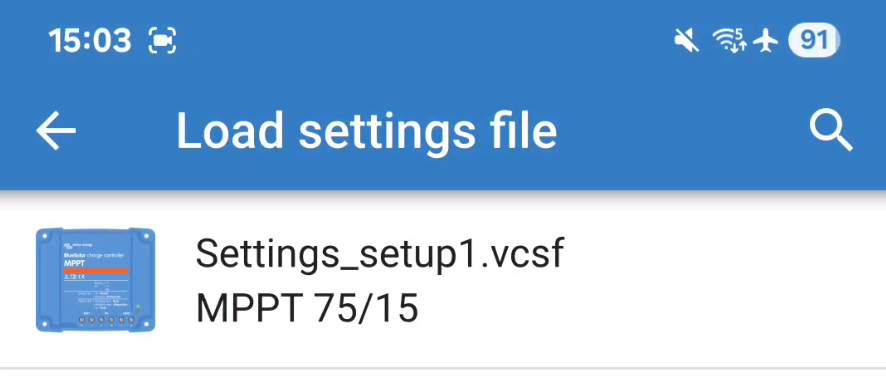
Your settings file library will open, allowing you to load a suitable settings file from the list.
NoteMake sure the settings file matches the products you are applying it to. |
|
|
|
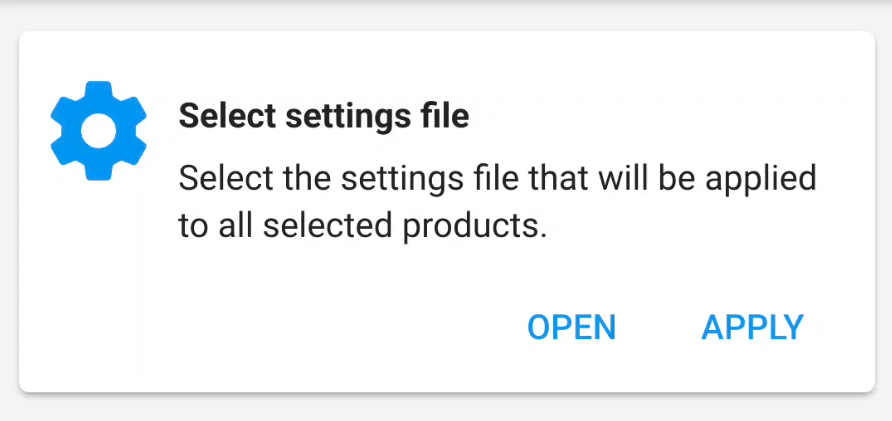
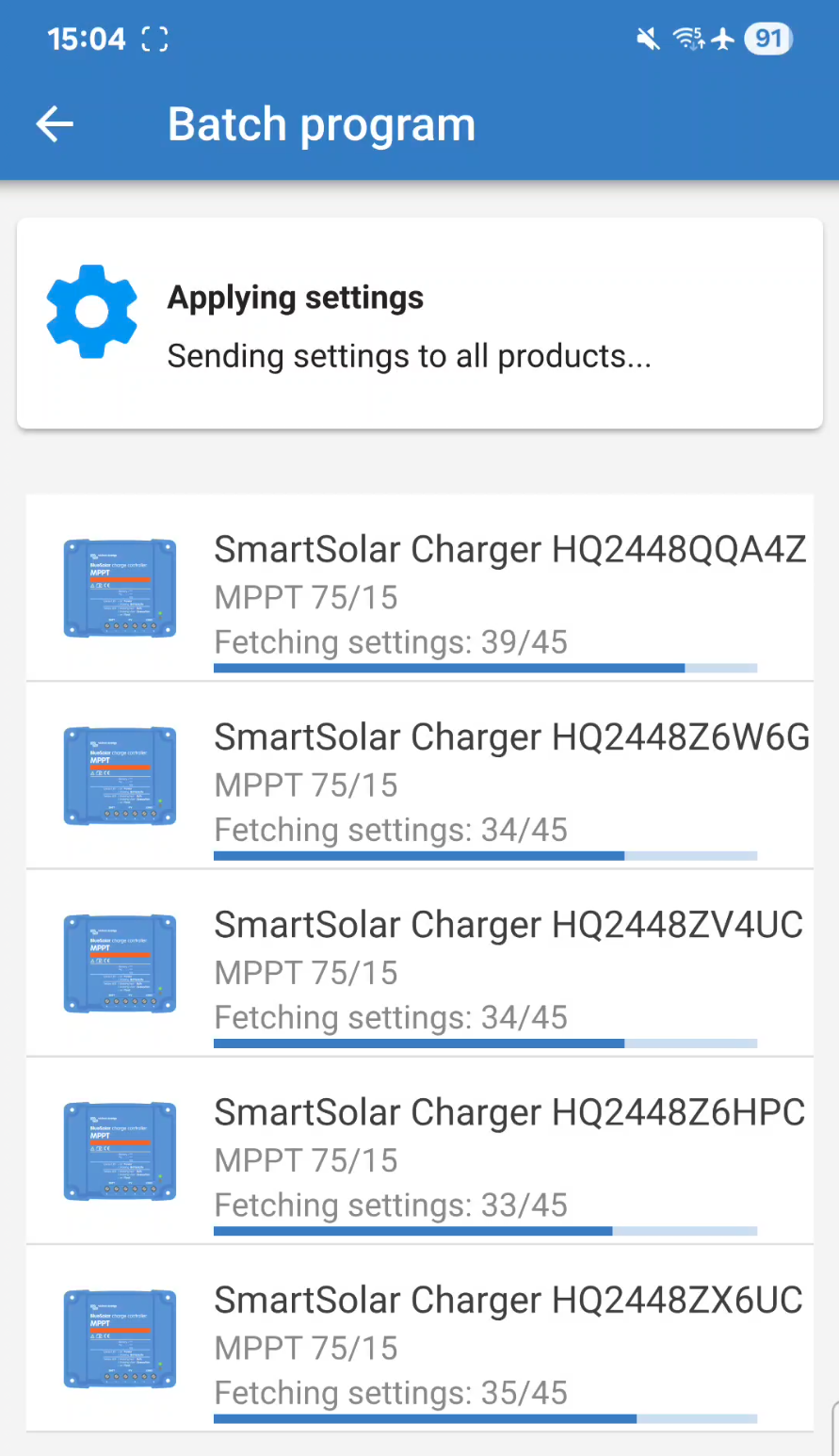
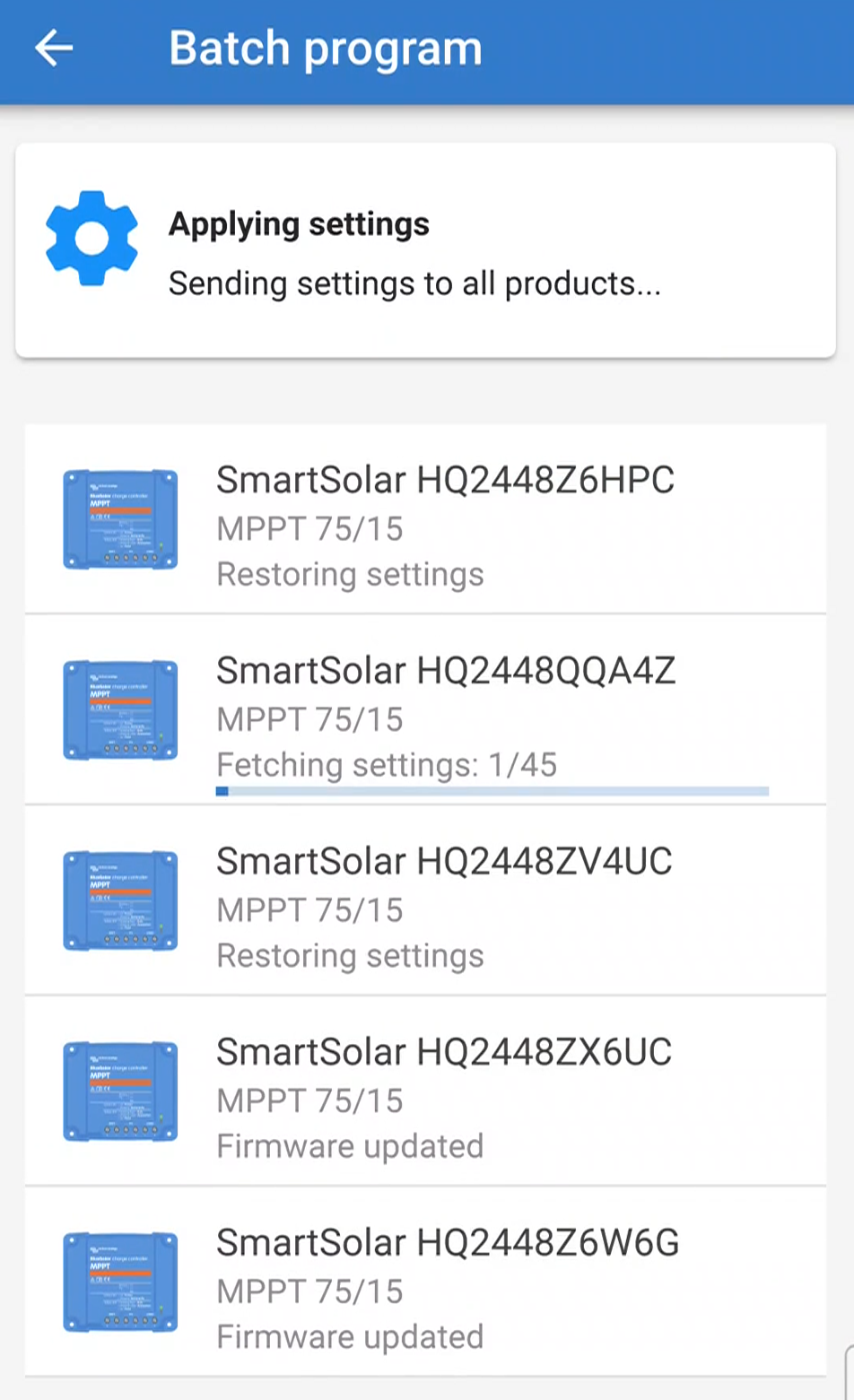
The settings file will now be sent to all products in the group at the same time. Each product has its own progress bar to show the status. |
|
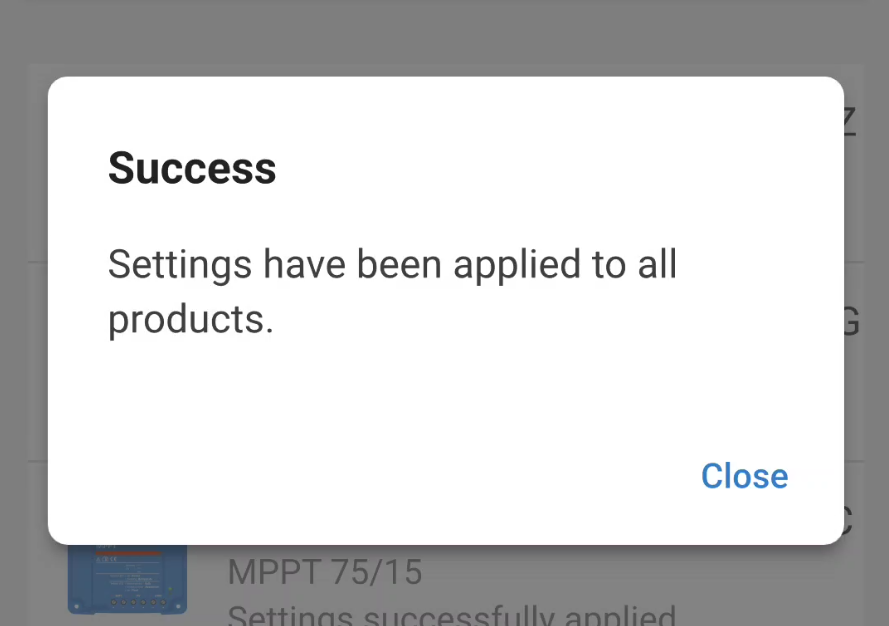
A popup will show after the settings file has been successfully applied to all products. |
|
13.2. Bluetooth batch programming
This method uses Bluetooth to apply firmware updates and settings files. You don't need USB cables or a USB hub.
You do not need to pair the devices first, the batch programming process handles this.
Firmware updates for the main microcontroller are done as well as the Bluetooth microcontroller if necessary.
An Android or iOS device can be used for this method. The device's camera is used to scan the product QR codes.
Limitations:
Note
macOS and Windows devices cannot be used for this method.
This batch programming procedure is intended for new products that have not yet had any changes applied. Attempting to batch program devices that have already been modified may cause issues.
For example, if the product name has been changed, the batch programming feature may not identify the device correctly.
Devices in the batch are processed one device at a time. This means that the batch can take longer to process than when using the wired method.
Prerequisites:
Have each QR code label ready to scan for each product in the batch. Products are added to the system by scanning each label for each product.
Warning
Keep each product label with its corresponding product. Take care not to mix up or confuse the labels.
Your phone or tablet needs to have an active internet connection.
Setup:
Connect each device to a power source first.
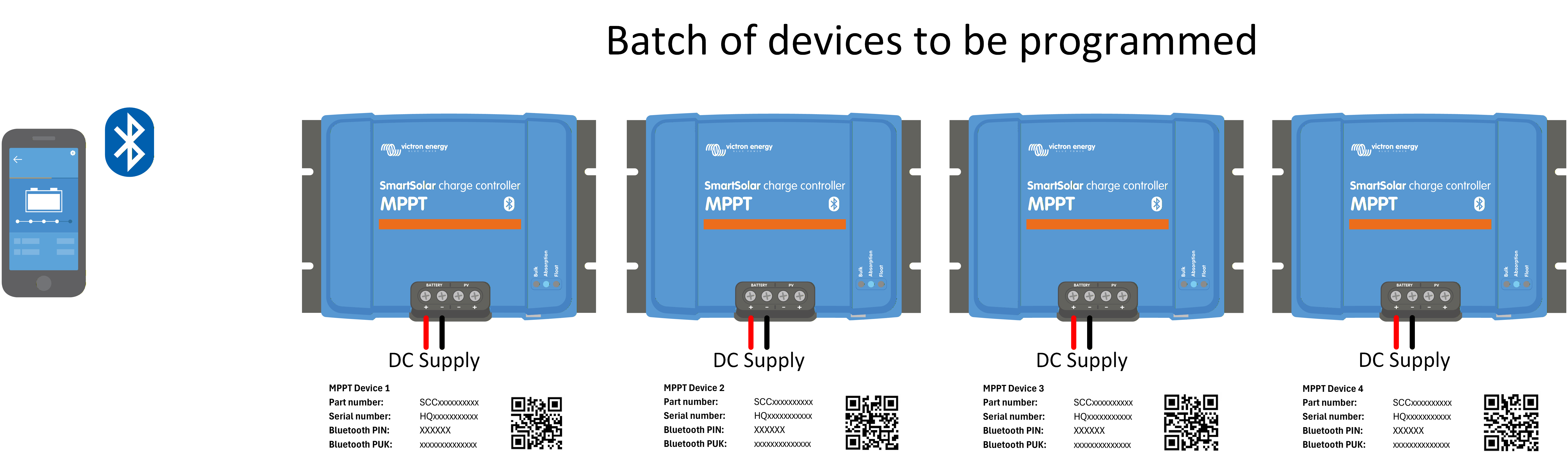 |
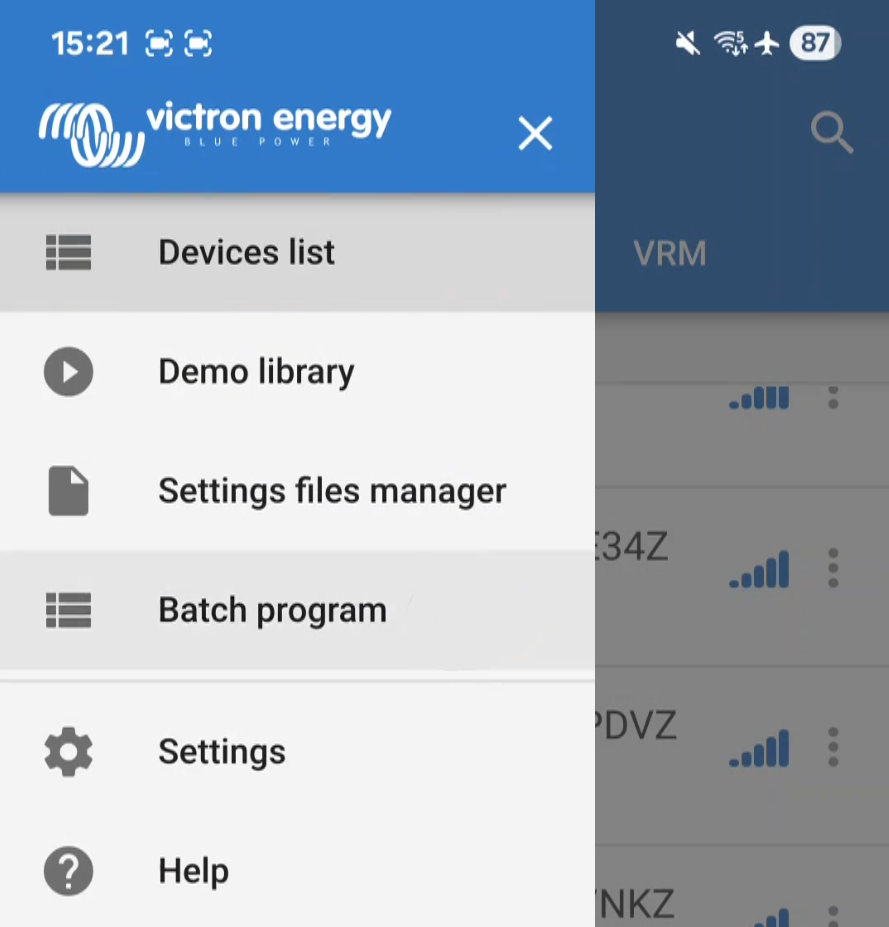
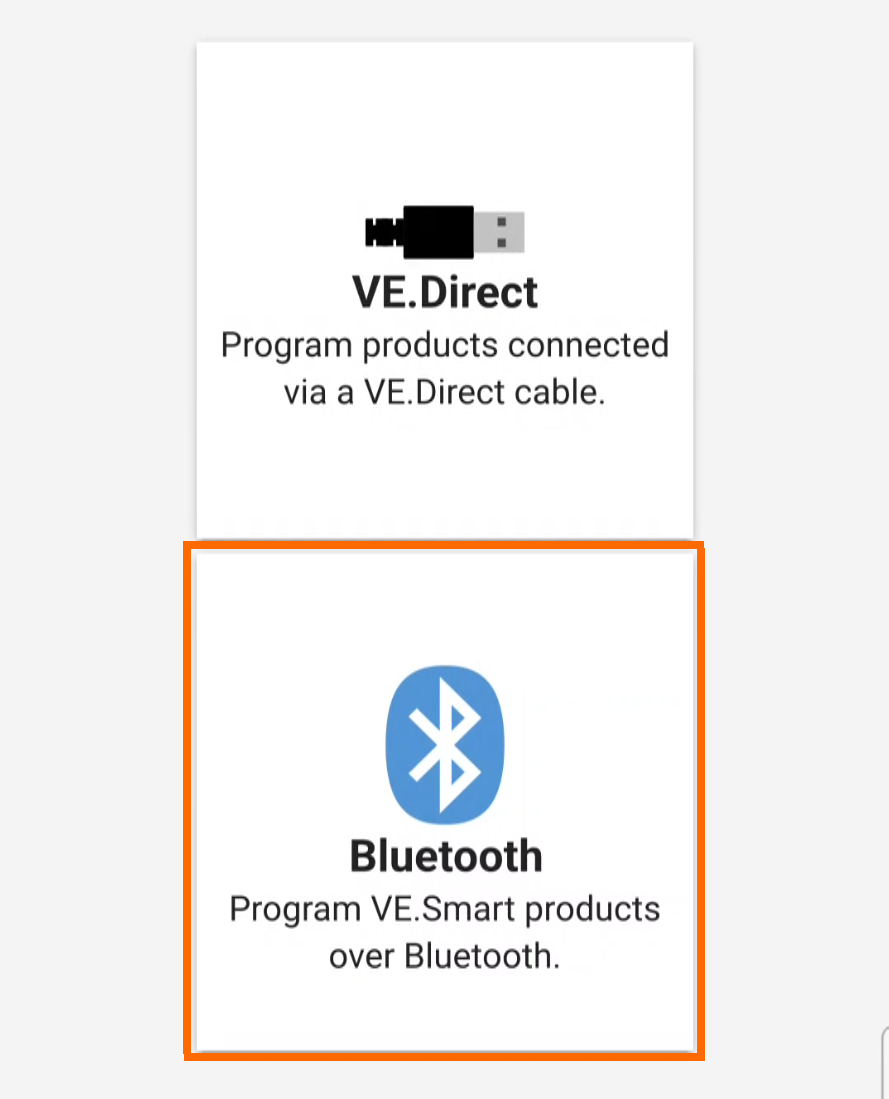
Once all the devices you want to program are connected and powered on, open the app on your phone or laptop.
|
|
|
|
|
|
|
|
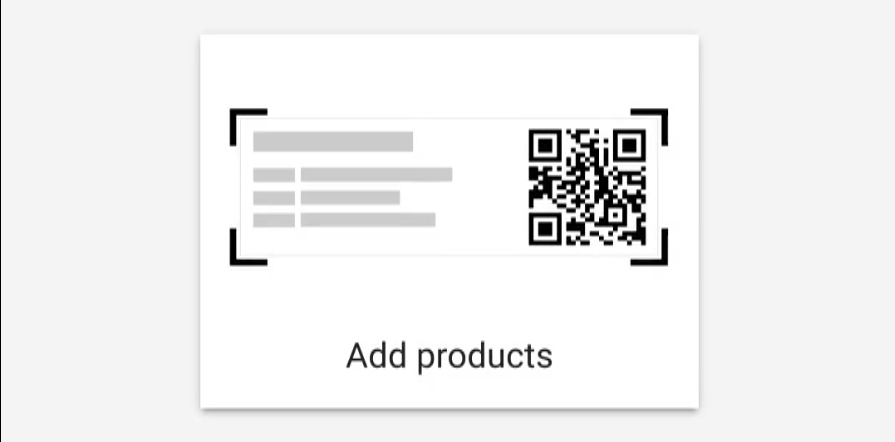
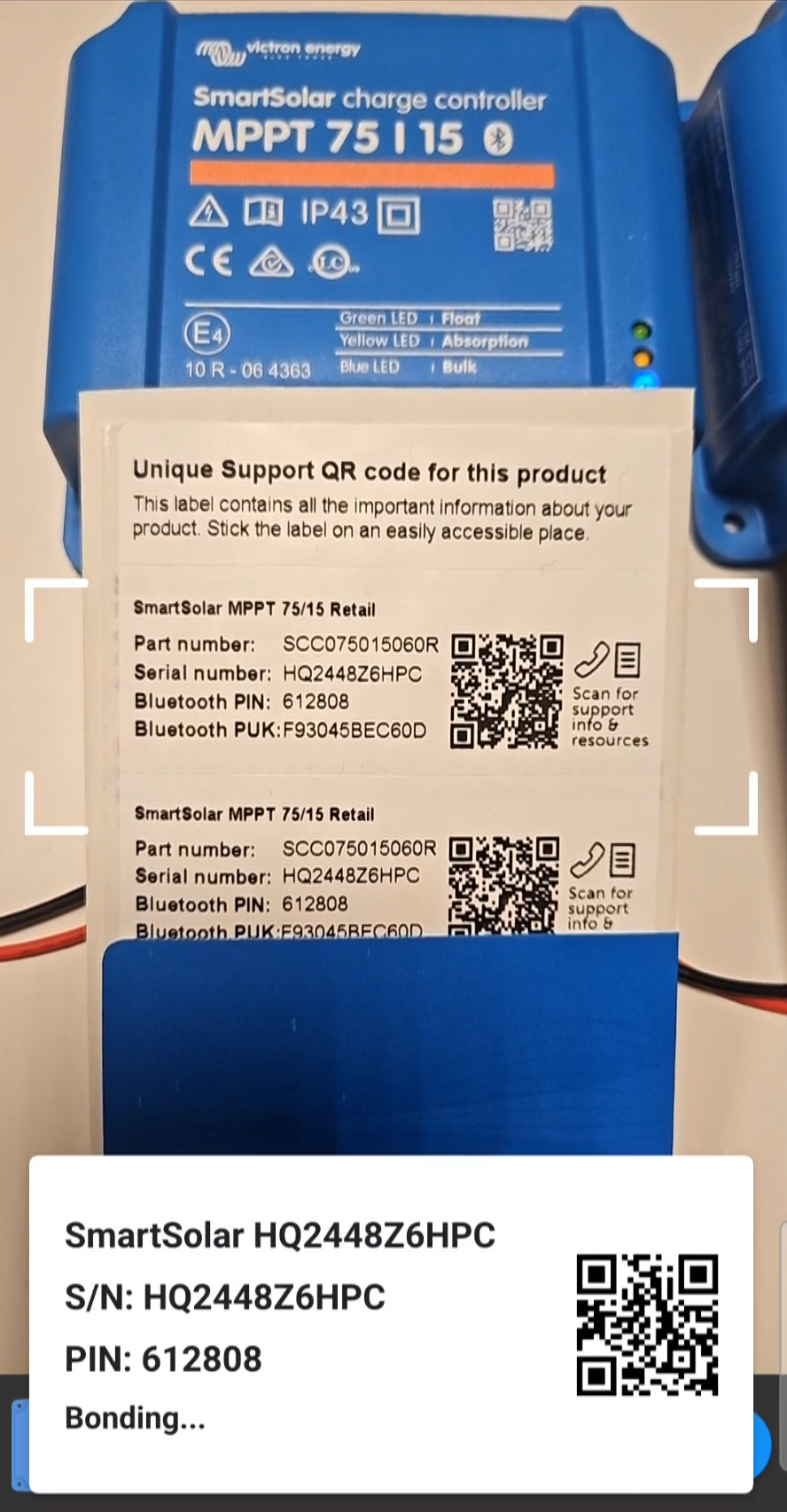
You should expect your phone camera to open up to allow you to scan the QR codes on your product labels. A window at the bottom of the screen replicates the details of the label as scanned.
|
|
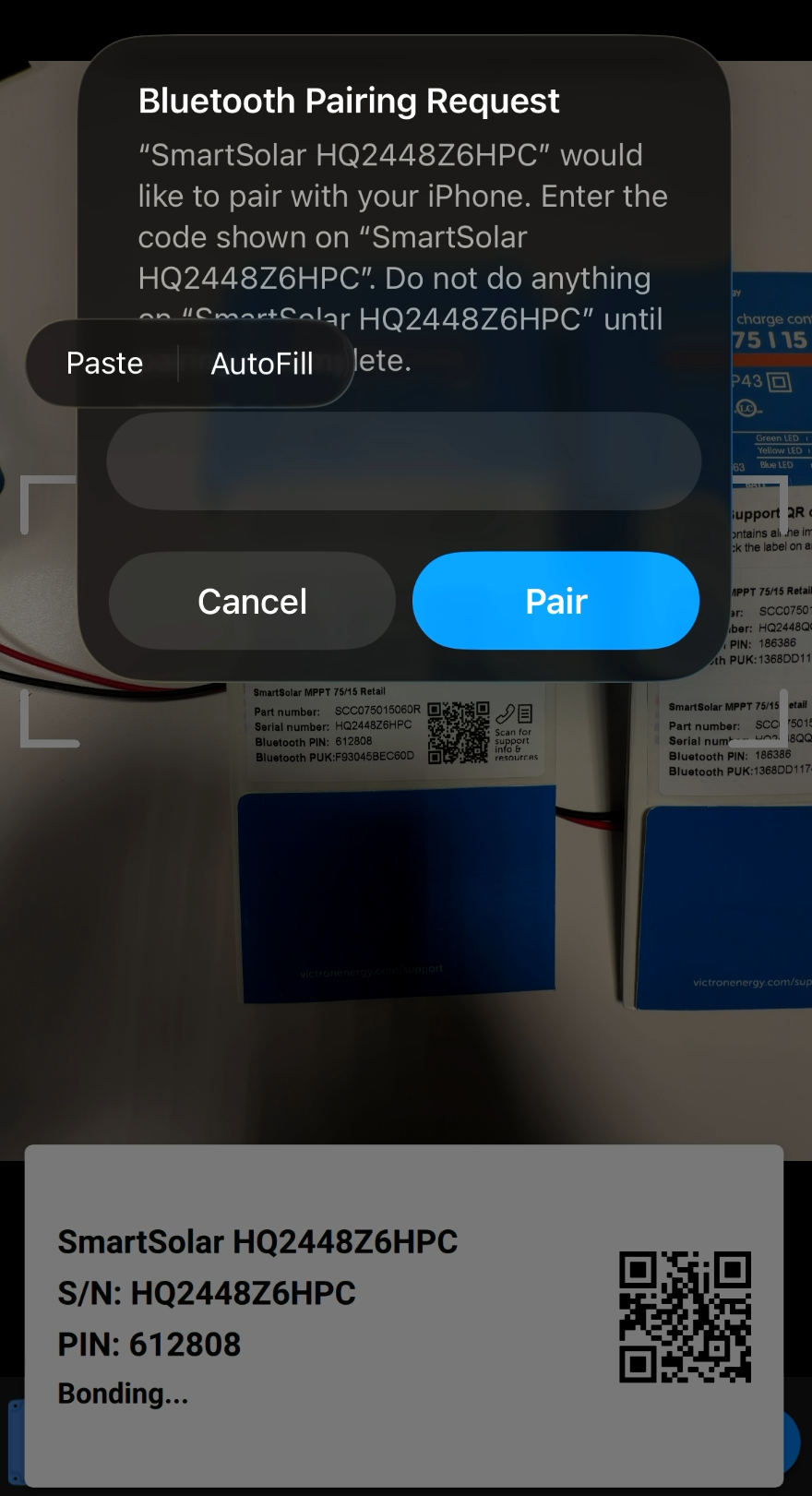
NoteThis step only applies when using an iOS device! Although the Bluetooth PIN can be read from the QR code, it cannot be applied automatically. A pairing request will pop up where you need to enter the PIN for the product you are currently scanning.
TipUpon scanning, the PIN is copied to your clipboard. Paste it into the pairing box. |
|
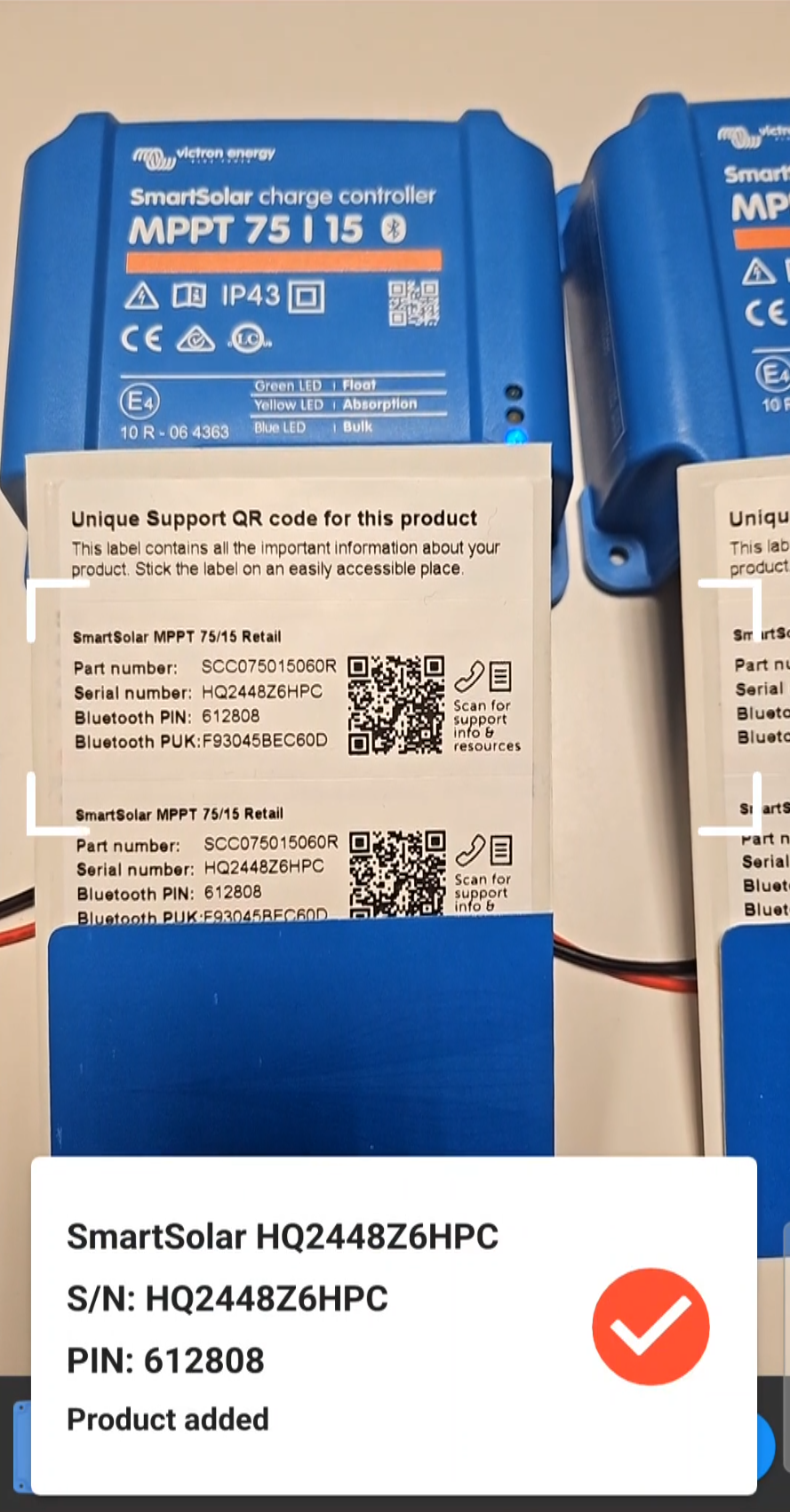
A tick will appear once the product has been successfully added.
NoteDo not tap the Done button until you have scanned all the labels. |
|
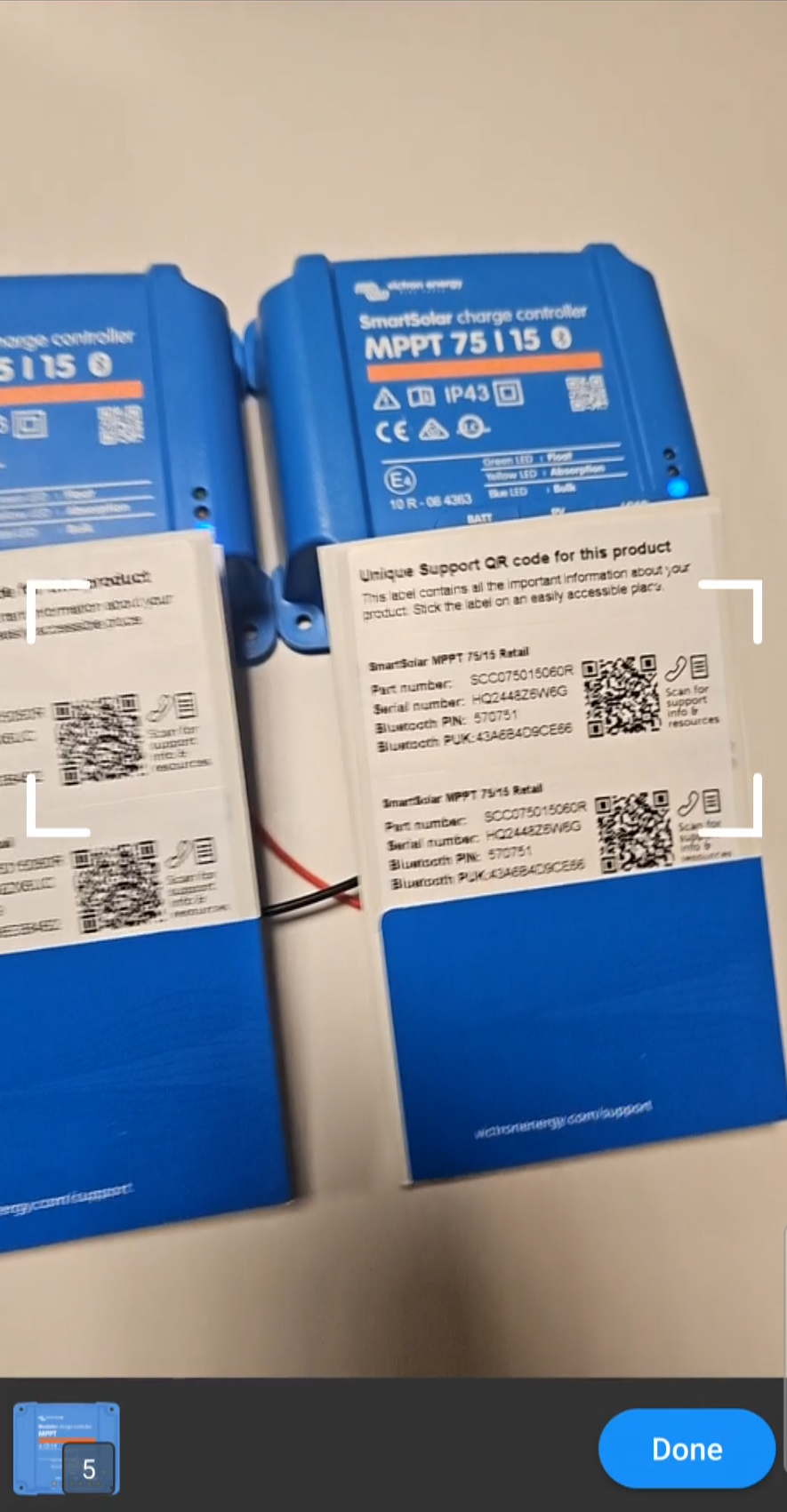
TipThe small number in the black box over the product icon in the bottom-left corner will increase with each successfully added product. |
|
All of the scanned products will be listed. TipTo add more products, tap the orange + button in the bottom-right corner to scan additional QR codes. A firmware update may be required. The firmware details of each product will be shown. The latest firmware version available for this product will be applied from the firmware library.
|
|
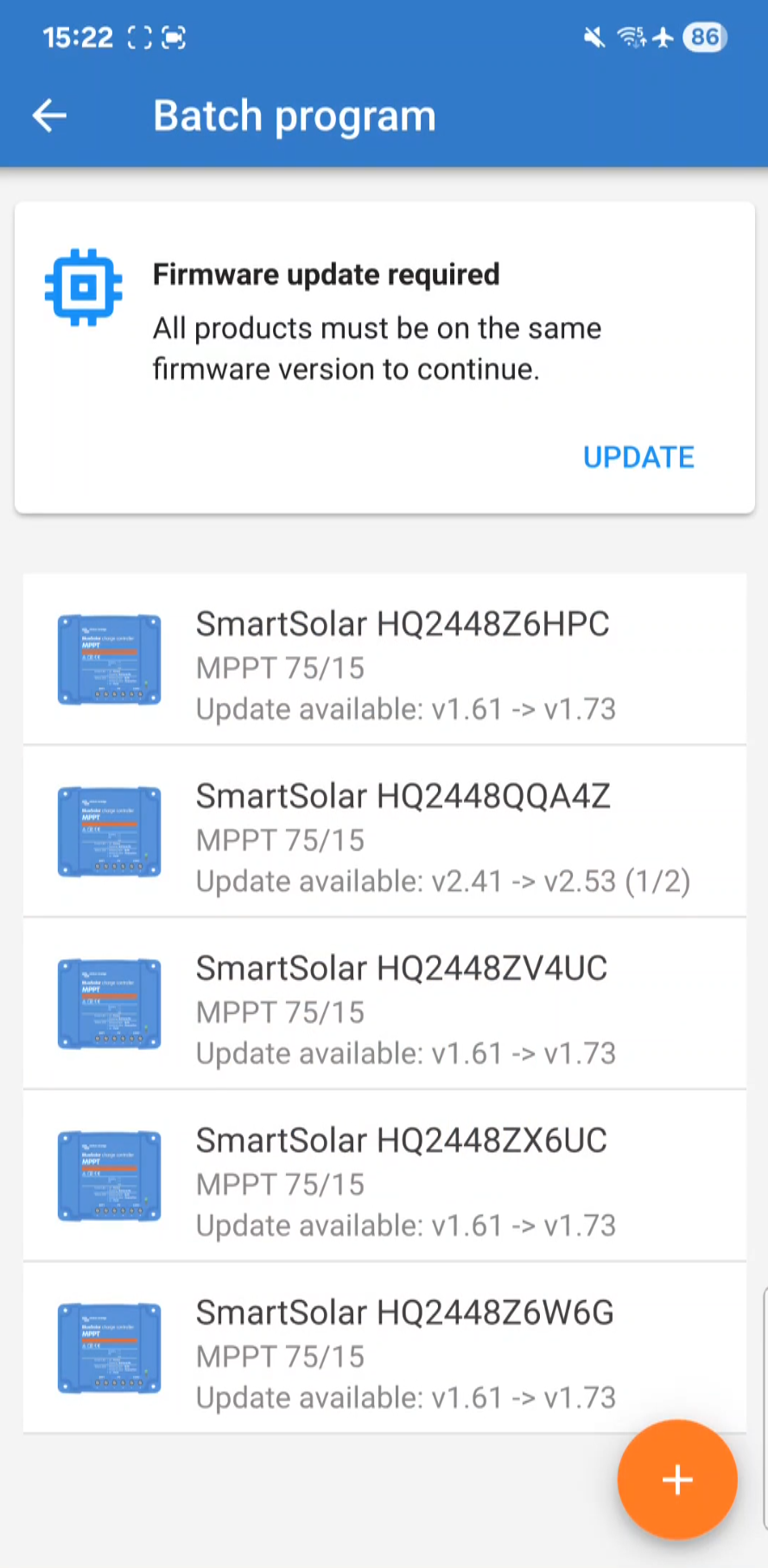
NoteSome products may have two firmware updates, one is for the main CPU and one for the Bluetooth CPU. |
|
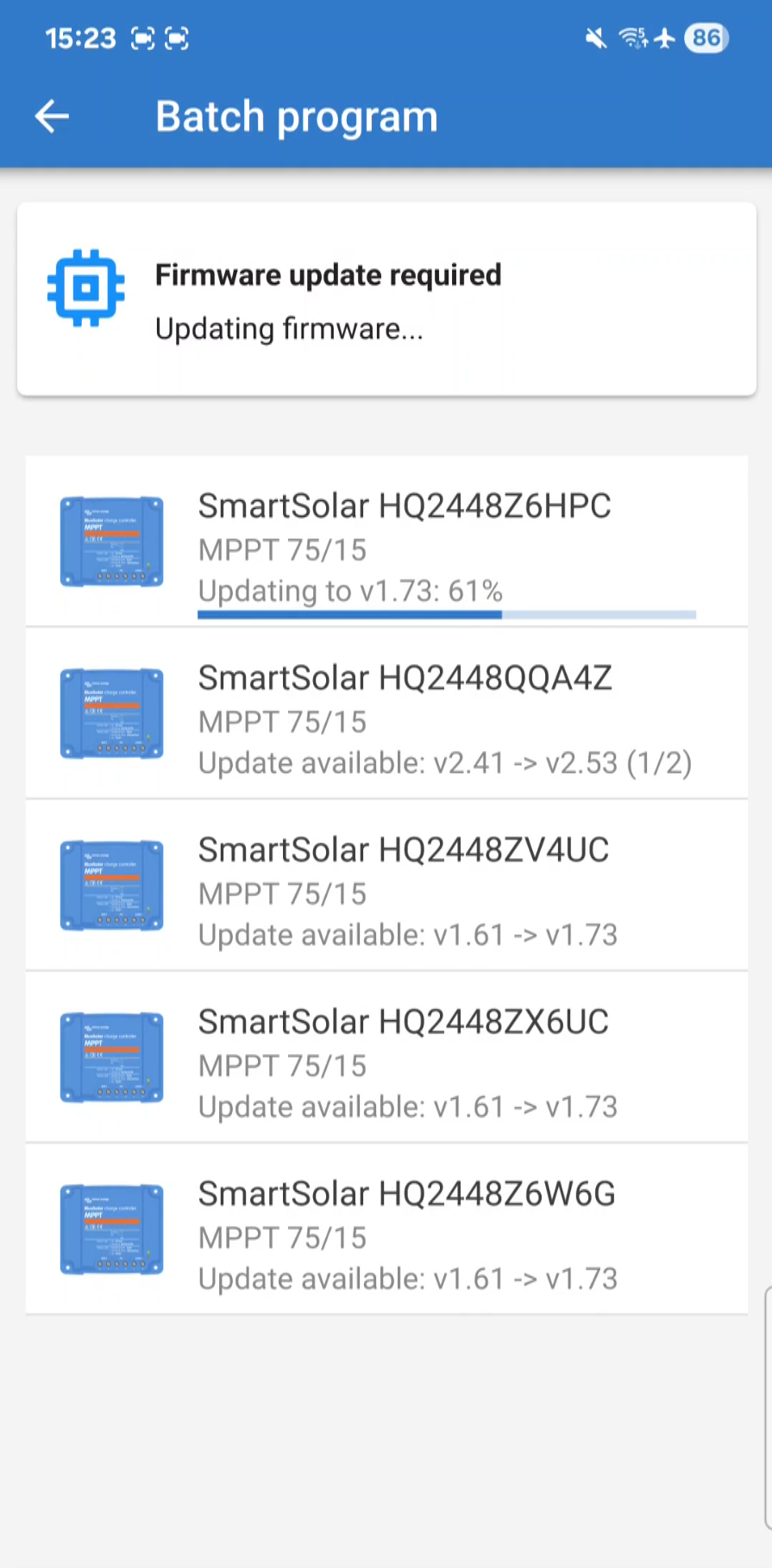
A popup box will be shown once all of the products have been updated to the latest firmware.
|
|
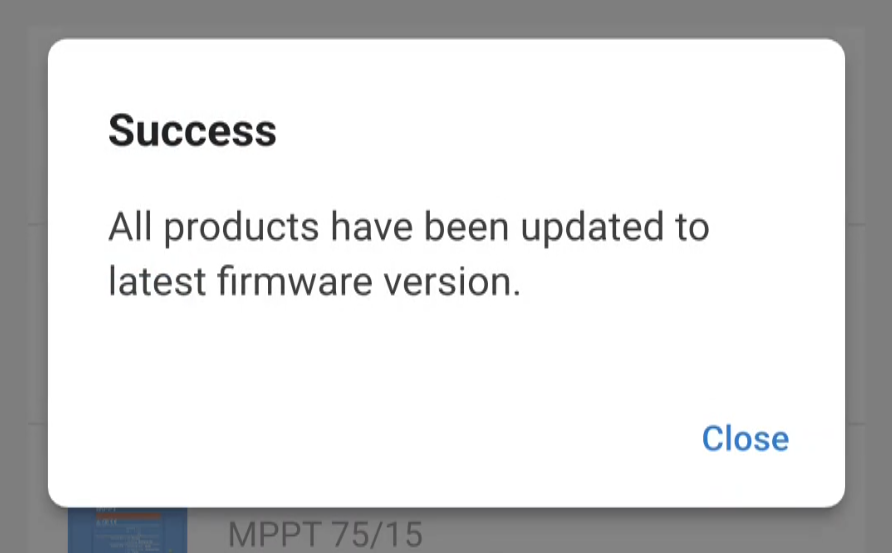
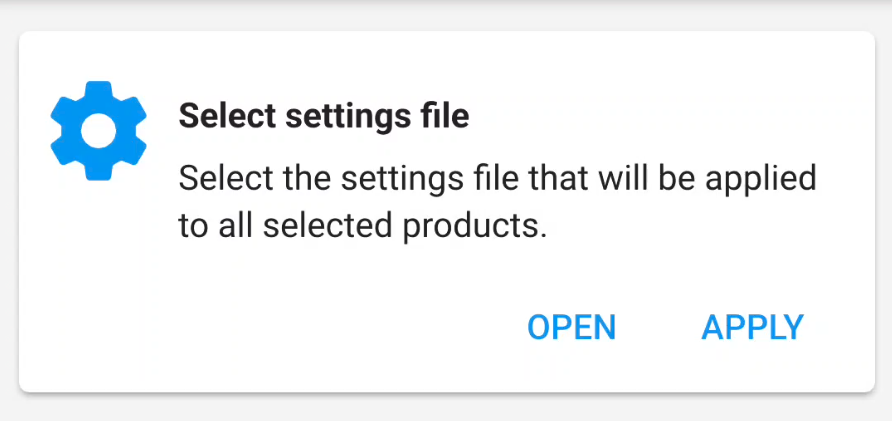
After the firmware updates are complete, you can apply a settings file to all products in the group.
If you don't want to apply a settings file, you can exit the process by using the back button at the top left. |
|
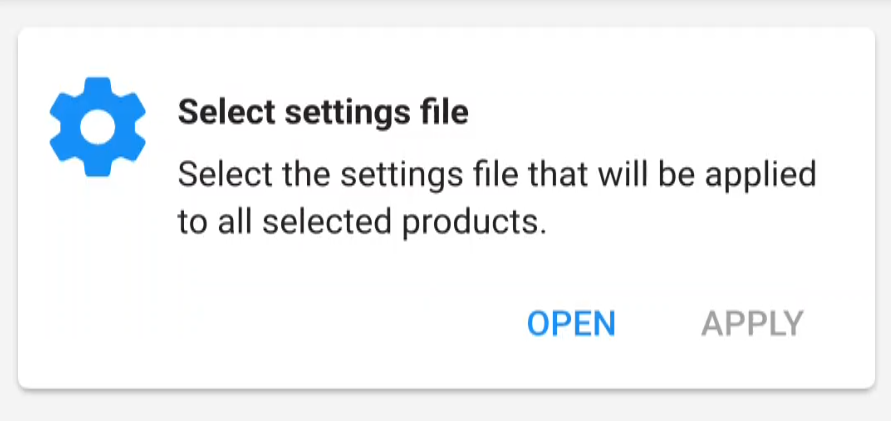
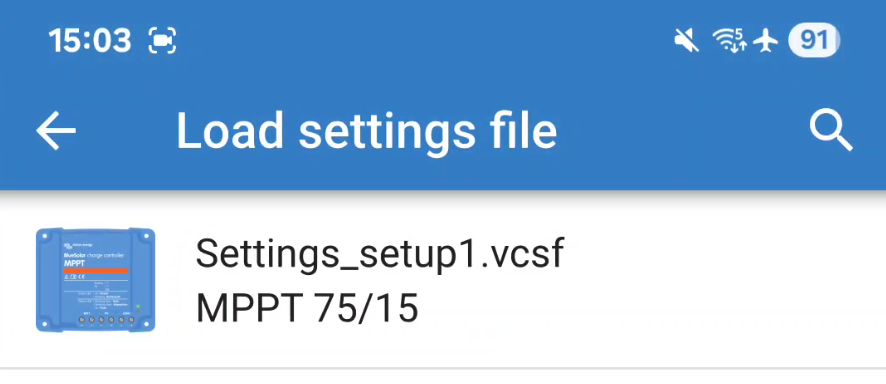
Your settings file library will open, allowing you to load a suitable settings file from the list.
NoteMake sure the settings file matches the products you are applying it to. |
|
|
|
|
|
|
|