4. Configuration
4.1. Upgrade to s97 / s98 VE.Bus firmware
The MultiPlus, MultiPlus-II, Quattro or Quattro-II units require application-specific VE.Bus firmware, identified by the s97 subversion number – and s98 subversion number when using the External Transfer Switch functionality.
Upgrade procedure:
Download the xxxxyyy-s97.vff or xxxxyyy-s98.vff file from https://professional.victronenergy.com/
Install the firmware using VEFlash, the VictronConnect app, or the VRM Portal.
Ensure you select the xxxxyyy-s97.vff or xxxxyyy-s98.vff file during the firmware upgrade.
Repeat the process for all MultiPlus, MultiPlus-II, Quattro or Quattro-II units.
Caution
CAUTION: Never use MultiPlus or MultiPlus-II unit with standard or s97 firmware in an "External transfer switch" application. This will cause the system to connect to the AC input and likely trigger the current protection on that measurement-only circuit.
4.2. VE.Bus System configuration
Each Victron Power Bank is built from one or multiple VE.Bus inverter/chargers. The inverter/charger configuration follows the same well-known principles as a standard VE.Bus system.
As with conventional Victron installations, a Power Bank can be designed as:
A single-phase system
A three-phase or split-phase system (depending on the models and market)
With multiple inverter/chargers in parallel per phase
The configuration principles are identical to those commonly used with MultiPlus, Quattro, MultiPlus-II, and Quattro-II systems.
In the following sections, the configuration of a three-phase system consisting of nine inverter/chargers in total (three units per phase), and using an external transfer switch, is shown as an example.
Three-phase, parallel configuration example
When configuring Power Banks that have parallel, split phase, or three phase configurations use the "VE.Bus System Configurator" to set up the system.
Single VE.Bus Inverter/Charger Power Bank systems should proceed straight to the VEConfigure section.
Three-phase, split phase & parallel system configuration procedure
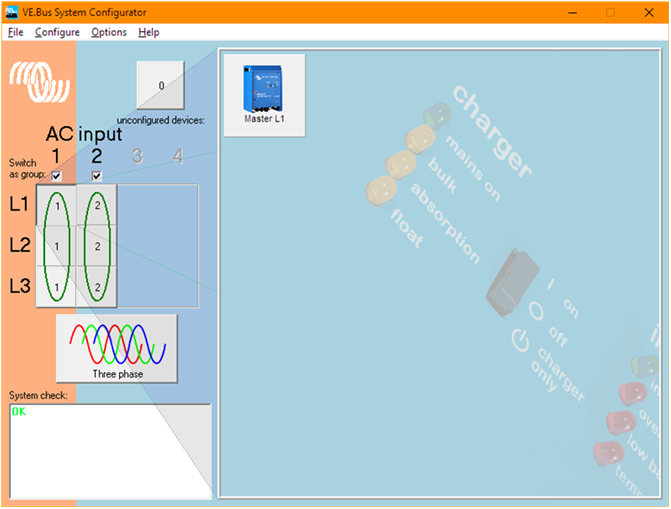
Configure all phase masters in AC input group 1.
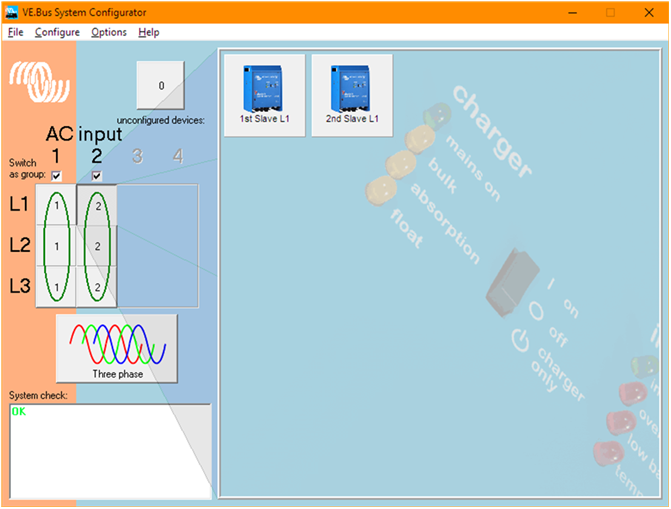
Configure all slaves in AC input group 2.
(Note: assigning slaves to AC input group 2 is specific to external transfer switch applications. For systems using internal transfer switches both masters and slaves should be configured in AC input group 1)
This screenshot shows the master on the first phase of a three phase system with 3 parallel inverter/chargers on each phase.
Right clickt on the "Master L1" tile, select VEConfigure, and follow the directions in the next section to program the master.
This screenshot shows the slave parallel VE.Bus inverter/chargers on phase 1 of a three phase system.
As with the masters, right click on the tiles and select VEConfigure to program the slaves successively.
4.3. Inverter/Charger configuration
Use "VEConfigure" to configure each Inverter/Charger unit.
Configuration procedure:
Ensure the s97 or s98 firmware version is installed, and all software versions are up to date.
Navigate to the “General” tab.
In case of an External Transfer Switch setup with the s98 firmware:
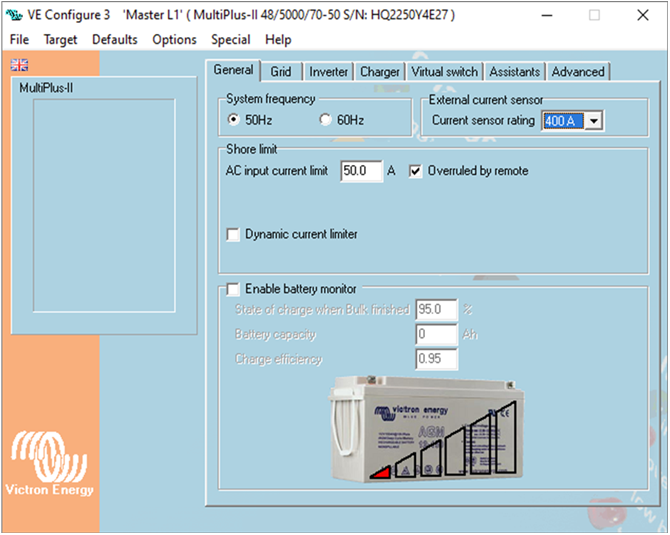
For all phase master units, set the "Current sensor rating" to 100 or 400A, matching the current sensor's current rating.
For all slave units, set the "Current sensor rating" to 100A, regardless of the current sensor's current rating.
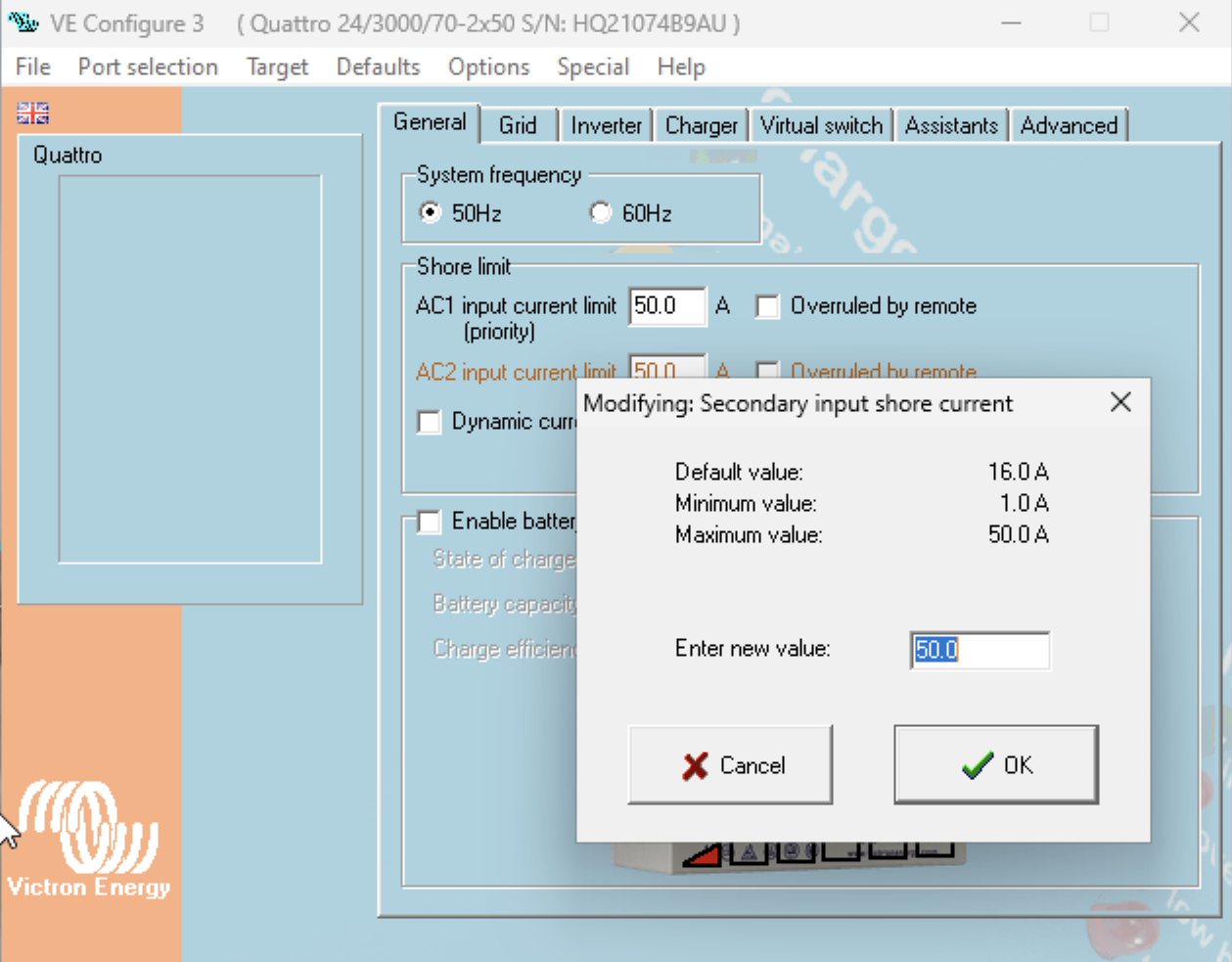
Set the "Shore limit" on the connected AC input to the maximum allowed value.
Navigate to the "Grid" tab.
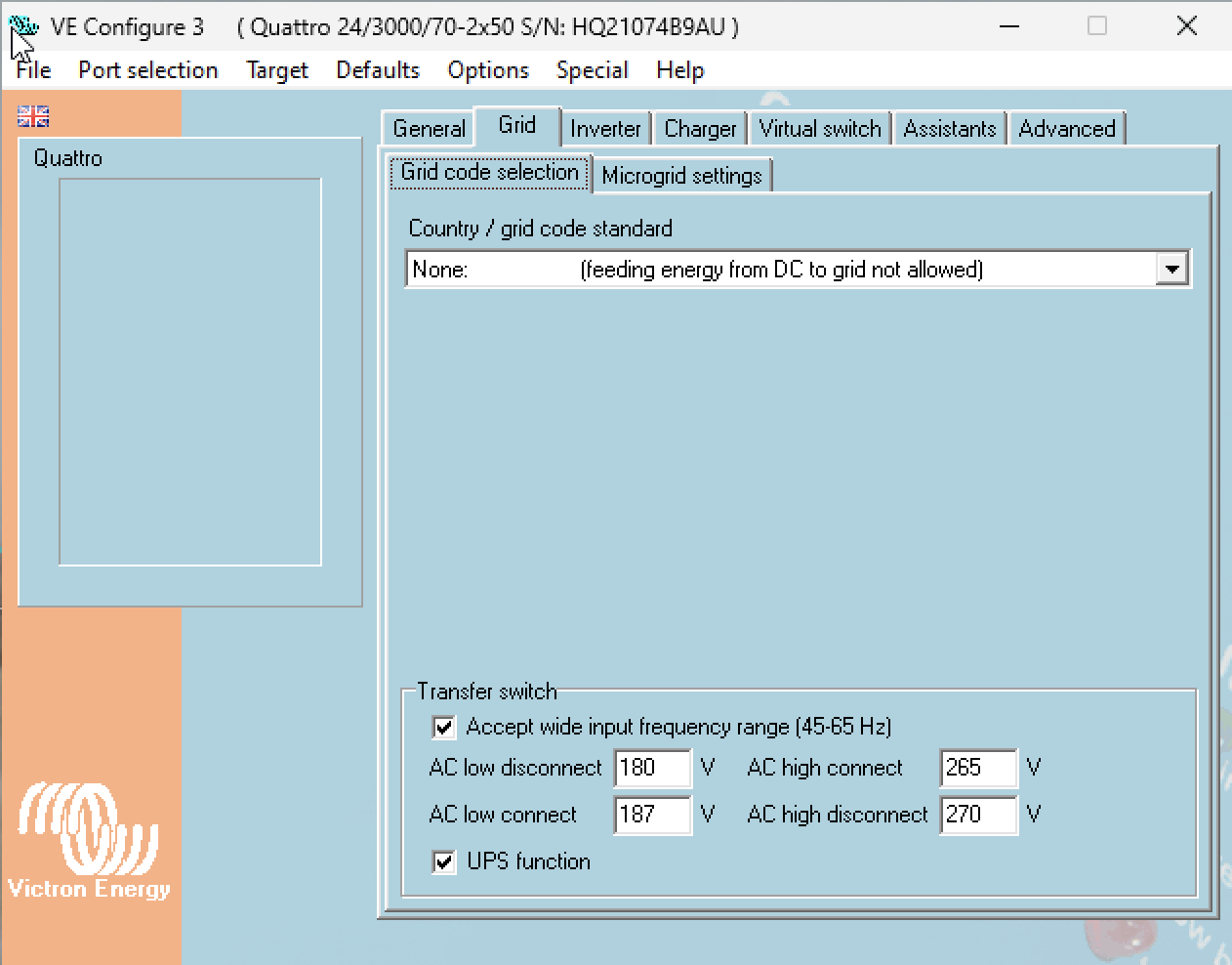
In "Grid code selection" sub-tab, set the grid code to "None".
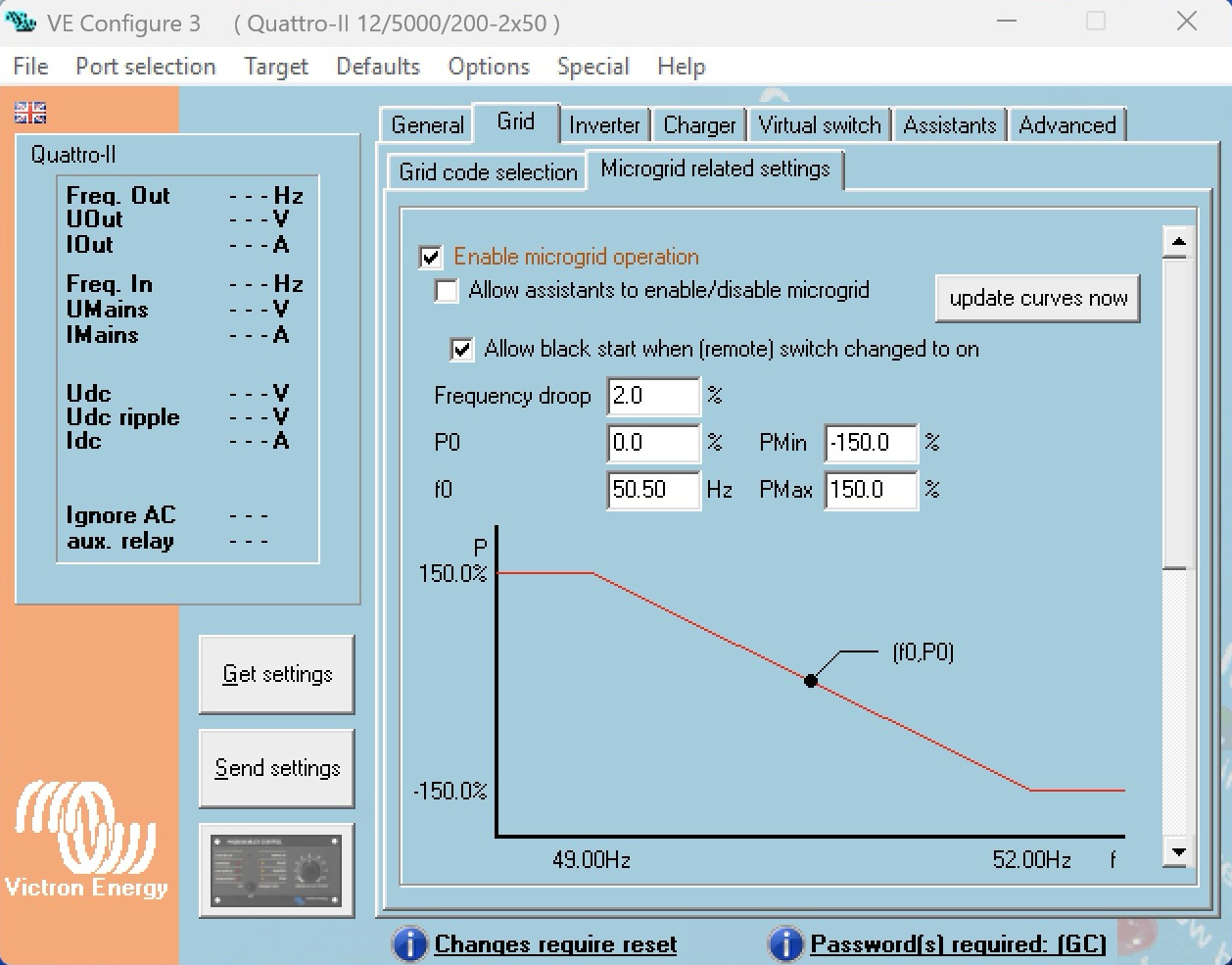
In "Microgrid settings" sub-tab, enable the "Enable Microgrid operation" checkbox.
Note
Victron grid code password is required to enable the "Enable microgrid operation". Contact your Victron dealer for the necessary training to obtain this password.
If desired, also enable the "Allow this system to initiate a black start" checkbox (see notes below).
Navigate to the "Charger" tab
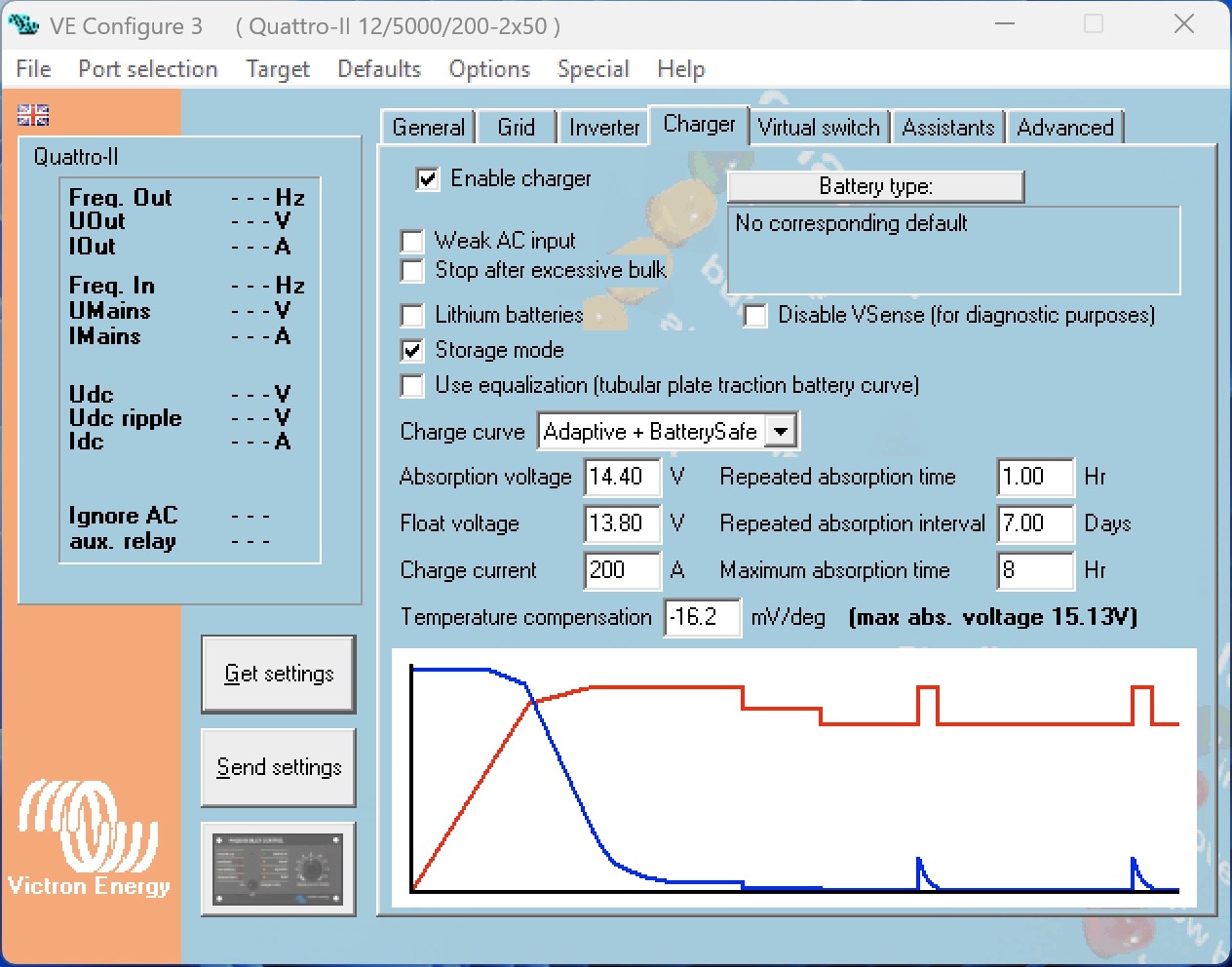
Make sure that "Enable charger" is enabled
Configure "Charge current" to the maximum allowed value.
Configure all other battery charging parameters as required.
Note
The Microgrid feature is designed exclusively for off-grid applications and therefore does not provide support for Grid codes. However as AC-input behaviour is modified, a grid code password is required from your Victron dealer.
Explanation of the Microgrid settings:
With "Enable Microgrid operation" disabled, the inverter/charger operates according to the standard firmware behaviour.
With “Enable Microgrid operation” enabled, the inverter/charger is configured for Hybrid Droop mode, enabling participation in load sharing on the Microgrid AC bus.
The “Allow assistants to enable/disable microgrid” setting is intended for a feature that will be introduced in a future release.
With “Allow black start when (remote) switch changed to on” disabled, the unit will not energize the AC bus on its own. It will wait for another Power Bank to energize the Microgrid AC bus, then synchronize and connect.
With “Allow black start when (remote) switch changed to on” enabled, the unit is permitted to energize the Microgrid AC bus by generating AC voltage on its configured AC input. This permission remains valid only until the Power Bank has successfully closed the transfer switch and connected to an energized AC bus for the first time — regardless of whether the AC bus was energized by another Power Bank or by this unit itself. Following this, black-start capability must be restored manually (see details below).
Black start behaviour
To prevent repeated and uncontrolled restart attempts, black-start capability is limited as follows:
If a Power Bank has “Allow black start when (remote) switch changed to on” enabled, it may initiate a black start only until it has, for the first time established connected to an energized AC bus (either by joining an already energized bus, or by energizing it itself).
If a shutdown event later occurs (for example due to high AC bus voltage, overload, or other protection conditions), the Power Bank:
Can still synchronize with and join an already active Microgrid AC bus.
Cannot initiate a new black start independently.
To restore black-start capability, the Power Bank must be restarted:
Switching all Inverter/Charger in that Power Bank off and then switching all units on again
On a remote monitoring device, like a GX device, or via VRM: Setting Inverter/Charger Mode to "Inverter-only" or "Off" and then to "On" again
Warning
Even if “Allow black start when (remote) switch changed to on” is disabled, once the inverter/charger has synchronized to an active Microgrid AC bus, it will keep its transfer switch closed and continue supplying voltage to the bus – even if other Power Banks are disconnected.
Black start requirement
At least one Power Bank must have black-start capability available in order to energize and start the Microgrid AC bus. If no unit has active black-start permission (for example after a previous successful start without restart), the Microgrid cannot be initiated until a system restart is performed.
4.4. Hybrid droop parameters
Hybrid Droop control defines how each Victron Power Bank reacts to deviations in frequency and voltage on the Microgrid AC bus. Two independent droop mechanisms are implemented:
P–f Droop (Active power vs. frequency)
Q–U Droop (Reactive power vs. voltage)
Together, they determine how active and reactive power are shared between Power Banks and how the AC bus behaves under load.
Warning
It is strongly recommended to keep Hybrid Droop parameters at their default values. Parameters do not need to be changed under normal operation.
Important
All percentage-based power values refer to the nominal active power of the inverter/charger system, which equals 80 to 90 percent of its VA rating, depending on the device model.
This scaling also applies to relative reactive power parameters.
4.4.1. P–f Droop (Active Power vs. Frequency)
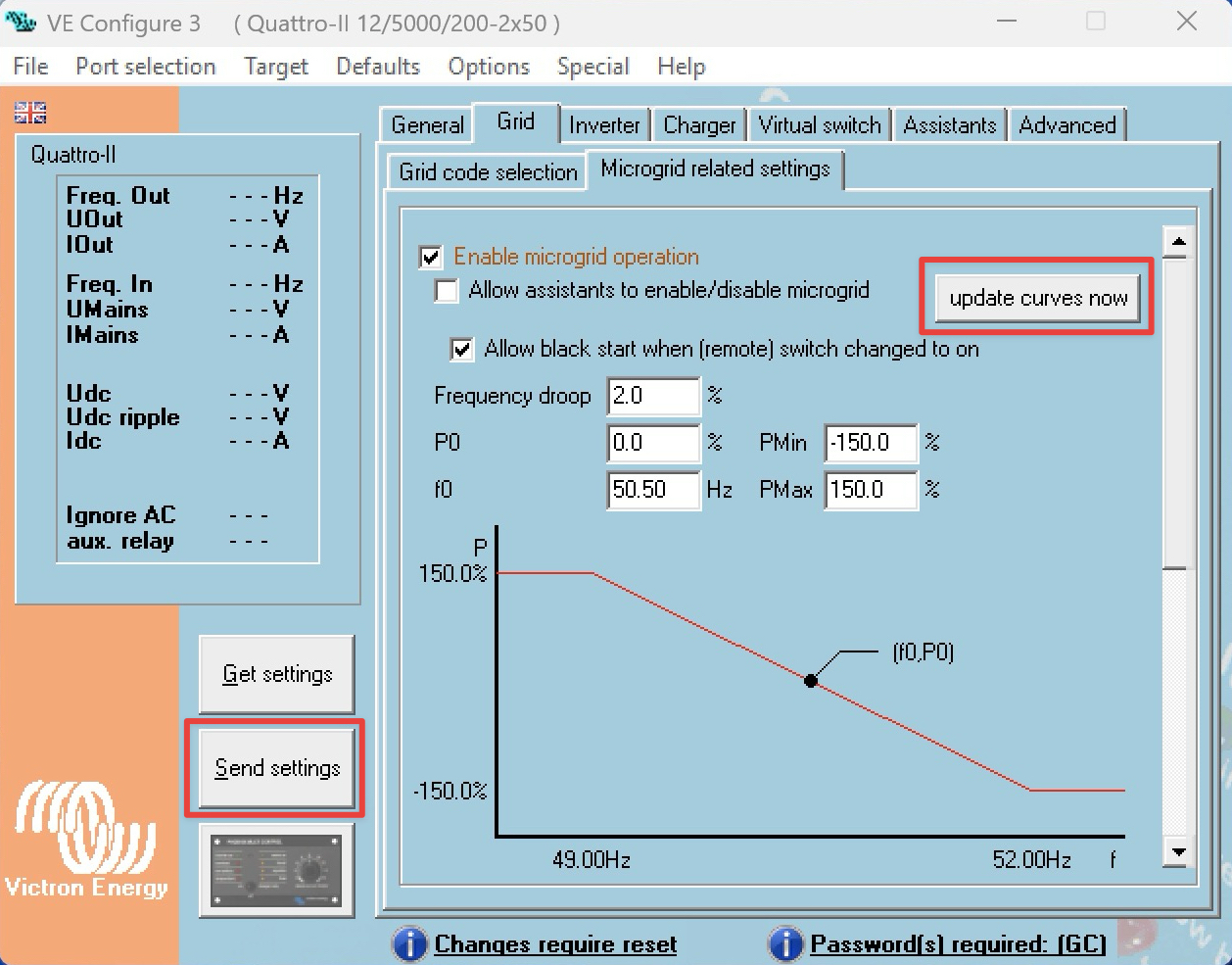
The P–f droop defines how active power output changes as a function of frequency deviation.
Configurable parameters
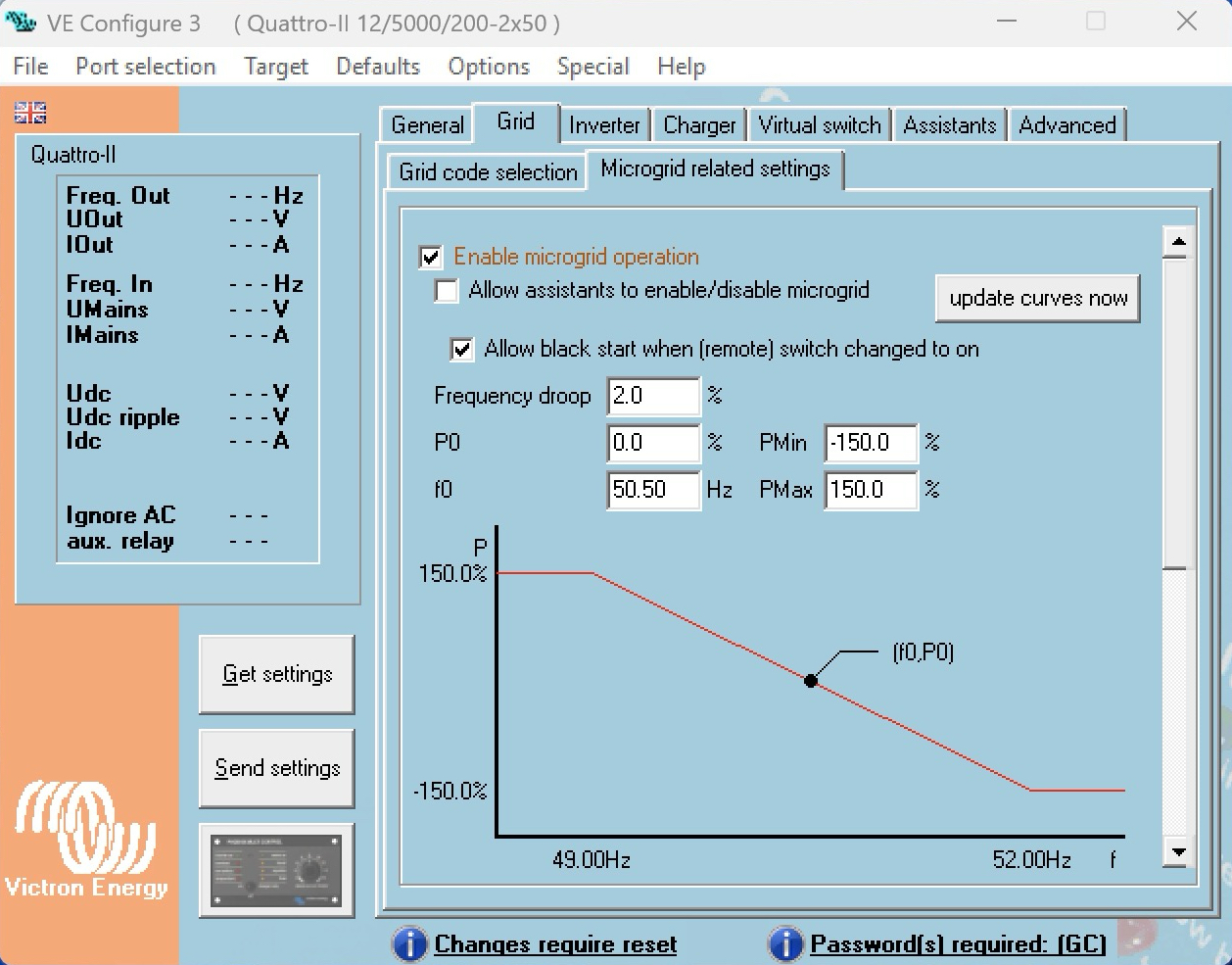
Frequency droop [%] (default: 2.0)
P0 [%] (default: 0.00)
f0 [Hz] (default: 50.50)
Pmin [%] (default: -150.00)
Pmax [%] (default: 150.00)
Operating principle
The parameter f₀ defines the reference frequency. At this frequency, the inverter delivers the active power defined by P₀.
If the measured bus frequency deviates from f₀:
A decrease in frequency causes the inverter to increase active power output.
An increase in frequency causes the inverter to decrease active power output.
The slope of this relationship is defined by the Frequency droop setting.
In a Microgrid with multiple Power Banks:
Identical droop settings result in proportional active power sharing.
Different droop slopes or offsets (P₀, f₀) shift load distribution and dynamic behavior.
Power limits
Active power contribution is bounded by:
Pmin
Pmax
These limits define the allowed active power range relative to nominal inverter power.
Refer to the following screenshot.
4.4.2. Q–U Droop (Reactive Power vs. Voltage)
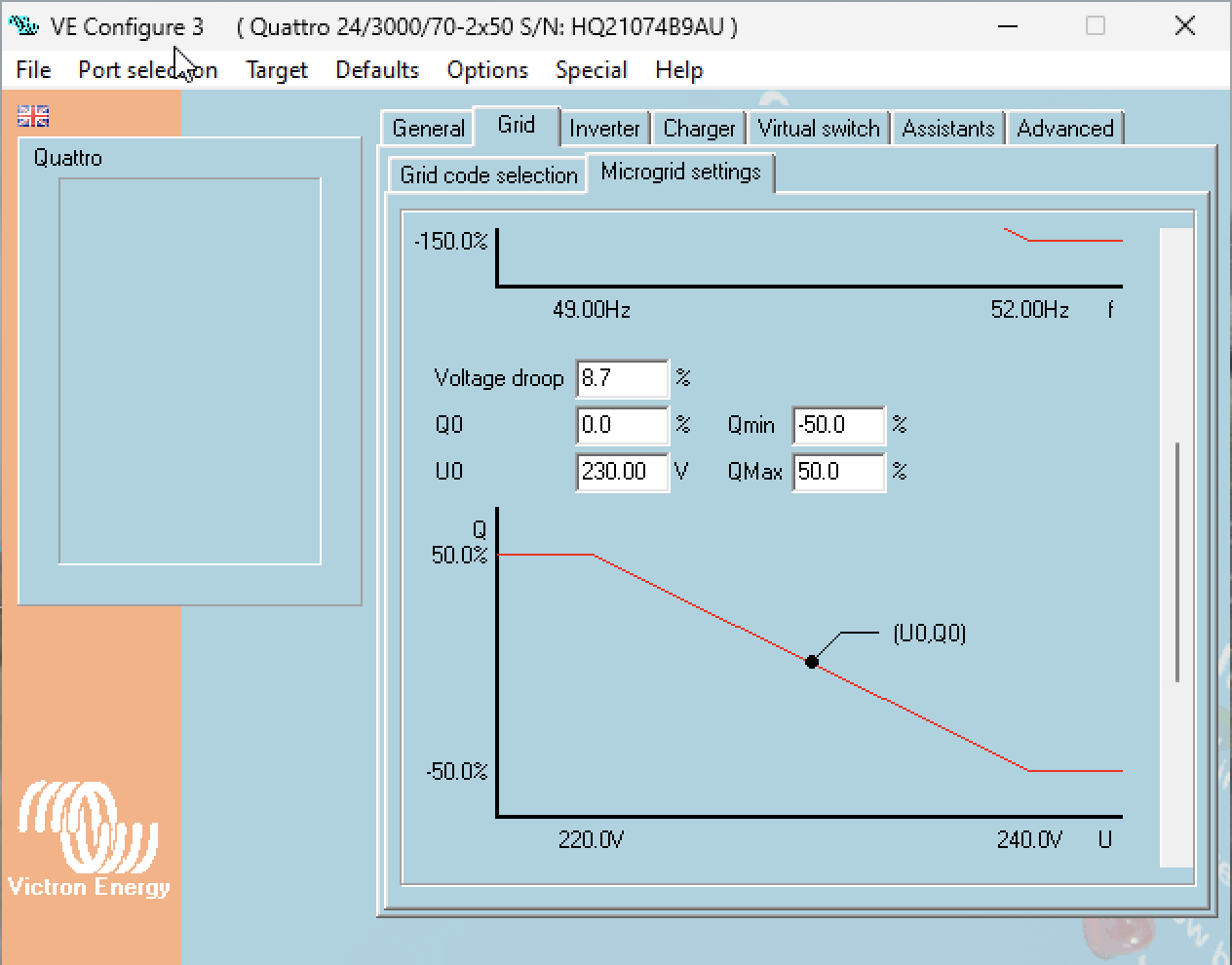
The Q–U droop defines how reactive power output changes as a function of voltage deviation.
Configurable parameters
Voltage droop [%] (default: 8.7)
Q0 [%] (default: 0.00)
U0 [V] (default: 230.00)
Qmin [%] (default: -50.0)
Qmax [%] (default: 50.0)
Operating principle
The parameter U₀ defines the reference voltage. At this voltage, the inverter delivers the reactive power defined by Q₀.
If the measured bus voltage deviates from U₀:
A voltage drop results in increased reactive power injection (supporting voltage).
A voltage rise results in reduced or absorbing reactive power.
The Voltage droop parameter defines the slope of the Q–U characteristic.
As with P–f droop:
Identical Q–U settings across all Power Banks result in proportional reactive power sharing.
Modified slopes or offsets influence voltage stiffness and reactive power distribution.
Reactive power limits
Reactive power output is bounded by:
Qmin
Qmax
These limits restrict reactive power contribution relative to nominal inverter power.
Reactive power capability
When the inverter/charger delivers more than 30% of its nominal active power, the minimum achievable power factor (cosφ) is limited to 0.7.
This means that at higher active power levels, the available reactive power is reduced in order to remain within the inverter’s apparent power (VA) capability.
As active power increases, the maximum allowed reactive power decreases accordingly. This limitation is inherent to the inverter’s power stage and must be considered when configuring Q–U droop parameters in Microgrid applications.
Important
Above 30% active power, the minimum power factor is limited to cosφ = 0.7, reducing available reactive power.
Refer to the following screenshot.
4.4.3. Applying Hybrid droop parameters
The Hybrid droop curve parameters are handled using two internal storage mechanisms:
Default parameter storage (non-volatile)
Active runtime storage (volatile)
Understanding the difference between these two is important when modifying droop curves or related settings.
Default Parameter Storage
When pressing “Send settings”, the configured curve data is written to the non-volatile default parameter storage. However, the new curve will not become active immediately. The updated curve will only take effect after a system reset.
This mechanism ensures that permanent configuration changes are applied in a controlled manner.
Active Runtime Storage
When pressing “Update curves now”, the new curve data is sent directly to the Power Bank and written to the active runtime storage. In this case the updated curves become effective immediately and no system reset is required.
This function is intended for temporary adjustments or tuning during commissioning and testing.
The changes remain active until the next reset. After such an event, the system will revert to the curve stored in the non-volatile default parameter storage.
4.4.4. Hybrid droop parameter behaviour reference
The following table summarises all configurable Hybrid Droop parameters and describes the effect of adjusting each one.
P–f droop : Active Power (P) vs Frequency (f)
Parameter | Controls | Effect when changed |
|---|---|---|
Frequency droop [%] | Slope of the P–f characteristic curve | A lower percentage produces a steeper slope, resulting in less frequency deviation under load and a stiffer system response. A higher percentage produces a flatter slope, allowing more frequency deviation but softer load transitions. |
f₀ | Reference frequency | Shifts the operating point along the frequency axis. At this frequency, the inverter delivers the active power defined by P₀. |
P₀ | Active power output at f₀ | Shifts the droop curve vertically. Increasing P₀ biases more active load toward this Power Bank at the reference frequency. Decreasing P₀ reduces its share. |
P_max / P_min | Active power output limits | Clamps the active power contribution regardless of droop calculation. Prevents overload at the upper limit and reverse power flow at the lower limit. Values are expressed as a percentage of nominal inverter power. |
Q–U droop : Reactive Power (Q) vs Voltage (U)
Parameter | Controls | Effect when changed |
|---|---|---|
Voltage droop [%] | Slope of the Q–U characteristic curve | A lower percentage produces a steeper slope, resulting in stiffer voltage regulation and less voltage deviation under reactive load. A higher percentage produces a flatter slope, allowing more voltage deviation. |
U₀ | Reference voltage | Shifts the operating point along the voltage axis. At this voltage, the inverter delivers the reactive power defined by Q₀. |
Q₀ | Reactive power output at U₀ | Shifts the droop curve vertically. Increasing Q₀ causes the Power Bank to inject more reactive power at the reference voltage. Decreasing Q₀ reduces its reactive contribution. |
Q_max / Q_min | Reactive power output limits | Clamps the reactive power contribution regardless of droop calculation. Must be configured within the inverter's apparent power (VA) capability. Values are expressed as a percentage of nominal inverter power. |
Note
All percentage-based power values refer to the nominal active power of the inverter/charger system, which equals 80 to 90 percent of its VA rating (depending on the device model). This scaling also applies to reactive power.
Caution
Above 30% nominal active power, the minimum achievable power factor is limited to cosφ = 0.7. This means available reactive power decreases as active power increases. The Q–U droop limits must be configured with this constraint in mind to avoid requesting reactive power the inverter cannot deliver.
4.5. GX user interface and VRM monitoring
This chapter covers three layers of monitoring and visibility: the GX device local user interface, the VRM portal for individual Power Bank monitoring, and VRM Installation Groups for aggregated Microgrid-wide monitoring.
Each Power Bank in a Microgrid operates independently, and each may have its own GX device connected via VE.Bus to its inverter/charger system. While a GX device is not mandatory, it is strongly recommended. It provides local visibility into the Power Bank's operating state and, when connected to the internet, enables remote monitoring through the Victron Remote Management (VRM) portal.
Venus OS v3.70 or later is required for Microgrid support on the GX device.
Ensure the GX device firmware is updated before commissioning. Refer to the Venus OS version guidance in the [Configuration] chapter, Section 4.5.
4.5.1. GX Device role in the Microgrid
Each GX device monitors a single Power Bank. It connects to the inverter/charger system (MultiPlus, Quattro, MultiPlus-II, or Quattro-II) via VE.Bus and, optionally, to DC charging sources (MPPT solar chargers, battery monitors) via VE.Direct or VE.Can.
In a Microgrid with multiple Power Banks, there is no direct communication between GX devices. Each GX device sees only its own Power Bank. Microgrid-wide visibility is achieved through VRM Installation Groups, described in Section 4.
The GX device provides two categories of information relevant to Microgrid:
Operational data. Real-time readings from the VE.Bus device detail page: AC input voltage and frequency, AC power, DC bus voltage, battery SoC, inverter/charger state, and active AC input.
Microgrid parameters. A dedicated Microgrid submenu displaying the active Hybrid Droop control mode and its configured parameters. These values are read from the inverter/charger firmware settings and displayed for verification.
4.5.2. GX Local User Interface
VE.Bus Device detail page
Navigate to the VE.Bus device detail page from the GX device overview. Select the inverter/charger device from the device list (e.g. "MultiPlus 12/2000/80-32").
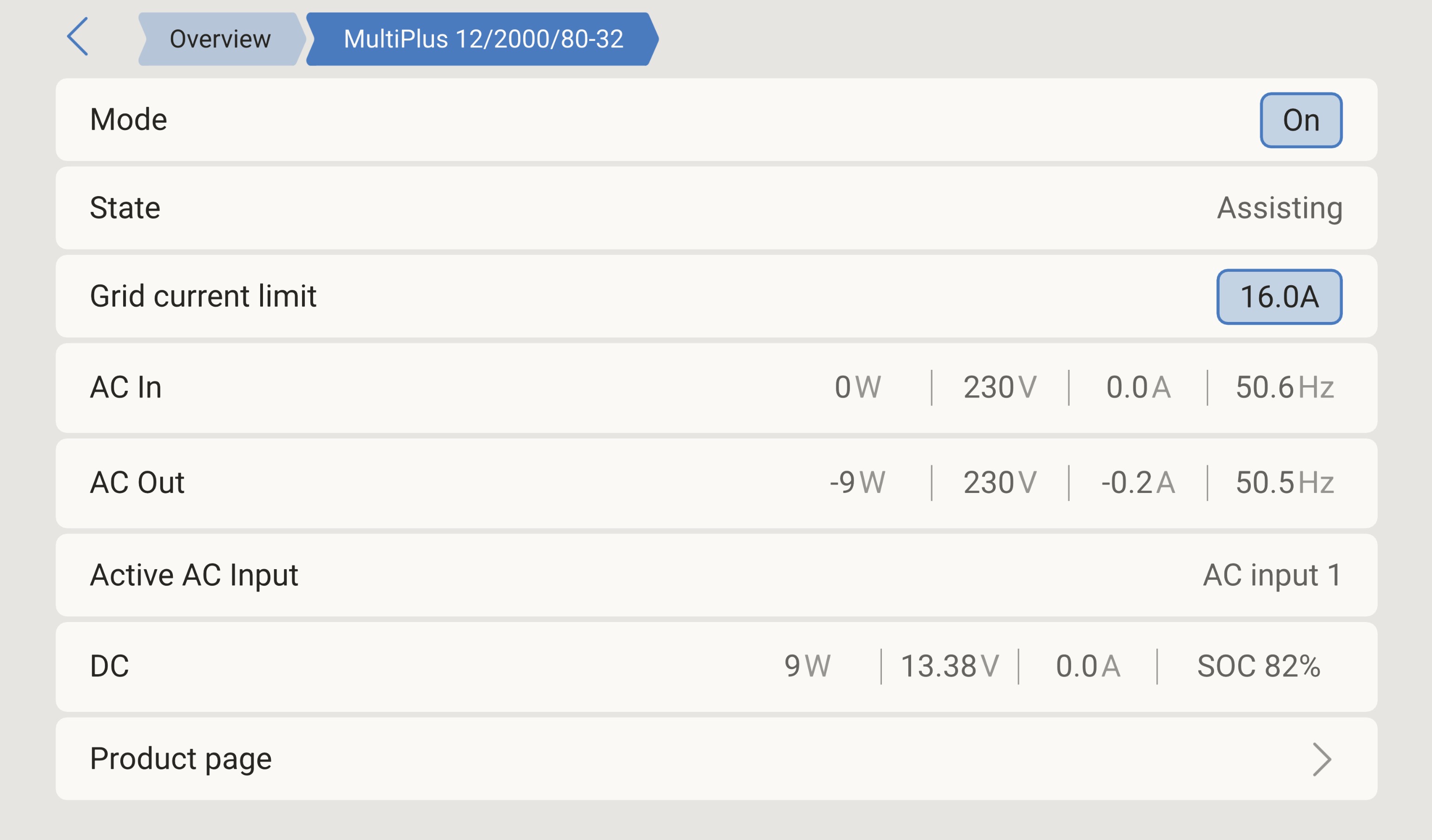 |
The page displays the following fields:
Field | Description | Microgrid relevance |
|---|---|---|
Mode | Current operating mode of the inverter/charger. | Must read On. If set to Charger-only or Inverter-only, the Power Bank cannot participate in Hybrid Droop control. |
State | Operational state (e.g. Assisting, Bulk, Absorption, Float, Inverting). | Assisting indicates the Power Bank is synchronised to the Microgrid AC bus and actively participating. |
Grid current limit | Maximum AC input current setting. | Set to the maximum allowed value per the [Configuration] chapter, Section 4.3. |
AC In | Power (W), voltage (V), current (A), and frequency (Hz) on the AC input, which in a Microgrid is the shared AC bus connected to AC-IN (MultiPlus / MultiPlus-II) or AC-IN-2 (Quattro / Quattro-II). | Frequency is the primary diagnostic value. In a Microgrid operating under Hybrid Droop, AC bus frequency reflects aggregate active power load via the P–f droop relationship. A frequency of f0 (default 50.50 Hz) indicates the Power Bank is at its reference active power (P0). Frequency below f0 indicates the bus is loaded above P0; frequency above f0 indicates it is loaded below P0. |
AC Out | Power (W), voltage (V), current (A), and frequency (Hz) on the AC output terminals. | In a Microgrid, AC-OUT-1 and AC-OUT-2 are not used and must remain disconnected. The AC Out readings may show small residual values but are not operationally relevant. |
Active AC Input | Indicates which AC input terminal is in use. | Confirms the Power Bank is connected to the Microgrid AC bus via the correct input terminal. |
DC | Power (W), voltage (V), current (A), and battery SoC (%). | SoC is critical for operational awareness. The lowest Power Bank SoC in the Microgrid drives load-shedding and shutdown decisions, per the [Operation] chapter. |
The "AC In" frequency reading is the single most important value for Microgrid monitoring at the local GX level.
It serves as a real-time proxy for aggregate percentage load on the Microgrid AC bus. An installer or operator observing bus frequency can immediately assess whether the Microgrid is lightly loaded (frequency near or above f0), moderately loaded (frequency noticeably below f0), or approaching capacity (frequency near the lower droop limit).
Microgrid submenu
Navigate to the Microgrid submenu via Settings → Devices → [VE.Bus device name] → Microgrid.
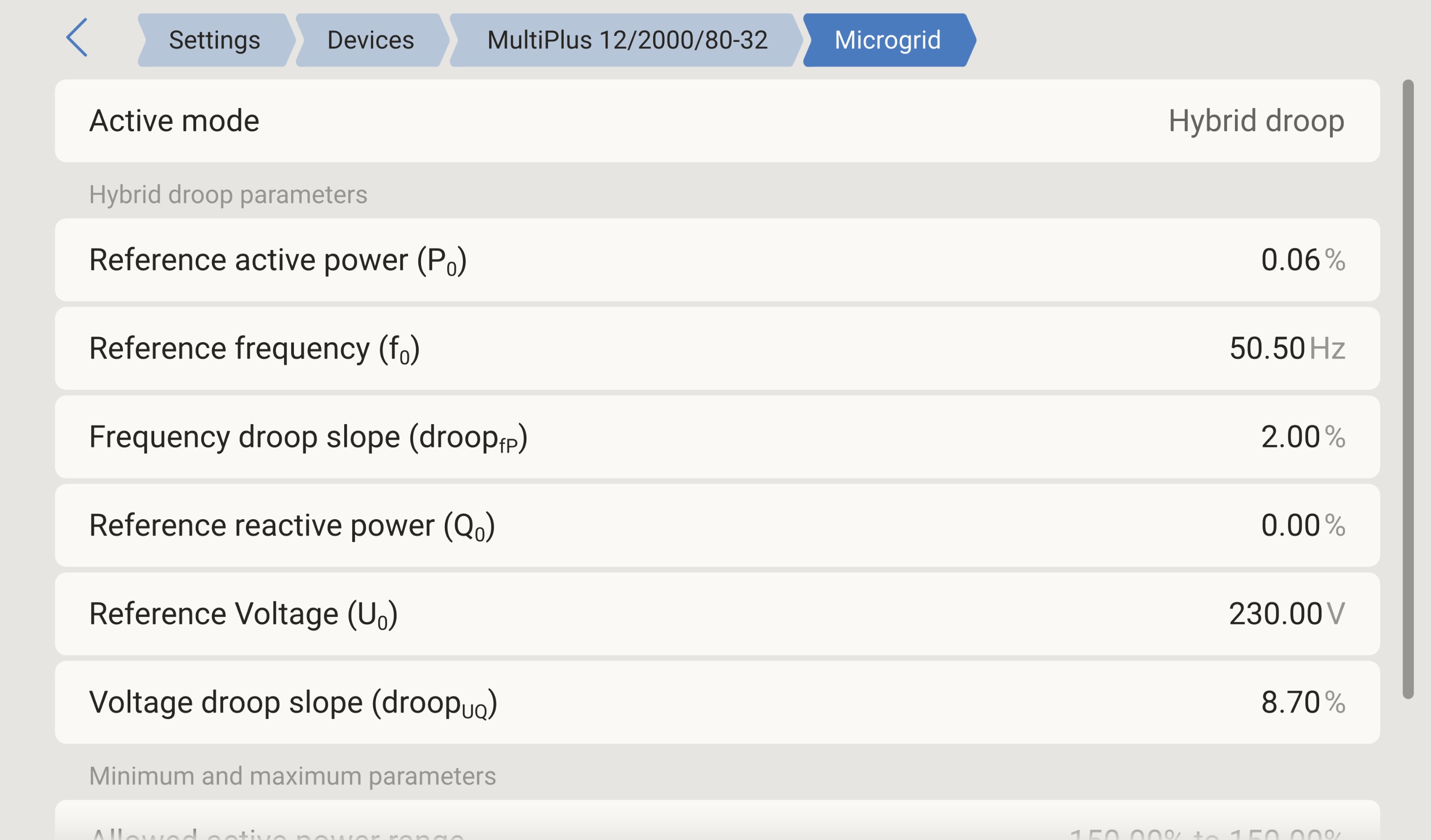 |
This page displays the Hybrid Droop parameters currently configured in the inverter/charger firmware.
These values are read-only on the GX device, they are configured using VEConfigure 3 and VE.Bus System Configurator, per the [Configuration] chapter, Section 4.4.
The Microgrid submenu displays:
Parameter | Value | Description |
|---|---|---|
Active mode | Hybrid Droop | Confirms the inverter/charger is operating in Microgrid Hybrid Droop mode. |
Reference active power (P0) | 0.06% | The active power setpoint at the reference frequency f0. Expressed as a percentage of nominal active power. |
Reference frequency (f0) | 50.50 Hz | The AC bus frequency at which the Power Bank delivers P0. |
Frequency droop slope (droopfP) | 2.00% | The P–f droop slope. Determines how much the Power Bank adjusts its active power output per unit of frequency deviation. |
Reference reactive power (Q0) | 0.00% | The reactive power setpoint at the reference voltage U0. |
Reference Voltage (U0) | 230.00 V | The AC bus voltage at which the Power Bank delivers Q0. |
Voltage droop slope (droopUQ) | 8.70% | The Q–U droop slope. Determines how much the Power Bank adjusts its reactive power output per unit of voltage deviation. |
Below the droop parameters, the submenu displays the allowed operating range:
Parameter | Default value |
|---|---|
Allowed active power range | −150.00% to 150.00% |
Allowed reactive power range | −50.00% to 50.00% |
Use this page to verify that the Hybrid Droop parameters match the intended design.
When commissioning a Microgrid with multiple Power Banks, check that all Power Banks display identical droop parameters, unless intentional asymmetric load sharing has been designed, per the [Configuration] chapter, Section 4.4.
If the Microgrid submenu does not appear in the device menu, verify that the inverter/charger is running firmware with S97 or S98 subversion and that the GX device is running Venus OS v3.70 or later.
4.5.3. VRM portal, individual Power Bank monitoring
Each GX device in the Microgrid registers as a separate installation on the VRM portal (vrm.victronenergy.com). When a GX device is connected to the internet and registered to a VRM account, it continuously uploads system data.
Each Power Bank's VRM installation provides:
Dashboard. Real-time overview of battery SoC, solar yield, AC power flows, and system state.
Advanced page. Detailed historical graphs and data logging for all monitored parameters, including AC input frequency, voltage, power, and battery SoC over time.
Remote Console. Full remote access to the GX device local user interface described in Section 2, including the Microgrid submenu.
Alarm logging and notifications. Historical alarm records and configurable email/push notifications for alarm conditions.
For Microgrid monitoring, the most valuable VRM data points per installation are:
Battery State of Charge trend. Track each Power Bank's SoC over time to identify imbalances between Power Banks. Because there is no automatic SoC balancing between Power Banks, diverging SoC trends may indicate unequal DC charging capacity or load distribution.
AC input frequency trend. The bus frequency logged by each Power Bank provides a historical view of Microgrid loading. Since all Power Banks are on the same AC bus, their frequency readings should be consistent.
Inverter/charger state transitions. State changes (Assisting, Bulk, Absorption, Float) indicate when a Power Bank is contributing to the Microgrid, or disconnected.
Use consistent, descriptive installation names for each Power Bank (e.g. "Site Name PB1", "Site Name PB2") to simplify identification when working with multiple installations.
4.5.4. VRM portal, Microgrid monitoring with Installation groups
When a Microgrid contains multiple Power Banks, each with its own GX device and VRM installation, it's possible to monitor them individually and collectively.
VRM Installation Groups provide a mechanism to view all Power Banks belonging to a single Microgrid in a unified list with aggregated totals.
Creating an Installation Group
Log in to the VRM portal.
Navigate to Teams & Groups in the left sidebar.
Select Installation groups.
Click Create installation group in the upper right.
Enter a descriptive group name that identifies the Microgrid site.
Click Create installation group to confirm.
A VRM account can contain multiple Installation Groups. Only installations to which the account has full access can be added to a group.
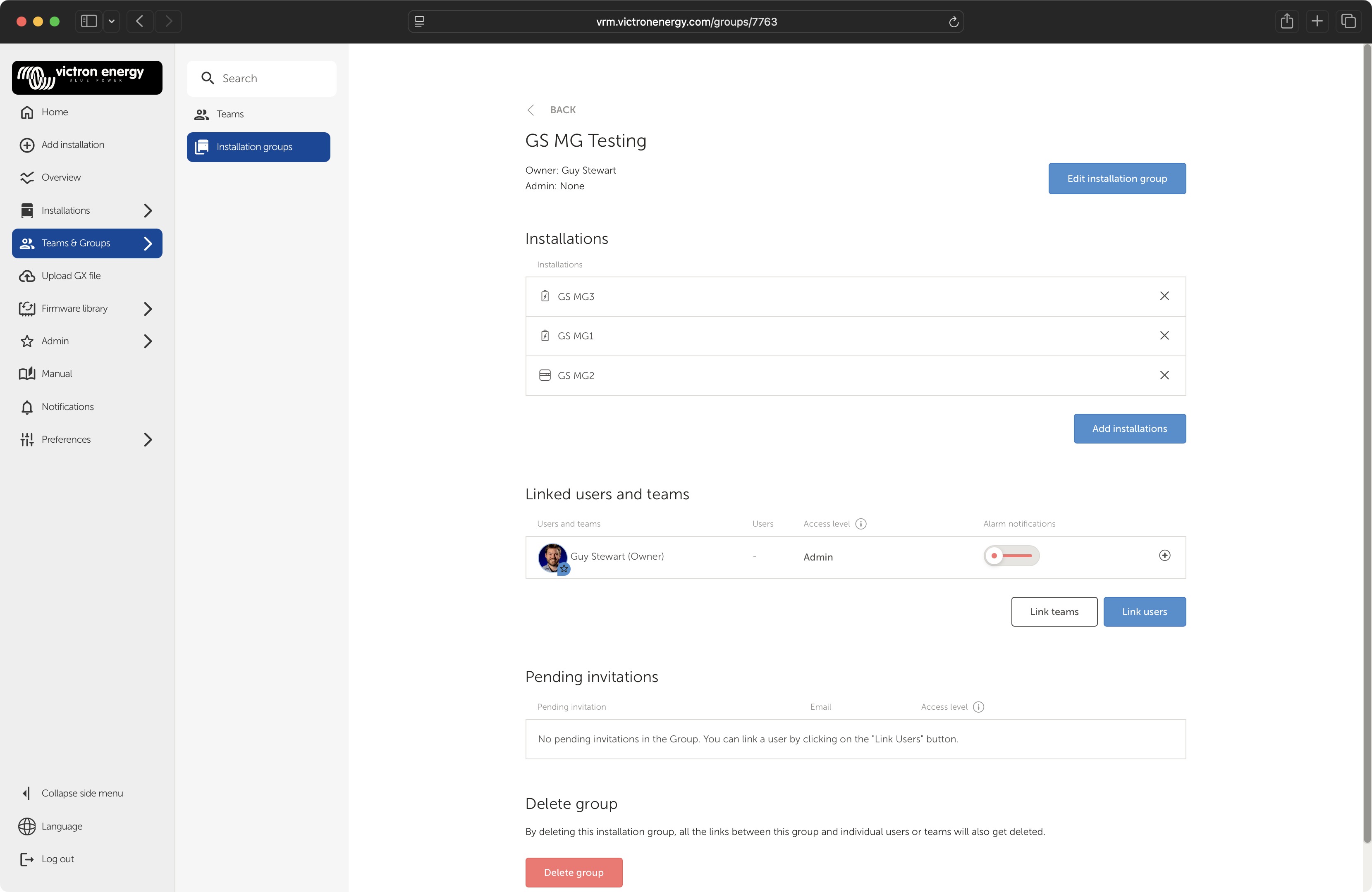
Adding Power Banks to the Group
After creating the group:
Open the group by clicking its name in the Installation groups list.
Click Add installations
Select each GX device installation that belongs to the Microgrid (e.g. "GS MG1", "GS MG2", "GS MG3").
Confirm the selection.
All Power Banks in the Microgrid should be added to the same group. The group detail page displays the list of included installations and allows adding or removing installations at any time.
Linking Users and Teams
The Installation group detail page also allows access management.
Under Linked users and teams, link additional VRM users or teams who need visibility into the Microgrid. Each linked user or team is assigned an access level (e.g. Admin) and can optionally receive alarm notifications.
Use this feature to grant monitoring access to site operators, maintenance personnel, or remote support teams without sharing credentials for individual installations.
Viewing the Microgrid as a group
Once the Installation Group is created and populated:
Navigate to Installations in the left sidebar.
Select All Installations.
Open the filter panel
Set the Installation groups filter to the Microgrid group name.
Click Done to apply the filter.
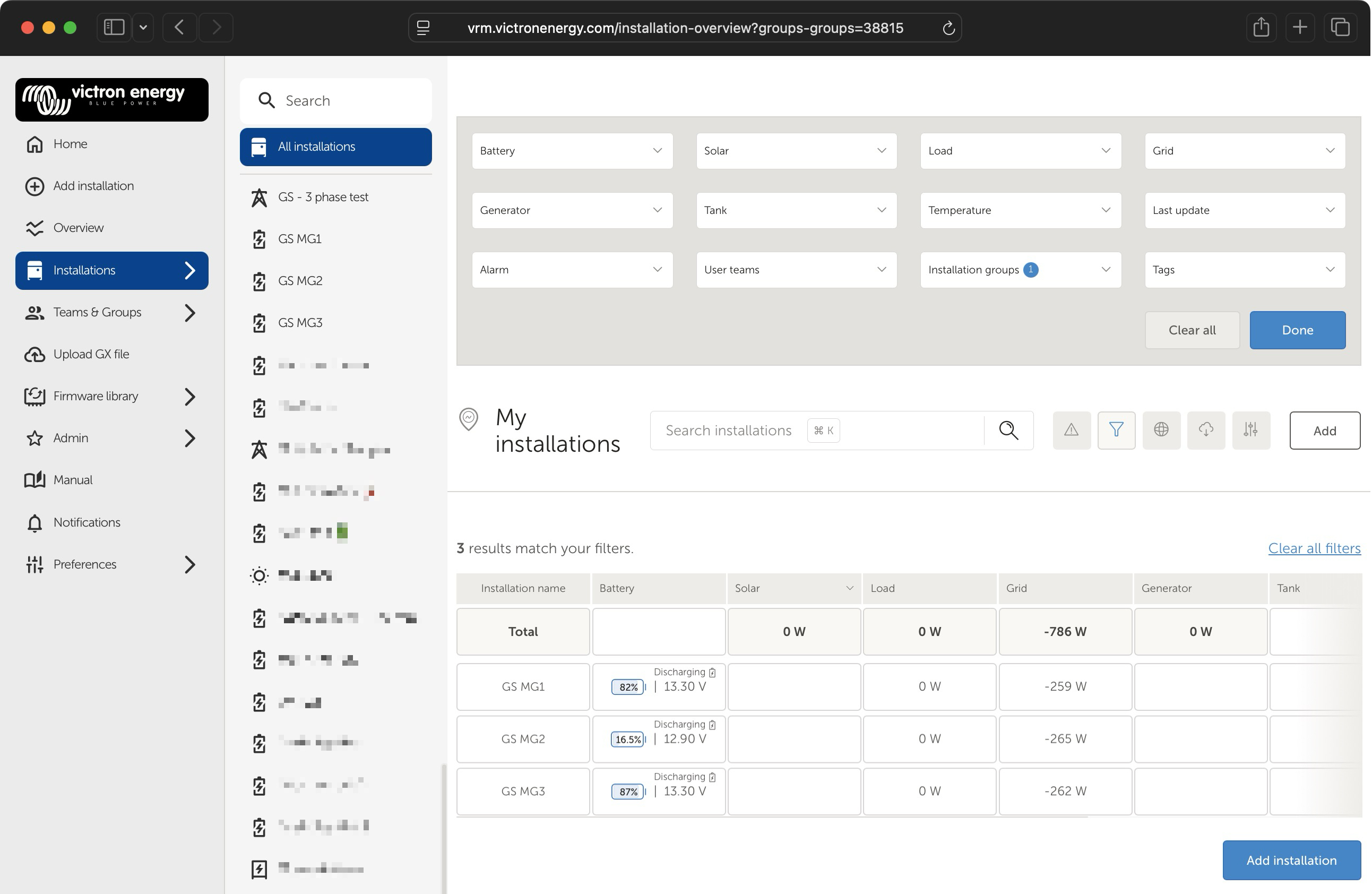
The filter set is stored in the URL, so if you want to create a shortcut to this filtered view, create a bookmark.
The Installations list now shows only the Power Banks belonging to the selected Microgrid. The view includes:
A Total row at the top, displaying the sum of Solar, Load, Grid, and Generator power across all Power Banks in the group. This provides the aggregated Microgrid-wide power flow at a glance.
Note: In a Microgrid configuration, the inverter operates by pushing power via the AC input. This is reflected as a 'grid export' in the Total row and other elements of the UI. Its normal for the column labeled Load to show zero.
Individual Power Bank rows below the Total, each showing: installation name, battery SoC and voltage, solar yield, load power, and last update timestamp.
This is the primary Microgrid-wide monitoring view. Use it to:
Compare SoC across Power Banks. Significant SoC divergence between Power Banks (e.g. one at 82% while another is at 17%) indicates an imbalance that requires investigation, typically unequal DC charging capacity, different battery sizes, or differing load history.
Verify all Power Banks are online. The "Last update" column confirms each GX device is communicating. A stale timestamp may indicate a GX device has lost internet connectivity or the Power Bank has shut down.
Monitor aggregate load. The Total row provides a quick check on whether the Microgrid is operating within its aggregate continuous rating (P_total = sum of 80% × VA per Power Bank).
Check for alarms. The Alarm column shows whether any Power Bank has active alarms. A count of "0/N" (where N is the number of Power Banks) indicates no active alarms.
Using filters for targeted monitoring
The VRM Installations view provides additional filter dropdowns beyond Installation groups: Battery, Solar, Load, Grid, Generator, Tank, Temperature, Last update, Alarm, User teams, and Tags.
These filters can be combined with the group filter to further narrow the view, for example, filtering for Power Banks with active alarms, or sorting by battery SoC to identify the lowest Power Bank.
4.6. Venus OS version
If a GX device is used, it should be updated to Venus OS version 3.70 or later.
4.7. Switching a Power Bank between Microgrid and Standard operation
4.7.1. Introduction
A Victron Power Bank is normally configured for one role: either as part of a Microgrid (Hybrid Droop operation on a shared AC bus) or as a standard VE.Bus inverter/charger system, and changing between these modes required reconfiguration and rewiring.
The Microgrid operation switcher assistant supports a dual-use situation. It allows a Power Bank running the s97 / s98 Microgrid firmware to be switched between Microgrid operation and standard (non-Microgrid) operation, without reprogramming and rewiring.
The operation mode switch is controlled either:
locally, via an auxiliary input on the inverter/charger, or
remotely, via the GX device, which also makes the state readable and controllable by external systems.
In addition, the assistant can drive a relay that indicates the active mode. This feedback signal is intended to drive a change-over relay or contactor that transfers the loads between the AC-IN bus side and AC-OUT, so the load wiring connects to the active AC output depending on the mode automatically.
Typical use cases
Dual-use Power Banks. A containerised Power Bank that operates as a standalone off-grid system most of the time, but joins a Microgrid AC bus when more capacity is needed on a site.
Staged deployment. Commissioning and load-testing a Power Bank in standard operation before connecting it to a Microgrid.
Fleet flexibility. Rental or redeployable units that move between single-system and Microgrid sites without a service visit for firmware changes.
4.7.2. Safety
A dual-use Power Bank is connected to a shared Microgrid AC bus that can be energised by other sources, and it switches its load wiring between either AC IN or AC OUT. Read this section before installing or operating one.
Live AC connectors on a shared bus
During Microgrid operation the Power Bank is paralleled onto a common AC bus that is energised by the other Power Banks on the site. A connector on that bus can be live even when this individual unit is switched off. In a modular, redeployable installation this is the single most important hazard to consider in the safety design.
Warning
Use touch-safe connectors for all AC bus wiring between modular units, so that no live conductor is exposed when units are connected or disconnected. Power Lock connectors (touch-safe high-current connectors), or an equivalent, are recommended when building modular solutions that use the Microgrid.
If a unit also exposes a common AC socket (for example a standard male socket used in standard operation), do not rely on the socket being electrically safe to touch. Either fit physical touch-safe connectors throughout, or wire a contactor so that the common AC socket is only live and powered when the container is in standard ("traditional") operation, and is isolated whenever the unit is off or in Microgrid operation. The mode feedback relay (Mode feedback relay) is the intended way to drive such a contactor; see the fail-safe logic guidance in Feedback contact: driving the change-over.
Power is interrupted during a mode change
A mode change is not seamless. Switching from Microgrid to standard operation resets the system; switching to Microgrid operation requires a restart. Loads supplied by the Power Bank will lose power during the transition (a restart takes several seconds). Plan mode changes accordingly.
Black start and depleted batteries
A Power Bank in a Microgrid must black-start from its own DC source (for example, wait for solar). Charging a unit from the Microgrid AC bus is not supported. A unit with fully depleted batteries cannot energise its AC-OUT, cannot close its External Transfer Switch contactor, and therefore cannot join an energised bus (Load placement and the External Transfer Switch). Do not design an installation that depends on AC-bus charging to recover a flat unit.
Wiring and signal safety
Auxiliary input is a contact-closure input. Do not apply external voltage to it; wire only a potential-free (dry) contact (Control signal: auxiliary input).
Never connect 230 VAC to an open-collector output (K1/K2). These are low-voltage transistor outputs (70 V / 100 mA on the MultiPlus-II). Connecting mains voltage will destroy the output and may create a hazardous situation. Always use a DC helper relay between K1/K2 and any 230 V contactor coil (Feedback contact: driving the change-over).
Choose the fail-safe relay state deliberately. When the unit is off or restarting, no relay is driven. Configure the mode feedback relay so that the de-energised contactor position is the safe state for your installation (Feedback contact: driving the change-over).
Expect electrical noise. Route control wiring away from power cabling and consider using input logic and external relay timing to avoid spurious mode changes in industrial environments (Mode feedback relay, Control signal: auxiliary input).
Configuration warnings
VEConfigure displays a blinking "Microgrid mode" safety warning whenever Microgrid operation is enabled (visible at the lower-left of the configuration window in the screenshots throughout this appendix). This is expected: it flags that the unit's AC input behaviour is modified. The Microgrid settings, including the assistant, are protected by the Victron grid code password (Requirements).
4.7.3. Requirements
Inverter/chargers running Microgrid firmware (xxxxyyy-s97, or xxxxyyy-s98 for External Transfer Switch systems).
VEConfigure 3 version 90.04.247 or later.
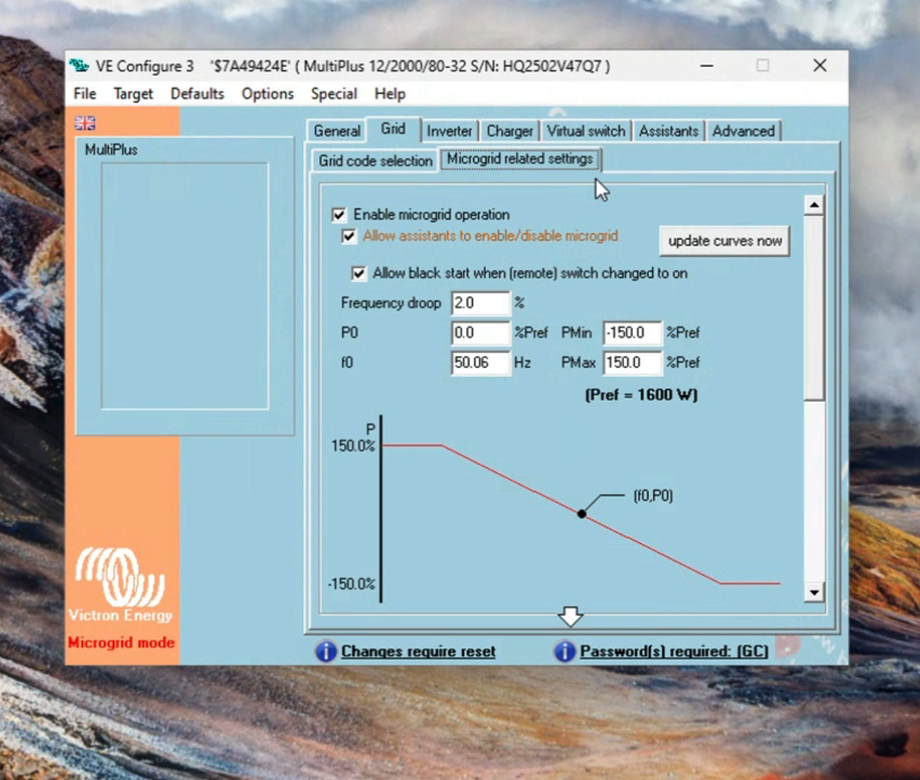
The "Allow assistants to enable/disable microgrid" checkbox must be enabled in VEConfigure, on the Grid tab, "Microgrid related settings" sub-tab (see the screenshot below). The Victron grid code password is required to access these settings.
Note
This checkbox exists for two reasons. First, assistants can be added without a password, so without this password-protected checkbox the assistant has no effect; this prevents unauthorised enabling of Microgrid operation. Second, when the assistant has disabled Microgrid operation, the Microgrid settings remain visible in VEConfigure rather than disappearing, avoiding confusion when connecting to a system that is temporarily in standard operation.
Assistant placement. The assistant must be installed on all inverter/chargers in the VE.Bus system. The external mode switch (if used) is wired only to the digital auxiliary input of the L1 master unit (Control signal: auxiliary input).
For switching or reading the state via the GX device: Venus OS 3.80 or later.
The screenshot below shows the Grid tab > "Microgrid related settings" sub-tab, with the "Allow assistants to enable/disable microgrid" option highlighted:
4.7.4. How the assistant works
Mode control source
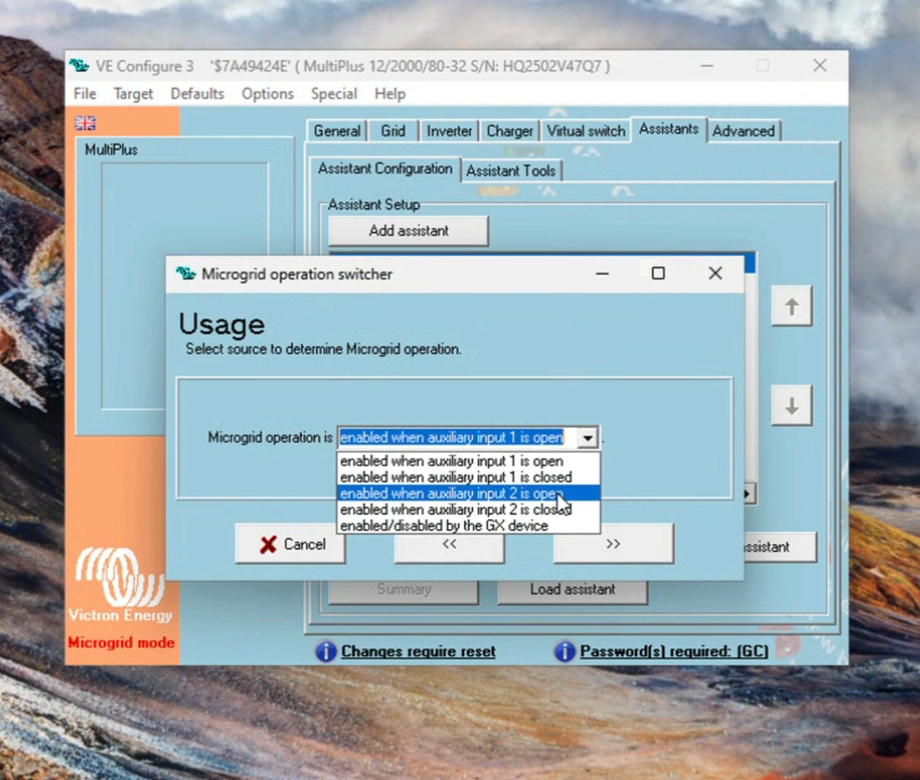
During assistant setup, on the Usage page (see the screenshot below), one source is selected to determine Microgrid operation:
Source | Microgrid operation is enabled when... |
|---|---|
Auxiliary input 1, open | Aux input 1 contact is open |
Auxiliary input 1, closed | Aux input 1 contact is closed |
Auxiliary input 2, open | Aux input 2 contact is open |
Auxiliary input 2, closed | Aux input 2 contact is closed |
GX device | Enabled/disabled by the GX device, via VE.Bus / D-Bus |
When an auxiliary input is selected as the source, the state can only be read via the GX device, not changed. Only with "enabled/disabled by the GX device" selected can the mode also be set remotely.
The source dropdown offers auxiliary input 1 or 2 (open or closed), or "enabled/disabled by the GX device":
Mode change behaviour
For safety reasons the two switching directions behave differently:
Microgrid to Standard operation: takes effect immediately. The system resets and restarts in standard operation.
Standard to Microgrid operation: takes effect at the next startup only. The change is applied when the system is switched off and then on again. Until then, the GX device reports an "operation change pending reset" flag.
Warning
A mode change is not seamless (Power is interrupted during a mode change). Switching from Microgrid to standard operation resets the system; switching to Microgrid operation requires a restart. Loads supplied by the Power Bank will lose power during the transition (a restart takes several seconds). Plan mode changes accordingly.
Mode feedback relay
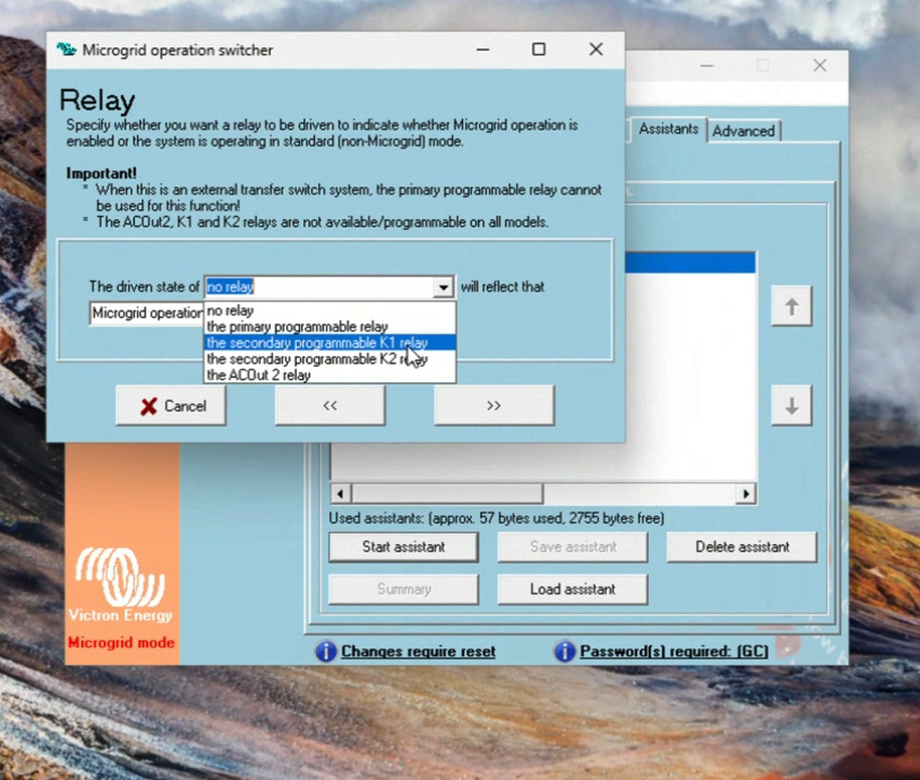
The assistant can drive a relay to signal the active mode to external equipment. Two choices are made during setup, on the Relay page (see the screenshots below):
Which output is driven:
No relay
The primary programmable relay
The secondary programmable K1 relay
The secondary programmable K2 relay
The ACOut 2 relay
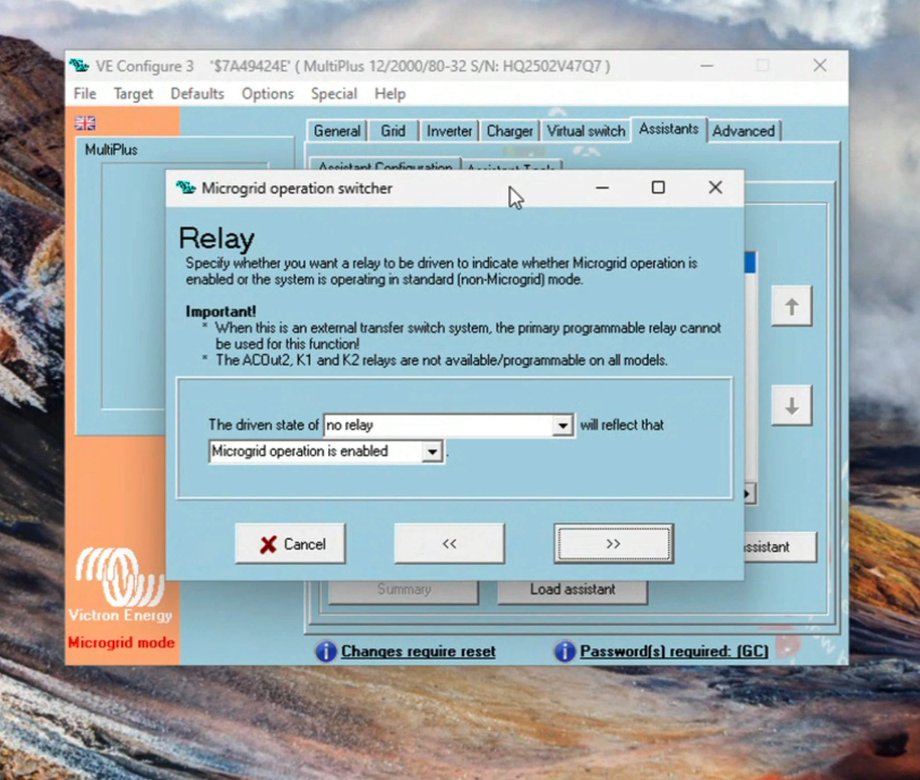
What the driven state indicates:
Microgrid operation is enabled, or
System is running in standard mode
Output selection. The on-screen note states the primary programmable relay cannot be used on an External Transfer Switch system, and that the ACOut2, K1 and K2 relays are not available on all models:
Driven-state selection. Choose whether the driven relay indicates "Microgrid operation is enabled" or "system is running in standard mode"; see the fail-safe logic guidance in Feedback contact: driving the change-over:
Important
On an External Transfer Switch system (s98 firmware), the primary programmable relay cannot be used for this function.
The ACOut2, K1 and K2 relays are not available or programmable on all models. Check the inverter/charger model manual.
Note
The feedback relay output should be treated as a signal. For installations where a spurious change-over would trip alarms or disturb loads, consider a time-delay relay in the signal path, set longer than the inverter/charger restart time, so that brief transitions during a normal reset do not cycle the load contactor.
Reading and controlling the mode from the GX device
From Venus OS 3.80, the operation switcher state is available on the GX device:
Microgrid operation: the requested operation state (Standard / Microgrid).
Operation change requires reset: set when a change to Microgrid operation is pending a system restart.
Operation can be changed: indicates whether the mode is writable (only when the assistant source is set to "enabled/disabled by the GX device").
These states are also exposed on the system's Modbus TCP interface, which is how an external EMS reads and (when permitted) sets the mode.
More detailed information regarding interaction with Modbus TCP is outside the scope of this document.
4.7.5. Setup procedure
Complete the standard Microgrid configuration per the Configuration chapter of the Microgrid manual (firmware, VE.Bus system configuration, Microgrid settings, droop parameters).
In VEConfigure, on the Grid tab, "Microgrid related settings" sub-tab (see the screenshot in Requirements), enable:
"Enable microgrid operation"
"Allow assistants to enable/disable microgrid"
VEConfigure displays a blinking safety warning ("Microgrid mode") whenever Microgrid operation is enabled. This is expected; it flags that the unit's AC input behaviour is modified.
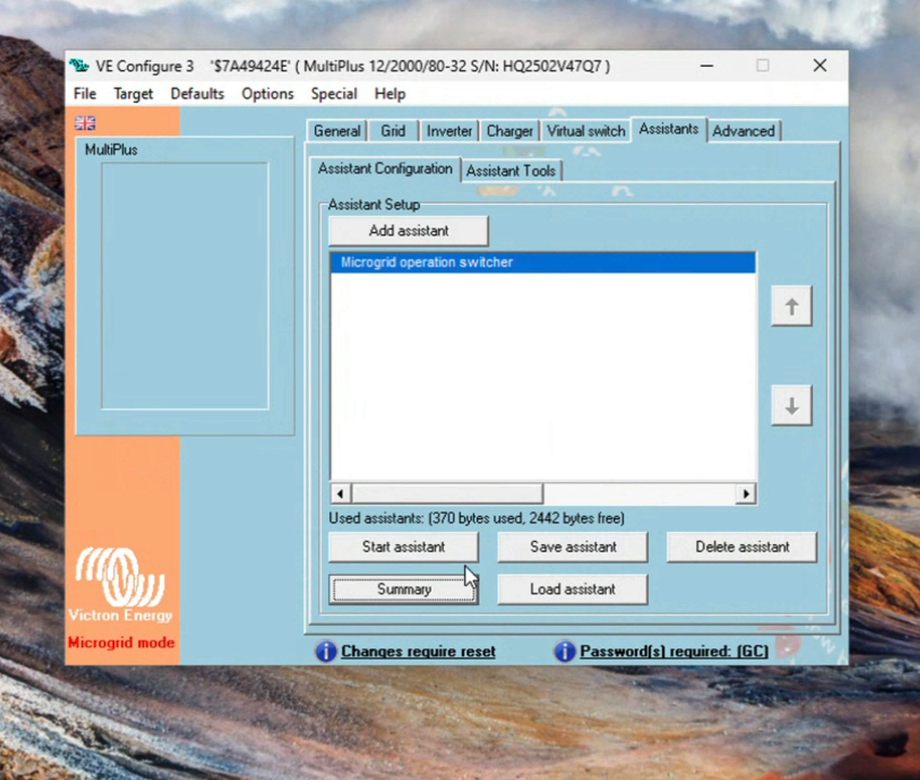
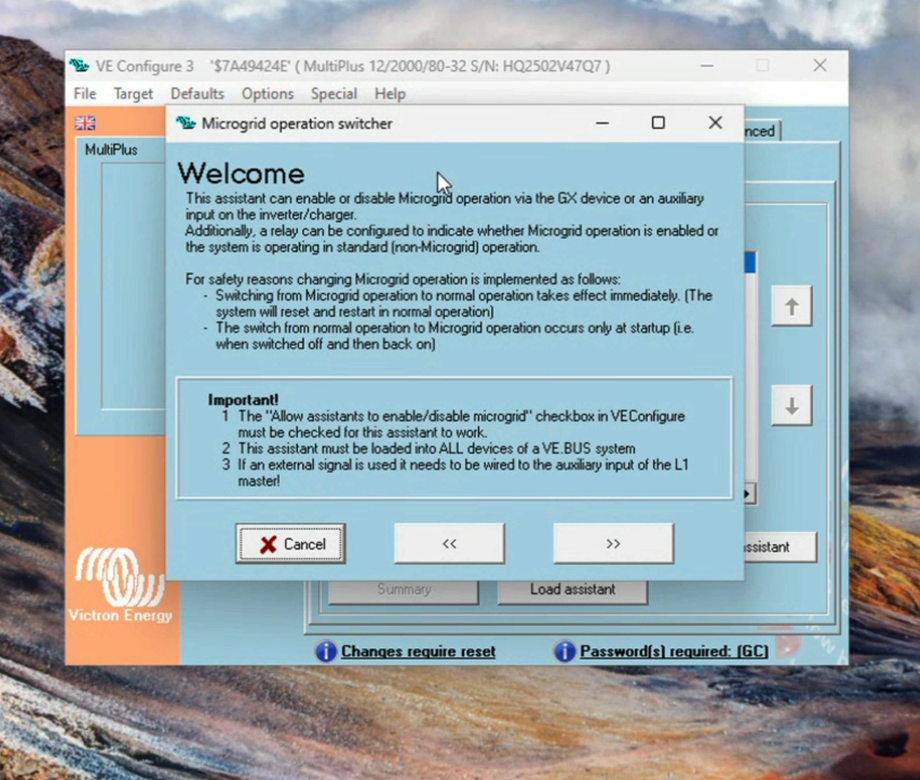
Open the Assistants tab and add the Microgrid operation switcher assistant (see the screenshots below). Read its Welcome page, which summarises what the assistant does.
On the Usage page, select the source that determines Microgrid operation (auxiliary input 1/2 open/closed, or the GX device). See Mode control source.
On the Relay page, select which relay is driven (or no relay), and whether the driven state indicates "Microgrid operation is enabled" or "system is running in standard mode". See Mode feedback relay.
Send the settings to the unit.
Repeat steps 2 to 6 for every inverter/charger in the VE.Bus system.
If an external switch signal is used: wire it to the selected auxiliary input of the L1 master unit only (Control signal: auxiliary input).
Restart the system and verify mode switching in both directions.
The Assistants tab with the Microgrid operation switcher added; the assistant is added to every inverter/charger in the system:
The assistant's Welcome page explains its function and switching behaviour:
4.7.6. Wiring
Control signal: auxiliary input
The auxiliary inputs are dry-contact inputs on the inverter/charger control PCB. Wire a potential-free contact (switch, relay contact, or PLC output relay) across the selected auxiliary input terminals of the L1 master unit only.
Do not apply external voltage to the auxiliary input; it is a contact-closure input.
Choose the open/closed logic in the assistant to suit the fail-safe direction you want. Consider which mode the system should adopt if the control wiring is interrupted (an interrupted circuit reads as "open").
Signal wiring is susceptible to electrical noise in industrial environments. Route control wiring away from power cabling and use the input logic and any external relay timing to avoid spurious mode changes.
Load placement and the External Transfer Switch
The rules for where loads may be connected depend on the operating mode:
During Microgrid operation, all loads must be connected to the common AC bus. With an External Transfer Switch: in front of ("left" of) the contactor and CT coils. Without an External Transfer Switch: on AC-IN, never on AC-OUT.
During standard operation, loads on AC-OUT are allowed.
For Power Banks with phase-parallel inverter/chargers, the External Transfer Switch setup is mandatory, both for Microgrid-only systems and for dual-use systems. Strictly follow the wiring in the MultiPlus-II External Transfer Switch application manual; this wiring is the one exception to the "no connections to AC-OUT" rule.
Understanding the External Transfer Switch
In an External Transfer Switch scenario, the main AC cables are connected to the AC output terminals and fed through an external contactor. This contactor replaces the internal transfer switch of the individual inverter/chargers, which is necessary when multiple units operate in parallel on one phase. Together with the external CT coils and the input voltage measurement wires, the external contactor effectively relocates the AC input outside the unit: the bus side of the contactor and CTs behaves exactly as the AC input terminals would on a standard system. It may help to think of the External Transfer Switch as an "external AC input relay".
Powering the External Transfer Switch contactor
The contactor must be powered from AC-OUT, per the External Transfer Switch wiring diagrams. This has one consequence: a Power Bank with fully depleted batteries cannot energise AC-OUT, cannot close the contactor, and therefore cannot join an energised Microgrid bus. This is acceptable by design, because charging from the AC bus is not supported in a Microgrid; joining the bus with depleted batteries would serve no purpose. Each Power Bank must take care of its own black start through its own DC charging source (e.g. wait for solar).
Dual-use load change-over
In a dual-use Power Bank, the same loads are powered from the common AC bus during Microgrid operation and from AC-OUT during standard operation. A change-over relay (or contactor pair) between the two supply points performs this transfer, driven by the assistant's mode feedback relay (Mode feedback relay). The same load group is simply re-routed; it is not two separate sets of loads. This means loads do not remain connected behind the inverter/chargers when the system enters Microgrid operation.
Feedback contact: driving the change-over
Three practical options, depending on model provisions:
1. ACOut 2 relay. Often the simplest option. AC-OUT-2 is energised with 230 V whenever the selected state is active, so it can directly power the coil of a larger relay or contactor. No separate signal supply is needed.
2. Primary programmable relay. A potential-free contact; can switch a 230 V contactor coil directly within its contact rating. Not available for this function on External Transfer Switch (s98) systems.
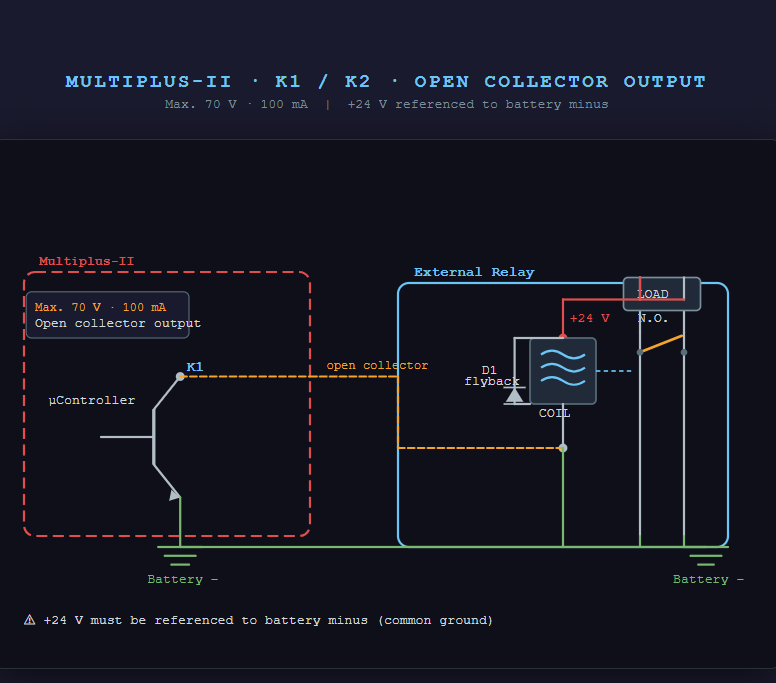
3. K1 / K2 open-collector outputs. These are transistor outputs, not relay contacts. They sink current to battery minus when driven and can only switch small DC currents: 70 V / 100 mA on the MultiPlus-II. A DC helper relay (e.g. 12 V coil) is always required between K1/K2 and a 230 V contactor coil (see the wiring example below):
Select a DC helper relay with a coil drawing less than 100 mA.
Wire the relay coil positive to a suitable DC supply positive (fused).
Wire the relay coil negative to the K1 (or K2) terminal.
Use the helper relay's contact to switch the 230 V contactor coil.
Wiring example: driving an external helper relay from a K1/K2 open-collector output. The control voltage must be referenced to battery minus (common ground), and a flyback diode is fitted across the coil:
Warning
Never connect 230 VAC to an open-collector output (K1/K2). Connecting mains voltage will destroy the output and may create a hazardous situation.
Fail-safe logic selection
The "driven state indicates" setting (Microgrid enabled vs. standard mode) determines the de-energised behaviour. When the Power Bank is off or restarting, no relay is driven. Choose the indication so that the de-energised contactor position is the safe state for your installation. Example: if the contactor connects the AC-OUT load distribution, configure the relay to be driven when the "system is running in standard mode", so that the AC-OUT distribution is disconnected whenever the unit is off or in Microgrid operation.
4.7.7. Considerations for dual-use Power Banks
Off-grid only, both modes. The Microgrid firmware requires grid code "None". A dual-use Power Bank therefore operates off-grid in standard mode as well. It cannot be used in grid-connected (ESS / grid code) applications.
No loads on AC-OUT during Microgrid operation. It is untested and unsupported.
Settings are shared between modes. Charger settings, shore limit and other VEConfigure parameters apply in both modes.
Black start. A dedicated VEConfigure option, "Allow black start when (remote) switch changed to on" (Grid tab, Microgrid related settings; see the screenshot in Requirements), governs black-start behaviour when the unit is switched on remotely. Black-start capability is restored when the charger part is switched off and on again (switching the unit completely off and on, or switching to Inverter-only and back to On). An assistant-initiated change from standard to Microgrid operation therefore restores black-start capability, because that direction requires a full system restart in any case (Mode change behaviour).
S2 / DIP switch positions. The S2 DIP switch must be in the up position for Microgrid operation (see the Installation chapter). For a dual-use unit this requires no action when changing modes: the switch must be up for Microgrid operation and can stay in the up position for standard operation as well.
Mode after power cycle. With the aux-input source, the mode follows the contact at startup. With the GX source, the last commanded setting is stored in the inverter/chargers, so after a power cycle the unit retains its last mode even if the GX device is offline. The GX connection is only needed to change the mode, not to maintain it.