3. Setup and configuration
3.1. Currency
Set the currency first, before running the setup wizard. The currency applies to the battery cost, the buy and sell prices, and all cost and earnings figures shown for Dynamic ESS, so it should be in place before those values are entered.
Choose the currency under Settings, then General, in the VRM site settings. | 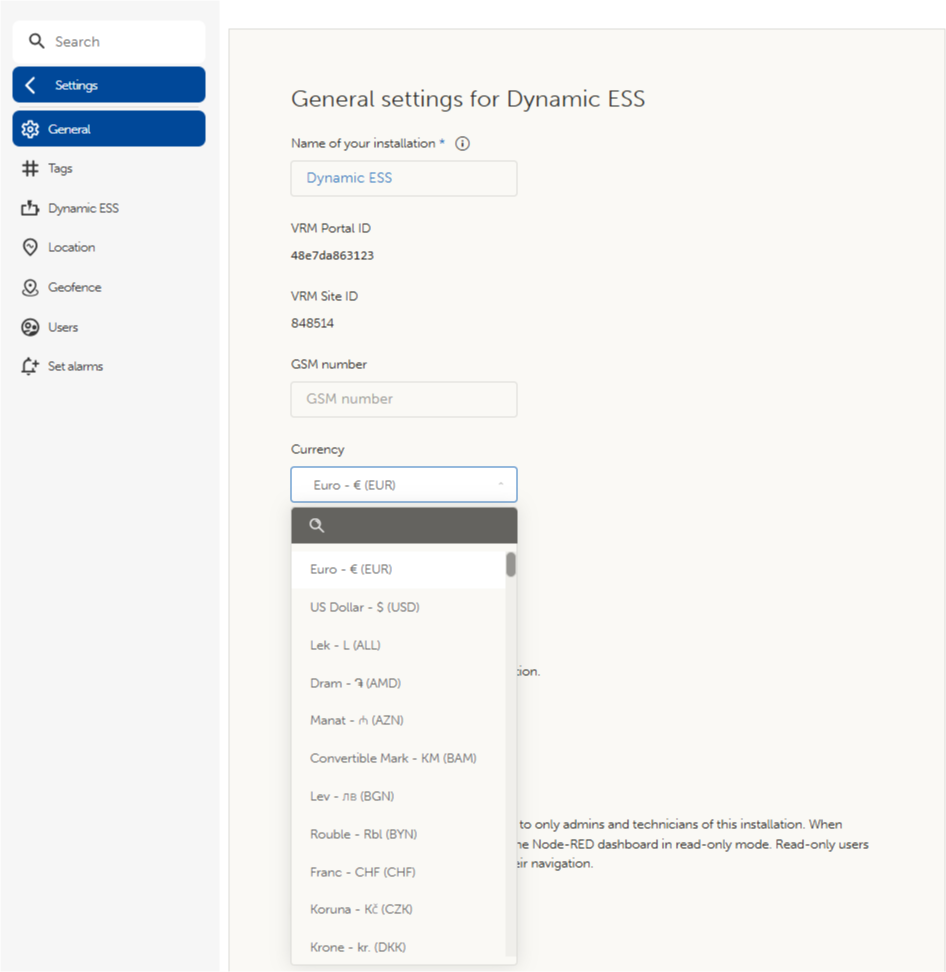 |
3.2. Setup wizard
The following steps enable and configure Dynamic ESS through a setup wizard in the VRM portal.
Open the VRM portal and select the site. From the left-hand menu, go to Settings, then Dynamic ESS. At this stage the Dynamic ESS controls can optionally be enabled so that they appear on the VRM dashboard. | 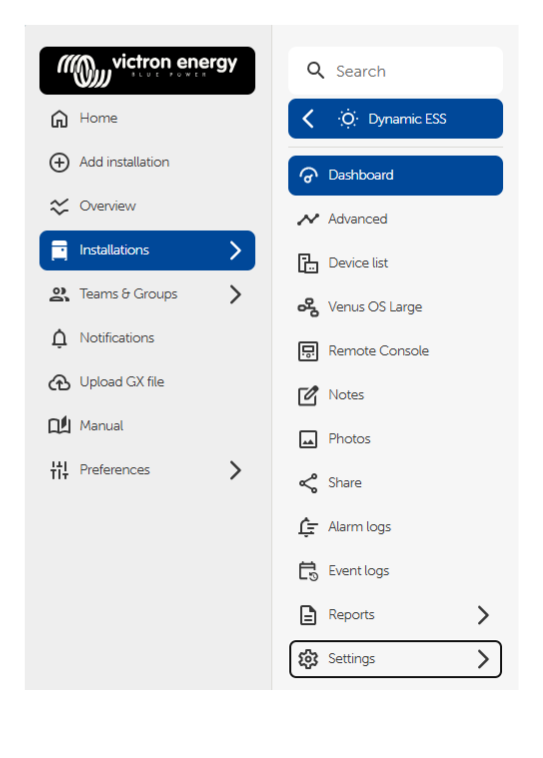 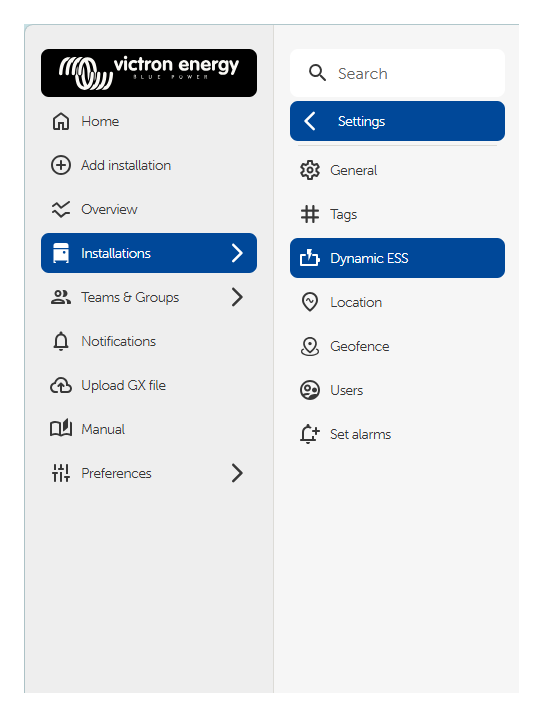 |
Select "Start configuration" to begin. The wizard then leads through each step in turn: System, Battery, Buy prices, Sell prices, and a final Confirmation. Each step is described in the topics that follow. |  |
3.3. System
Dynamic ESS needs to know the limits of the grid connection in order to schedule grid usage accurately. The values entered here affect only the Dynamic ESS schedules; system-wide limits are set separately on the GX device.
Can you sell energy back to the grid? Select Yes or No. If No is selected, only the Maximum import power field is shown. Maximum import power: Enter the maximum power the site can import. On a three-phase system, this is the sum of all phases. Maximum export power: Enter the maximum agreed export limit or the system's maximum export capability, whichever is lower. For example, if the agreed export limit is 17 kW but the system can export at most 10 kW, enter 10 kW. Operating mode: Select Green mode or Trade mode. The two modes are described in the Introduction. Disable solar at low buy prices: Found under Advanced Settings. When enabled, solar production is stopped while the buy price is below the configured threshold. At very low or negative prices, producing solar energy can be uneconomical: energy from the grid costs less than the system's own solar production, and exporting the surplus may cost money rather than earn it. Solar production resumes automatically once the buy price rises above the threshold. Buy price threshold: The buy price, in €/kWh, below which solar production is stopped. | 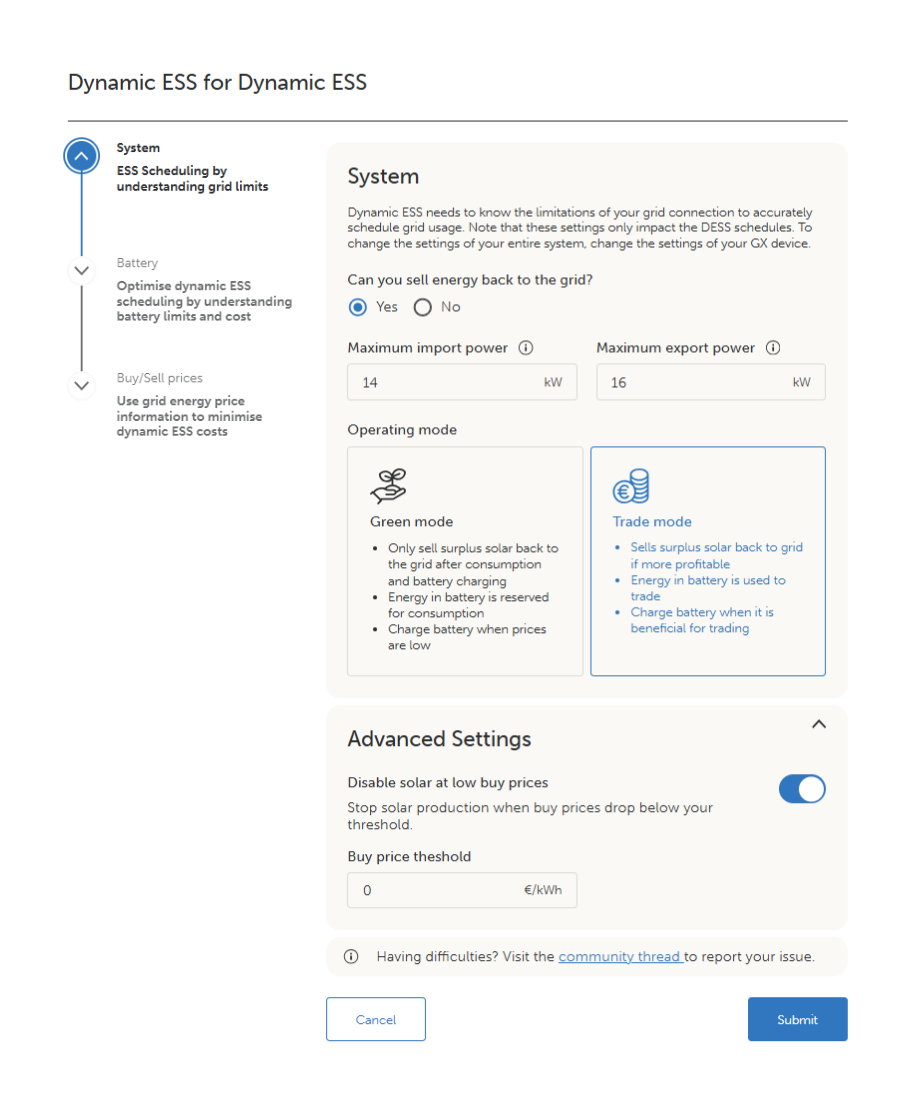 |
Note
The operating mode, and the other values entered here, can be changed at any time from the Dynamic ESS settings page in VRM.
Once all fields are completed, select Next to continue.
3.4. Battery
Dynamic ESS needs the limitations and costs of the battery system in order to generate an optimised schedule for its use.
Battery capacity: Enter the capacity of the battery when fully charged, expressed in kWh. To convert from amp-hours, multiply the battery bank capacity in Ah by the nominal battery voltage and divide by 1000. Where the usable capacity is lower than the nominal capacity, enter the usable figure. For example, a 48V 100Ah battery with a 95% depth of discharge limit gives (48 × 100 × 0,95) / 1000 = 4,56 kWh. Maximum discharge power: Enter the maximum power the battery bank may discharge at. This prevents discharging the battery at too high a rate, which matters particularly for smaller battery banks. Maximum charge power: Enter the maximum power the battery may be charged at. | 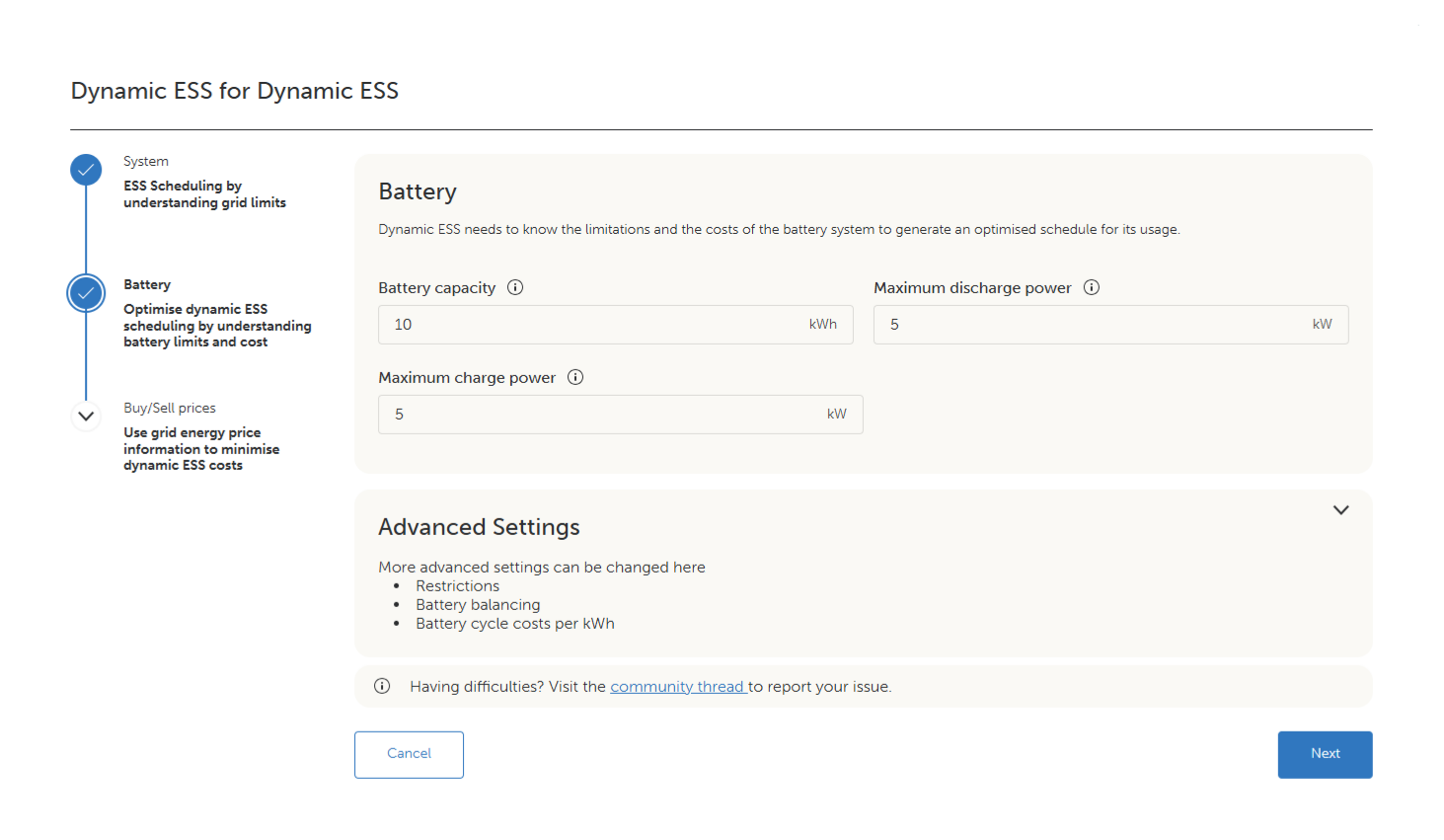 |
Further options are available under Advanced Settings, which is collapsed by default. Expand it to access the charge or discharge restriction, battery balancing, and battery cycle costs.
Charge or discharge restriction: In some jurisdictions, or under certain contracts, selling previously bought energy back to the grid is not permitted. To prevent this, charging or discharging the battery to or from the grid can be disabled. Under "Do you want to restrict the battery usage?", select No, "Yes, disable discharging battery to grid", or "Yes, disable charging battery from grid". Battery balancing: Periodically charging the battery to 100% supports battery life and consistent performance over time. Enable balancing with the toggle, then set the full charge interval, the number of days between each balancing cycle, using the plus and minus buttons. Battery cycle costs per kWh: Enter the cost of battery wear for each kWh cycled through the battery. This value is used to weigh the financial benefit of using the battery against the cost of wearing it. Calculate it using the formula below. battery price in system's currency / (battery cycle life x battery capacity in kWh) Even where the battery has already been paid for, a small amount should still be entered here rather than zero. Values between 0,02 and 0,08 €/kWh are typical. | 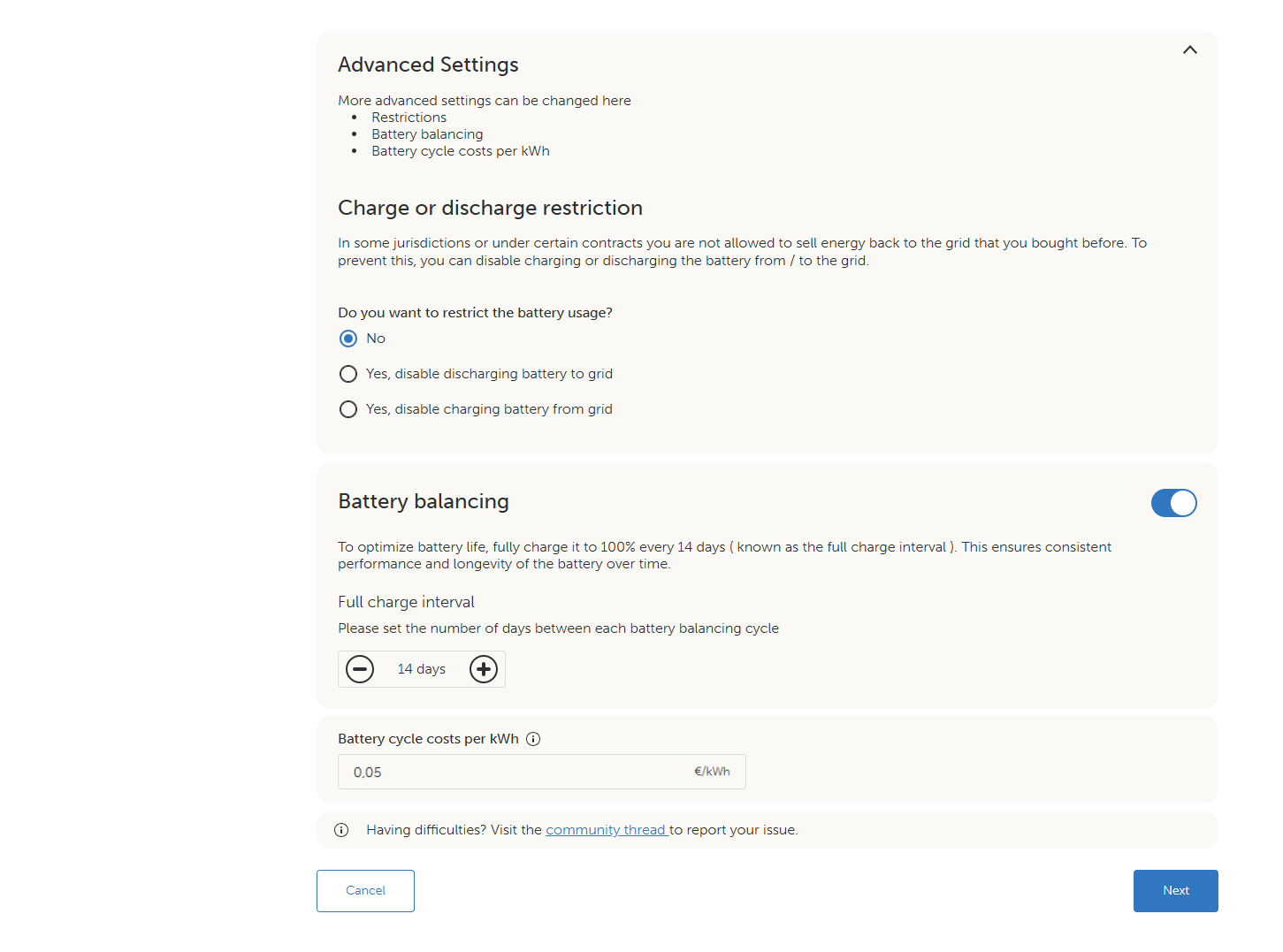 |
Once all fields are completed, select Next to continue.
3.5. Buy prices
Dynamic ESS works with either fixed or dynamic energy prices.
Fixed prices change at set times of the day, or differ between weekdays and weekends. The price levels are agreed with the energy supplier.
Dynamic prices change frequently throughout the day and are published by the energy supplier the day before.
Buy prices are: Choose Fixed or Dynamic. The information requested in the following step depends on this choice. | 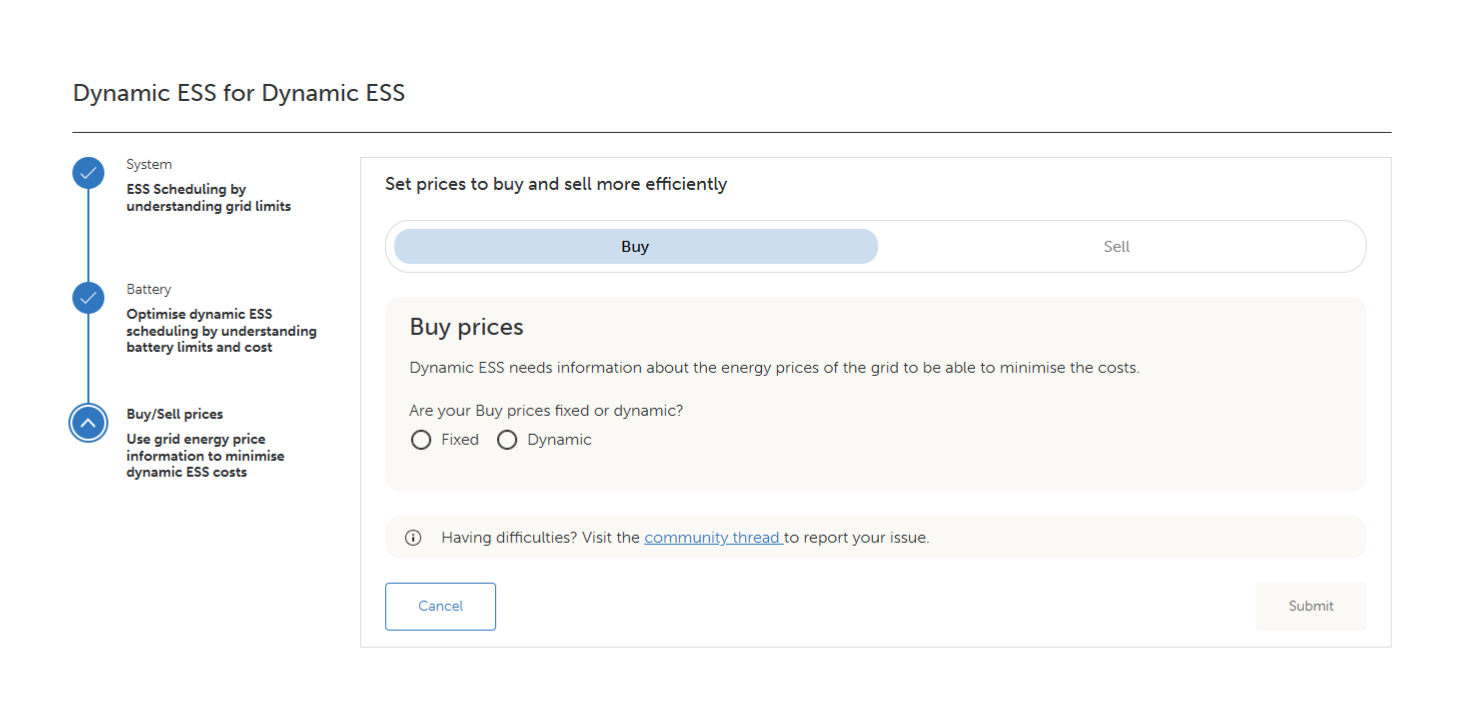 |
3.5.1. Fixed prices
If fixed pricing is selected, buy prices are entered as one or more time ranges across a 24-hour day.
Under "Do the Buy prices differ for weekdays and weekends?", select No if a single daily schedule applies, or Yes to define separate weekday and weekend schedules.
If No is selected, a single schedule is shown. The schedule starts at midnight. Select "Add time range" to add a row, then set the "To" time of each row to build the day; each new row begins where the previous one ended. Enter the price for each time range in the "Price" field.
A single daily schedule, with prices the same on every day of the week. | 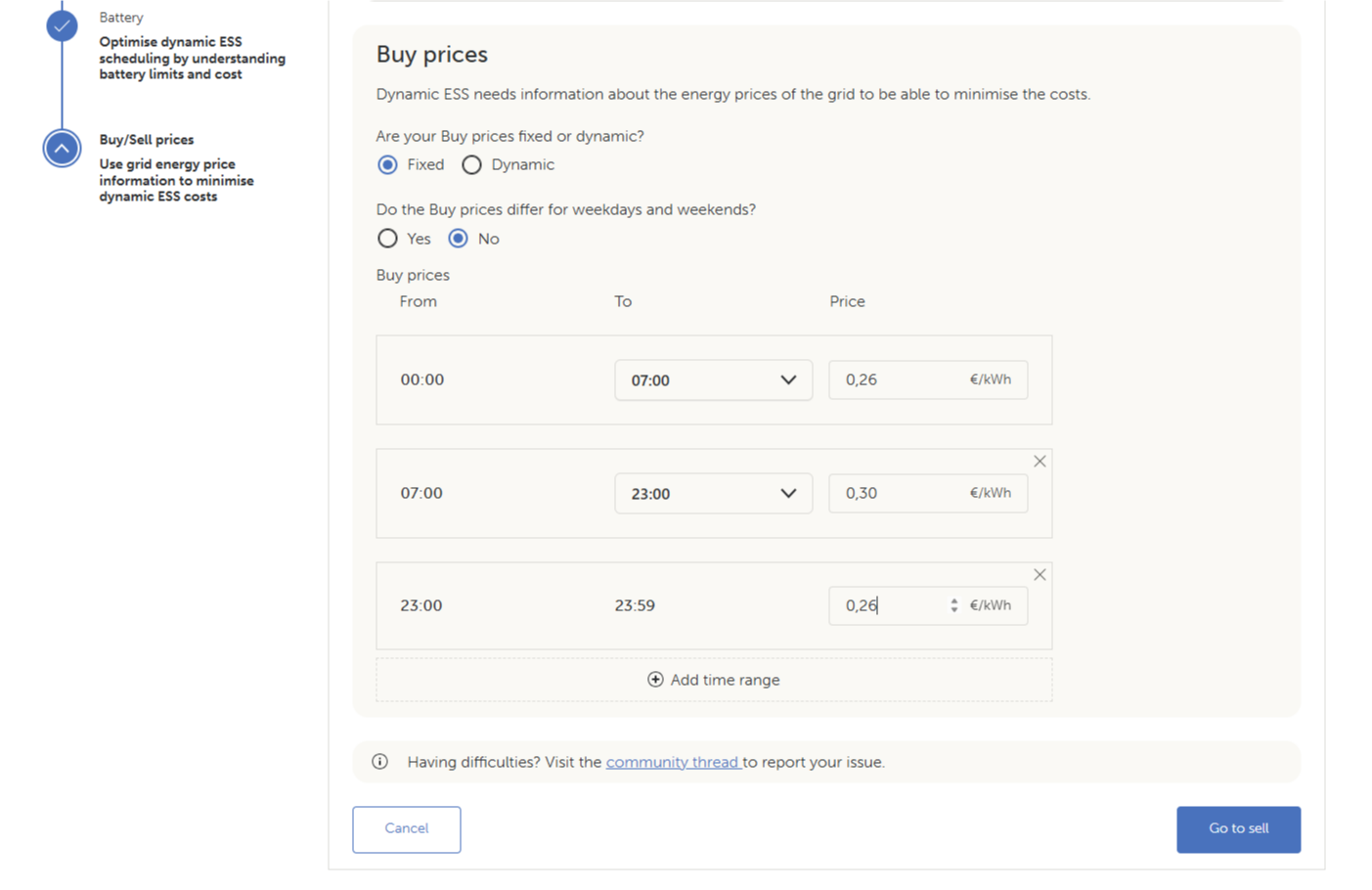 |
If Yes is selected, two schedules are shown, Weekday buy prices (Mon–Fri) and Weekend buy prices (Sat–Sun). Build each schedule in the same way.
Separate weekday and weekend schedules, for prices that differ between Monday to Friday and the weekend. | 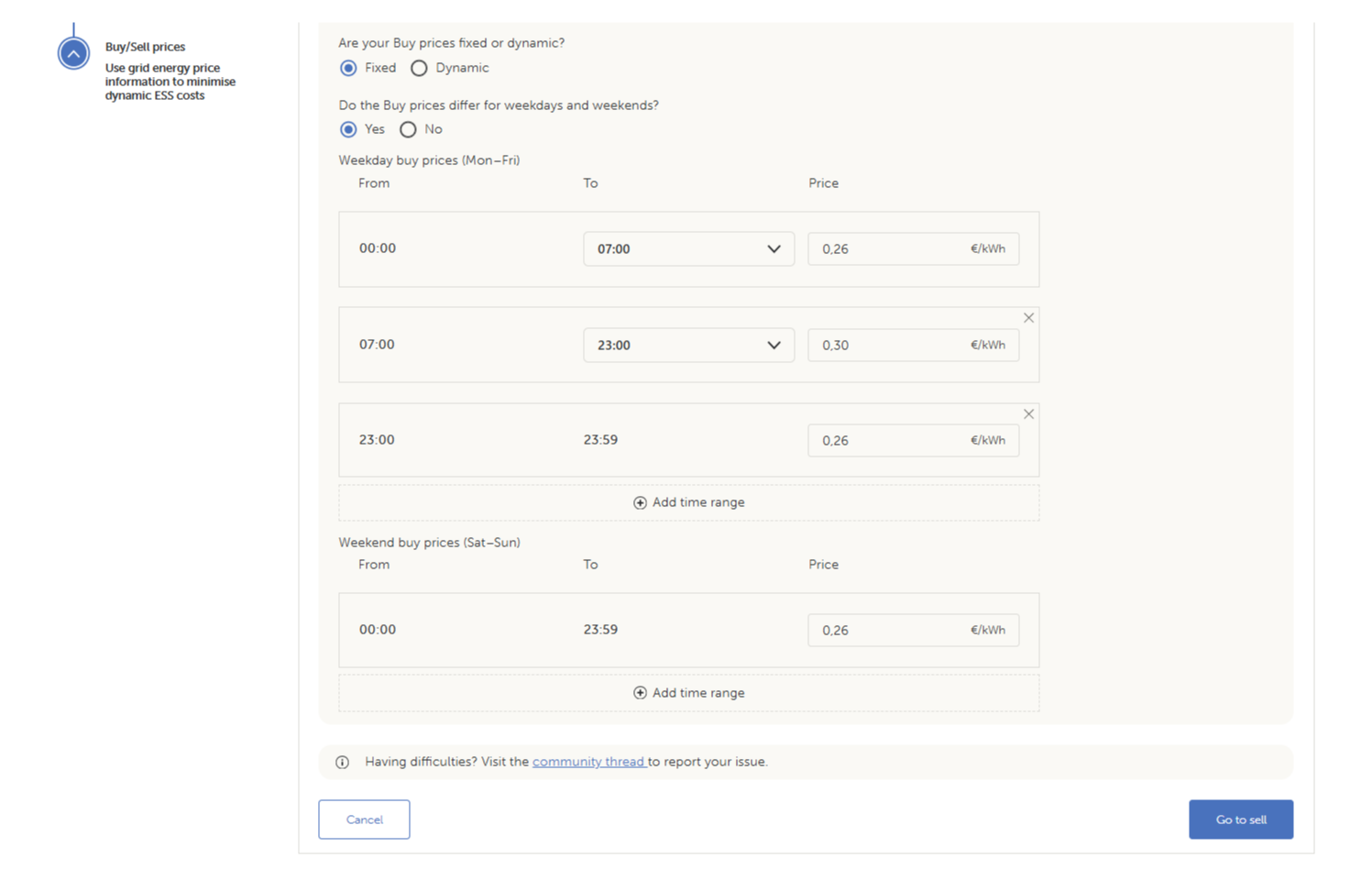 |
When the schedule is complete, select "Go to sell" to continue to the sell prices.
3.5.2. Dynamic prices
How dynamic prices reach Dynamic ESS depends on the country and the provider. Most European countries publish day-ahead prices through ENTSO-E, typically before 15:00 CET, and VRM picks those prices up, with NordPool as a monitored backup source. Some countries and providers publish prices separately, and VRM supports these through a direct connection to the provider's API.
Under "Select your country and provider", choose the country and then the provider. The fields shown next depend on the provider selected. In every case, set "My energy price changes every:" to match how often the supplier's price changes, 15 or 60 minutes.
Note
Where a price formula is supplied for the selected provider, it may not be up to date. Check it against the terms of the energy contract and adjust it where the two differ.
Provider connected by API key
When the selected provider connects by API key (Octopus is shown here as an example), enter the account details and the API key.
Account number: Enter the account number held with the provider. Tick "I am using direct debit" if that applies. API Key: Enter the personal API key issued by the provider. On-screen instructions show where to obtain it from the provider's account. VAT: If VAT is already included in the price, enable the price-includes-VAT option. This usually applies to residential customers. My prices can be negative: Under Advanced Settings, enable this option to take advantage of negative prices. When switched off, negative prices are treated as zero. | 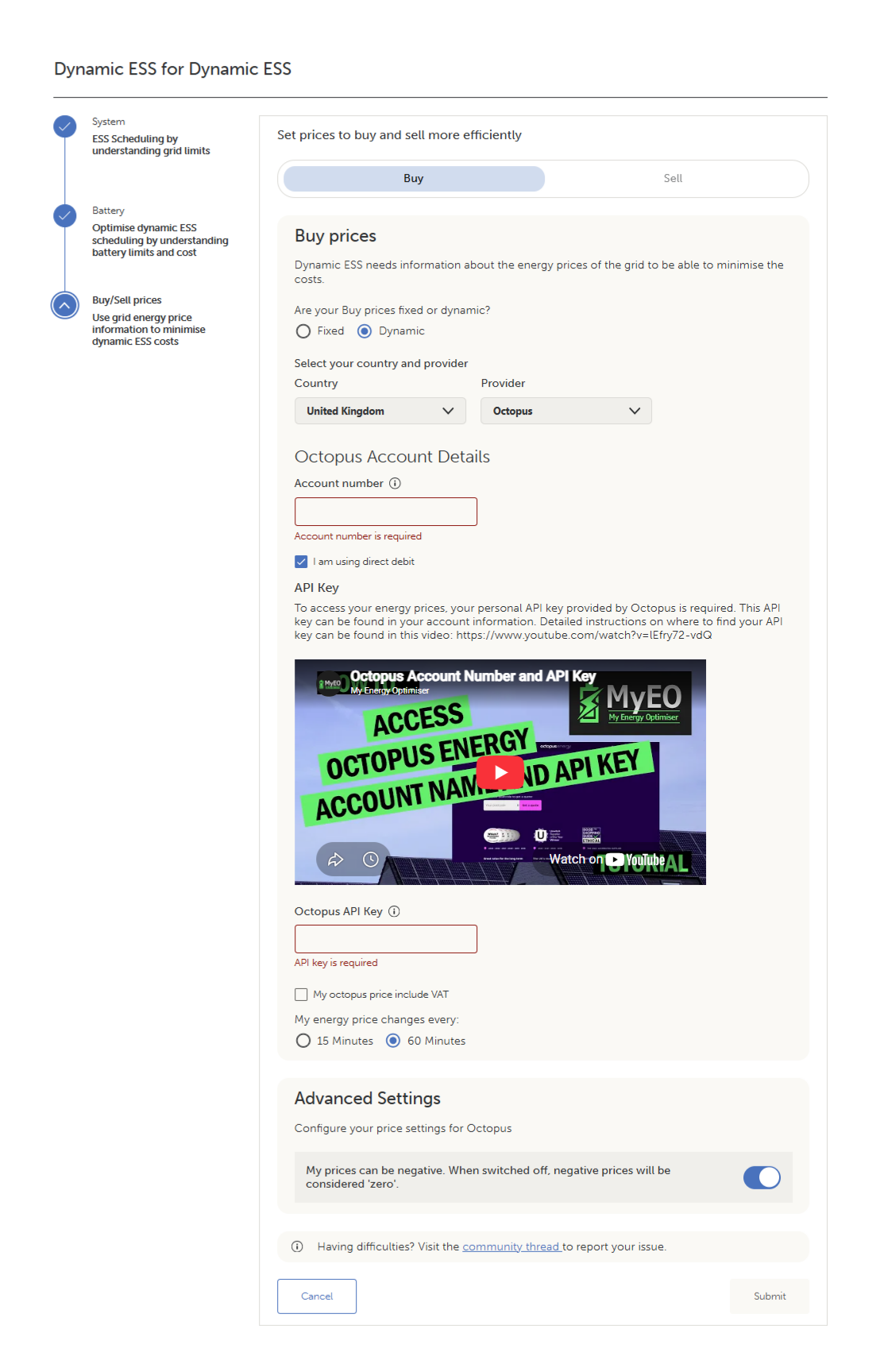 |
Provider with price categories
Some providers set prices using a fixed set of price categories. EDF Tempo is shown here as an example.
An EDF Tempo contract sets prices according to the state of the grid. Each day is assigned a colour, Blue, White or Red, and each colour has a separate price for its day hours and its night hours, giving six prices in total. Account details: Enter the price for each category as supplied by the energy supplier: Blue day hours and Blue night hours, White day hours and White night hours, and Red day hours and Red night hours. Prices can be overwritten if they become outdated. | 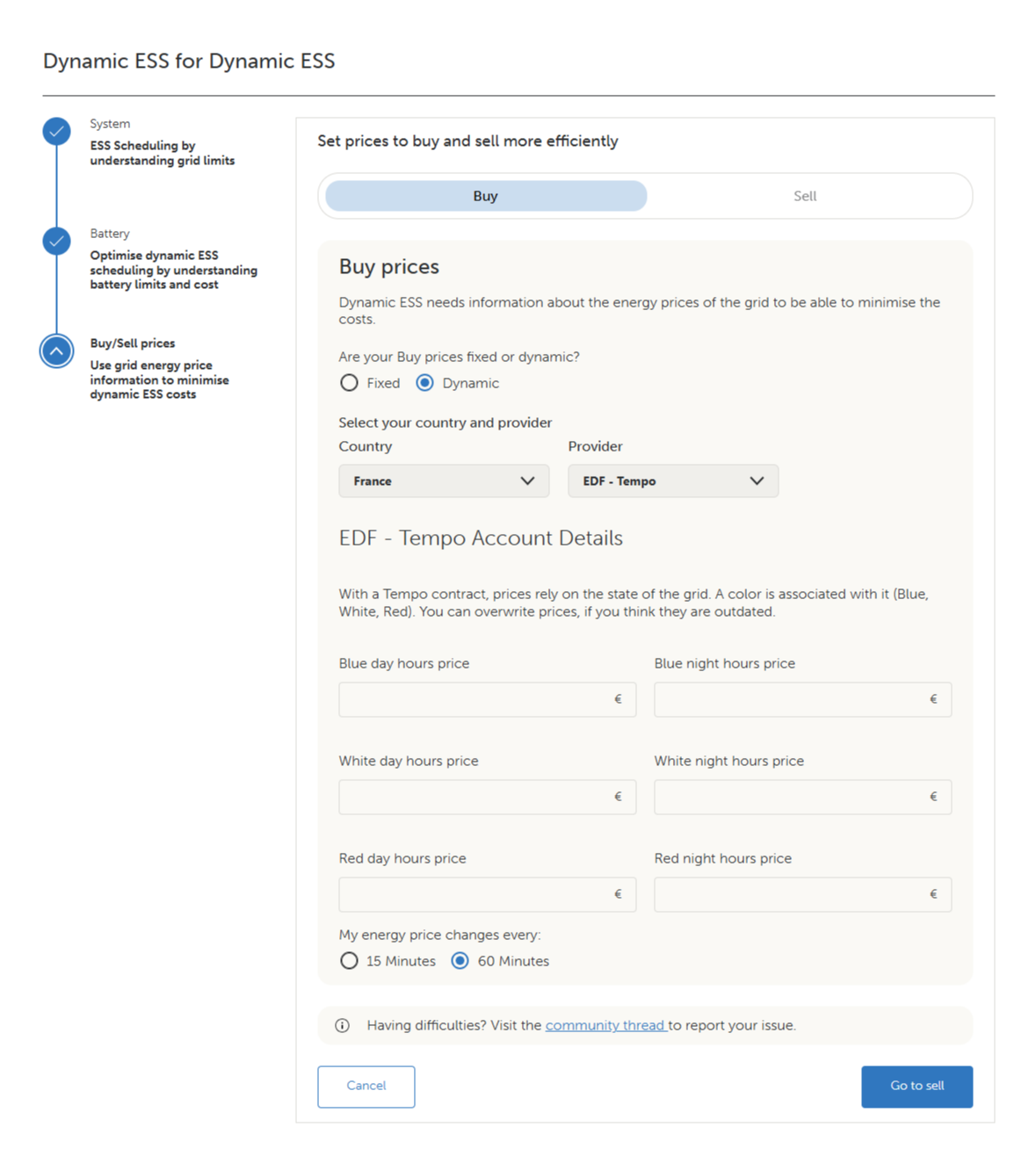 |
Provider not listed
If the provider is not listed, select "Not in the list" and enter the pricing formula obtained from the supplier.
Provider name: Enter the name of the provider. Price calculation: Enter the buy price formula. For example, where P is the price for 1 kWh, VAT is 21% and there is a flat fee of 11 cents per kWh, the formula is P × 1,21 + 0,11. A formula copied to the clipboard can be added using Paste. The formula is validated below the box. Under "Do the price formulas fluctuate over time?", select No to use one formula throughout the day, or Yes to set a different formula for different time ranges. When Yes is selected, a further question, "Do the price formulas differ for weekdays and weekends?", appears; select Yes to define a separate weekend formula. My prices can be negative: As above, negative prices are treated as zero when this option is switched off. | 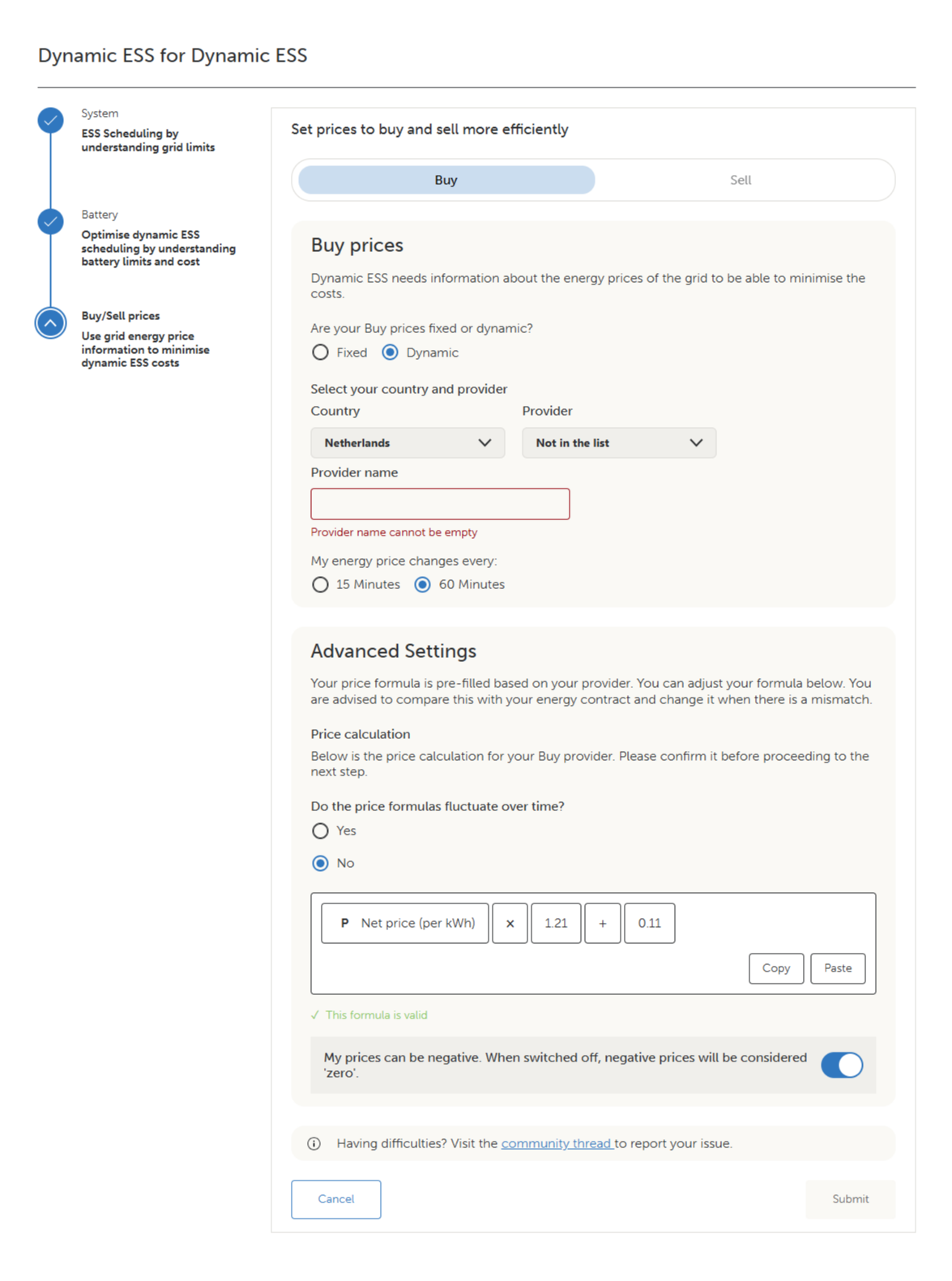 |
Bidding zone
Some countries are divided into several bidding zones, each with its own energy prices.
Bidding zone: Where the selected country has more than one bidding zone, a Bidding zone field appears. Select the zone in which the site is located, so that the prices used are those of that zone. Norway is shown here as an example. If the zone is not known, the on-screen link to the ENTSO-E map shows which zone covers a given region. | 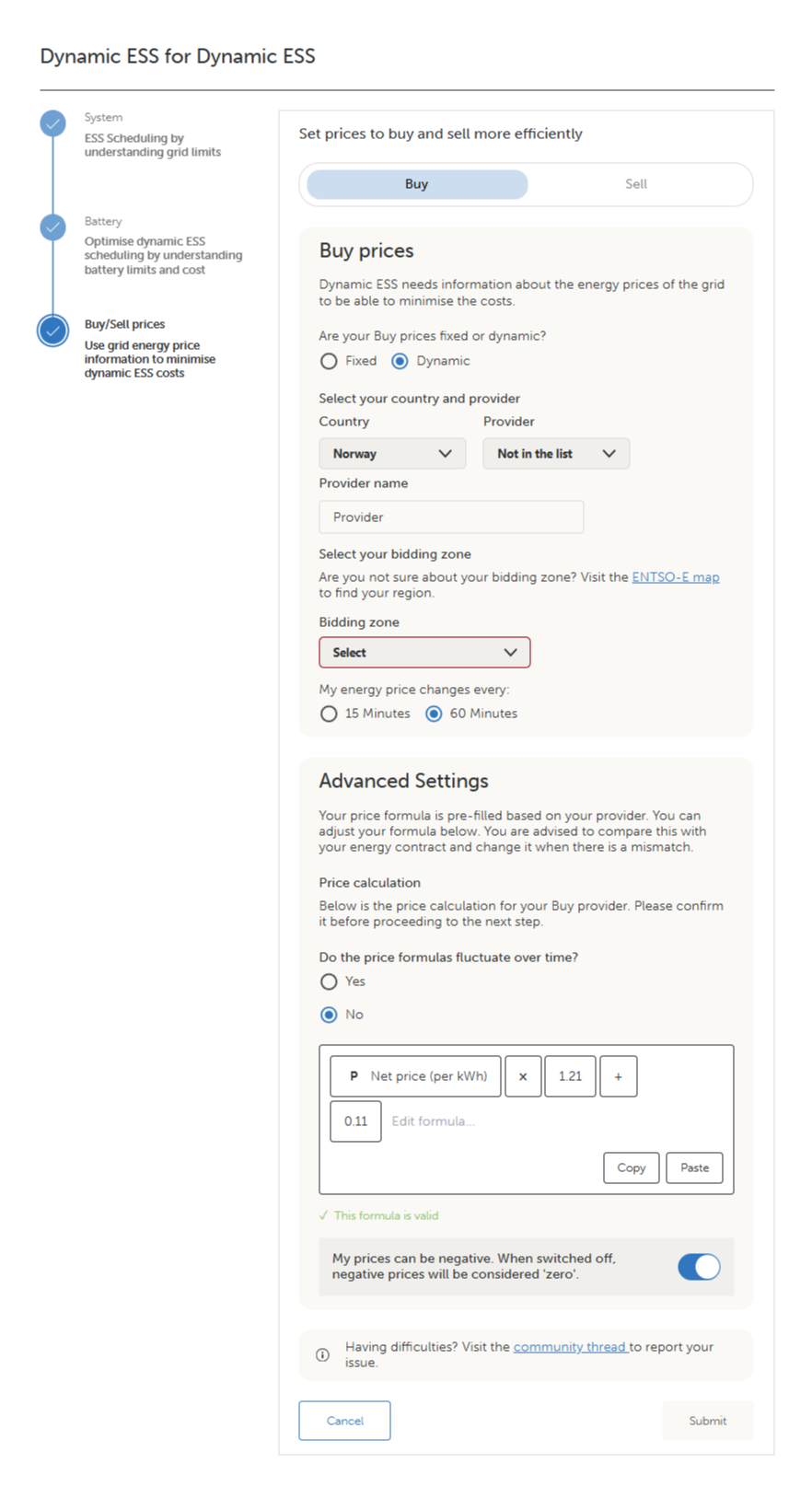 |
Once the provider details are complete, continue to the sell prices.
Note
Provider names shown in this section, such as Octopus and EDF, are used only as configuration examples. They do not imply any affiliation with or endorsement by Victron Energy, and remain the property of their respective owners. The list of providers available in Dynamic ESS may differ and change over time.
3.6. Sell prices
Sell prices are entered in the same way as buy prices. Select the Sell tab, then follow the same steps described in Buy prices: choose Fixed or Dynamic, and enter the schedule or provider details accordingly.
The options presented match the choice made for buy prices.
3.7. Confirmation
The confirmation page presents all the entered settings for review, grouped by System, Battery, and Buy/Sell prices.
At the top of the page, the Dynamic ESS toggle enables the controls for this installation. When turned on, the Dynamic ESS mode can be switched on or off from the Controls menu on the installation's dashboard.
Review each section against the intended configuration. To correct a section, select Edit beside its heading to return to that step. After setup, this page remains available at Settings → Dynamic ESS, where the saved configuration can be reviewed and any section edited. | 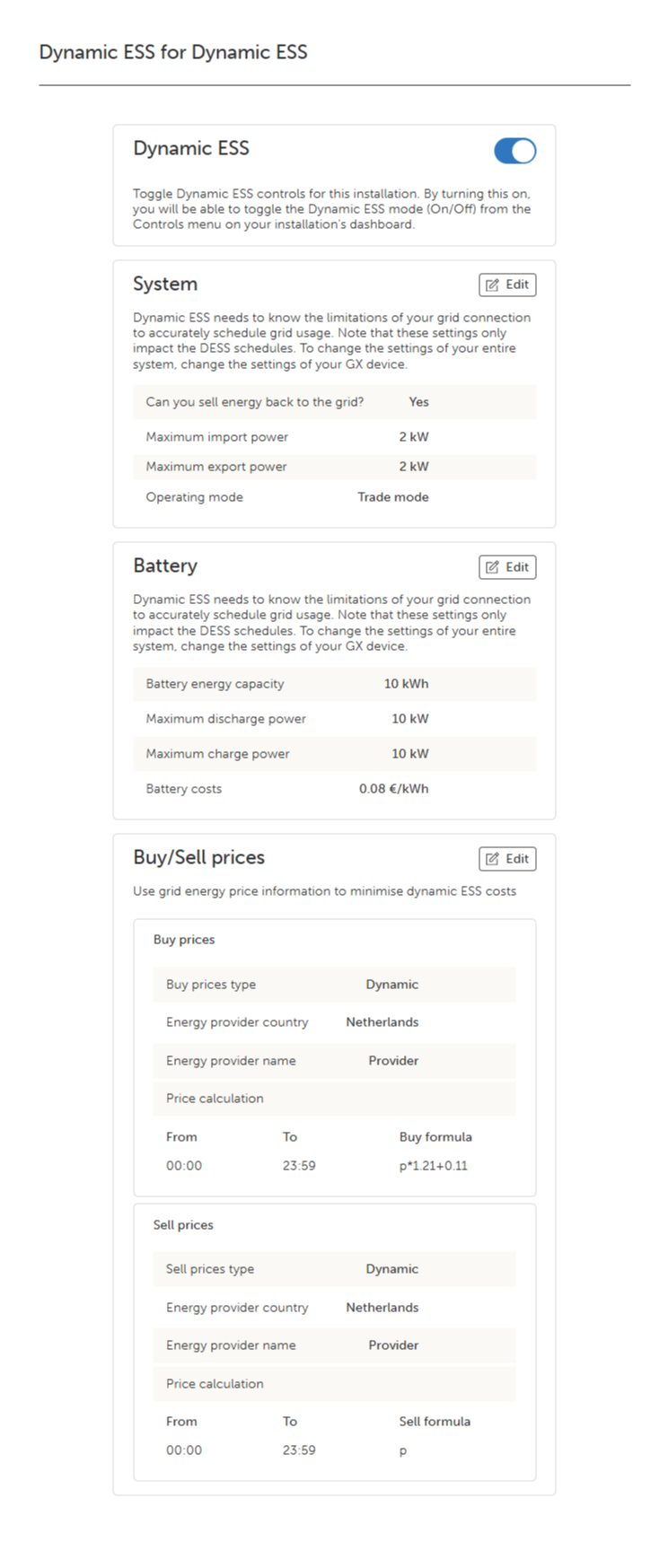 |
3.8. Minimum SOC and BatteryLife
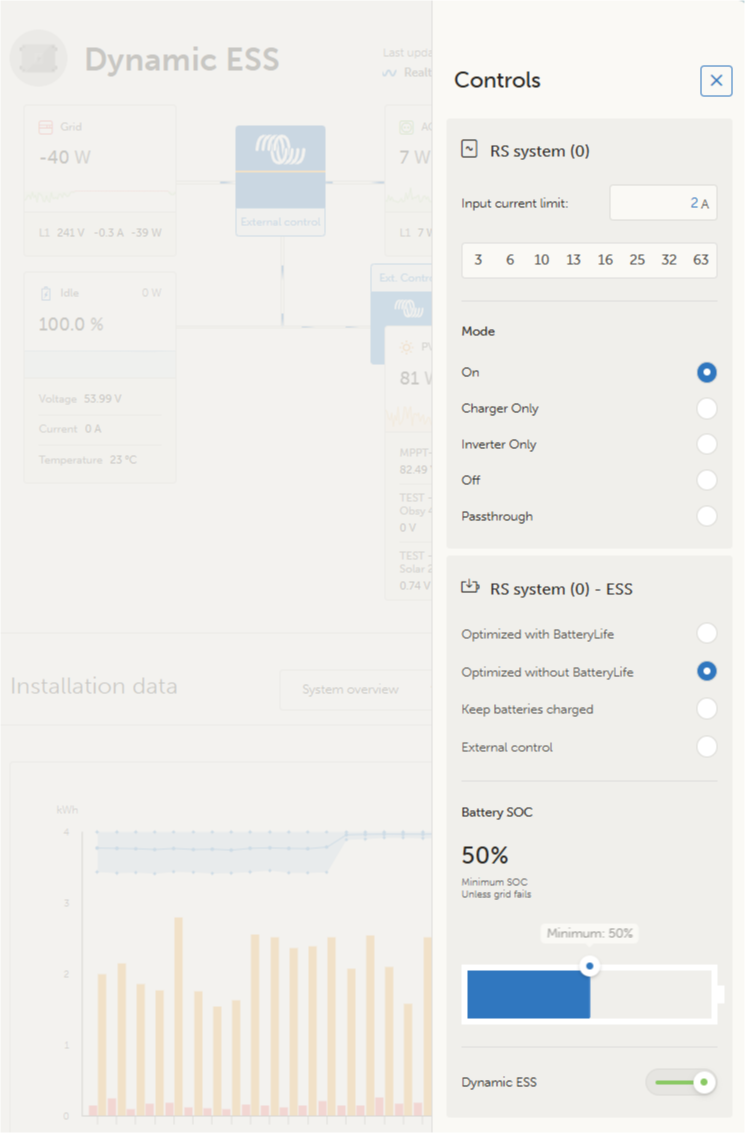
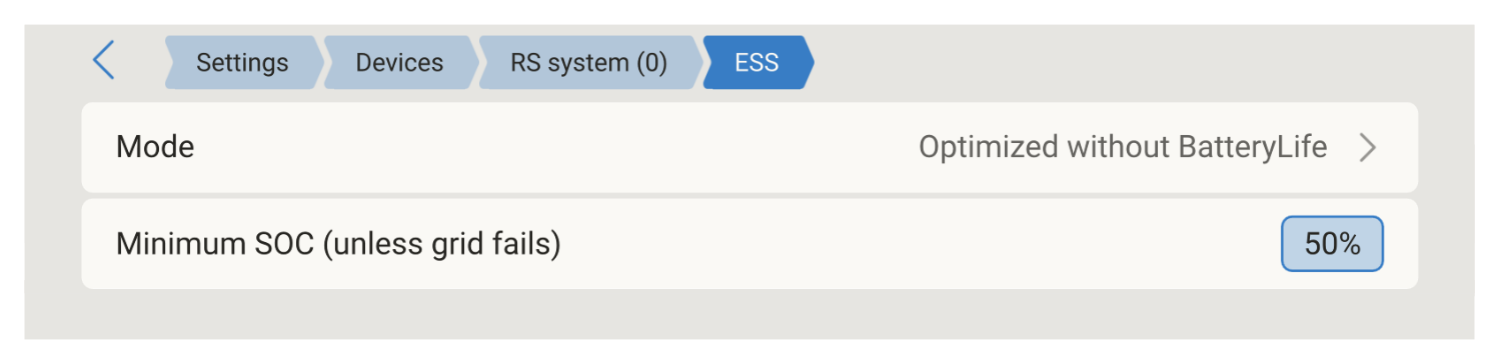
The minimum SOC is the floor that Dynamic ESS plans against. Dynamic ESS is not designed to operate while the state of charge is below the minimum SOC, and if the battery does fall below it, the system hands control back to standard ESS operation.
The minimum SOC and the Mode setting can both be set from VRM or from the GX device.
|   |
Lowering the minimum SOC has no adverse effect on Dynamic ESS. Raising it above the current state of charge may mean the battery has to be charged manually, because Dynamic ESS will not run below the minimum.
BatteryLife
BatteryLife works against Dynamic ESS and should be switched off.
BatteryLife raises the Active SOC limit by 5% each day for as long as the battery fails to reach 100% state of charge, which under Dynamic ESS it typically does not. Whenever the Active SOC limit sits above the minimum SOC, Dynamic ESS treats the Active SOC limit as the floor instead, so the usable window shrinks day after day. The battery discharges less and less, and stays progressively fuller. Dynamic ESS has no means of compensating for this.
To switch BatteryLife off, set Mode in the ESS menu to Optimized without BatteryLife.
Where the battery requires a periodic full charge, use the Battery balancing setting in the Battery step of the setup wizard.
3.9. Power limits
The maximum import power and maximum export power entered during setup, on the System step, are planning values. Dynamic ESS uses them as the assumed ceiling of the grid connection when it builds the schedule. They do not themselves enforce a limit.
Actual enforcement is handled by the ESS current limits, which cap import and export in real time regardless of the schedule. These are part of standard ESS and apply whether or not Dynamic ESS is running. Set them so that they are consistent with the values entered during Dynamic ESS setup.
Maximum system import current and maximum system export current: Set per phase. These cap the current drawn from and fed to the grid in real time.
Maximum feed-in: Caps the total power fed into the grid.
For how to set these limits and how they behave:
VE.Bus inverter/chargers: see the ESS Design & Installation Manual.
VE.Can inverter/chargers: these settings are made in VictronConnect. See the product manual for the model in use.