Corporate logotype
Corporate logotype
  • 1. Warning
  • 2. Introduction and requirements
    • 2.1. Download VEConfigure
  • 3. Demo Mode Menu option: “Fake target with full options”
  • 4. Get Settings
  • 5. Send settings
  • 6. Save, Load and Export Settings
  • 7. General Settings
  • 8. Grid Settings
  • 9. Inverter Settings
  • 10. Charger Settings
  • 11. VE.Bus Monitor and AC Input Connection timer
  • 12. Virtual Panel
  • 13. Virtual Switch
    • 13.1. Programming example
    • 13.2. Ignoring AC Input with Virtual Switch
  • 14. Assistants
  • 15. Remote VEConfigure
  • 16. Firmware Updates
  • 17. Setting up split-, three-phase and parallel systems
  • 18. Troubleshooting
    • 18.1. I am having connection issues
      • 18.1.1. See if the MK3-USB works with a GX device
    • 18.2. I am having settings issues and would like to start again
    • 18.3. Still having issues?

VEConfigure

print
  •  VEConfigure
  • Virtual Panel
  • Prev
  • Next

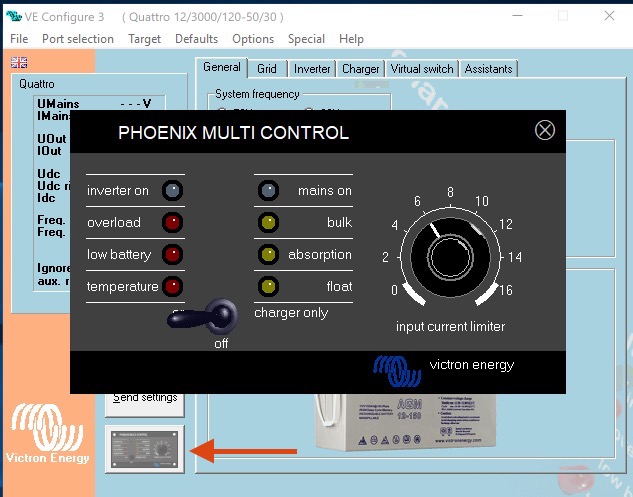
12. Virtual Panel

In this section:
virtual-panel.jpeg

The virtual panel works exactly like the normal Digital Multi Control panel. When used for the first time it may be necessary to switch the Multi off and on before it will respond to the interface.

To close it, click the the ‘screw head’ in the upper-right corner.

Search results

    No results found

    • Prev
    • Next
    © 2021 Victron Energy
    Publication date: